
How to add sticky notes
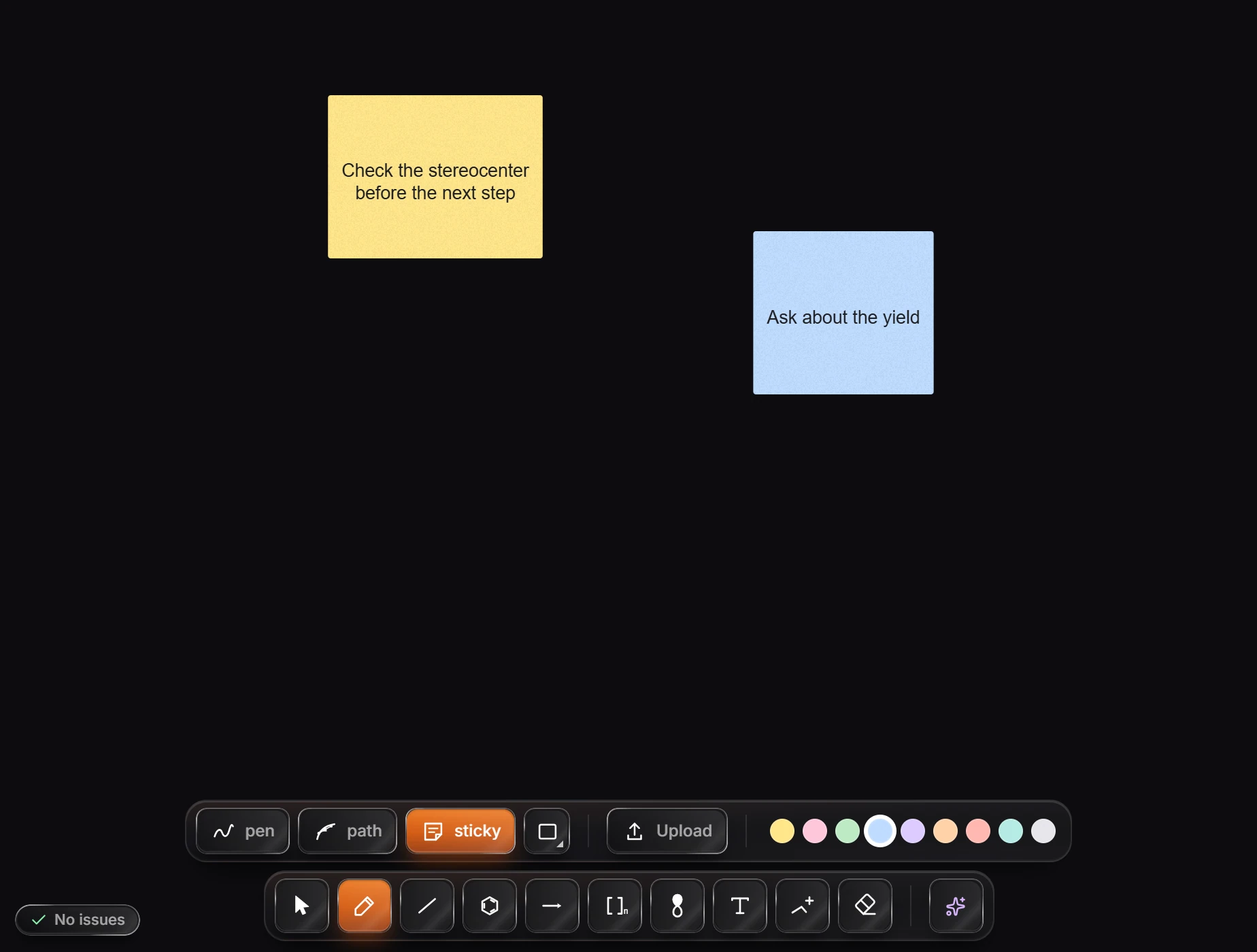
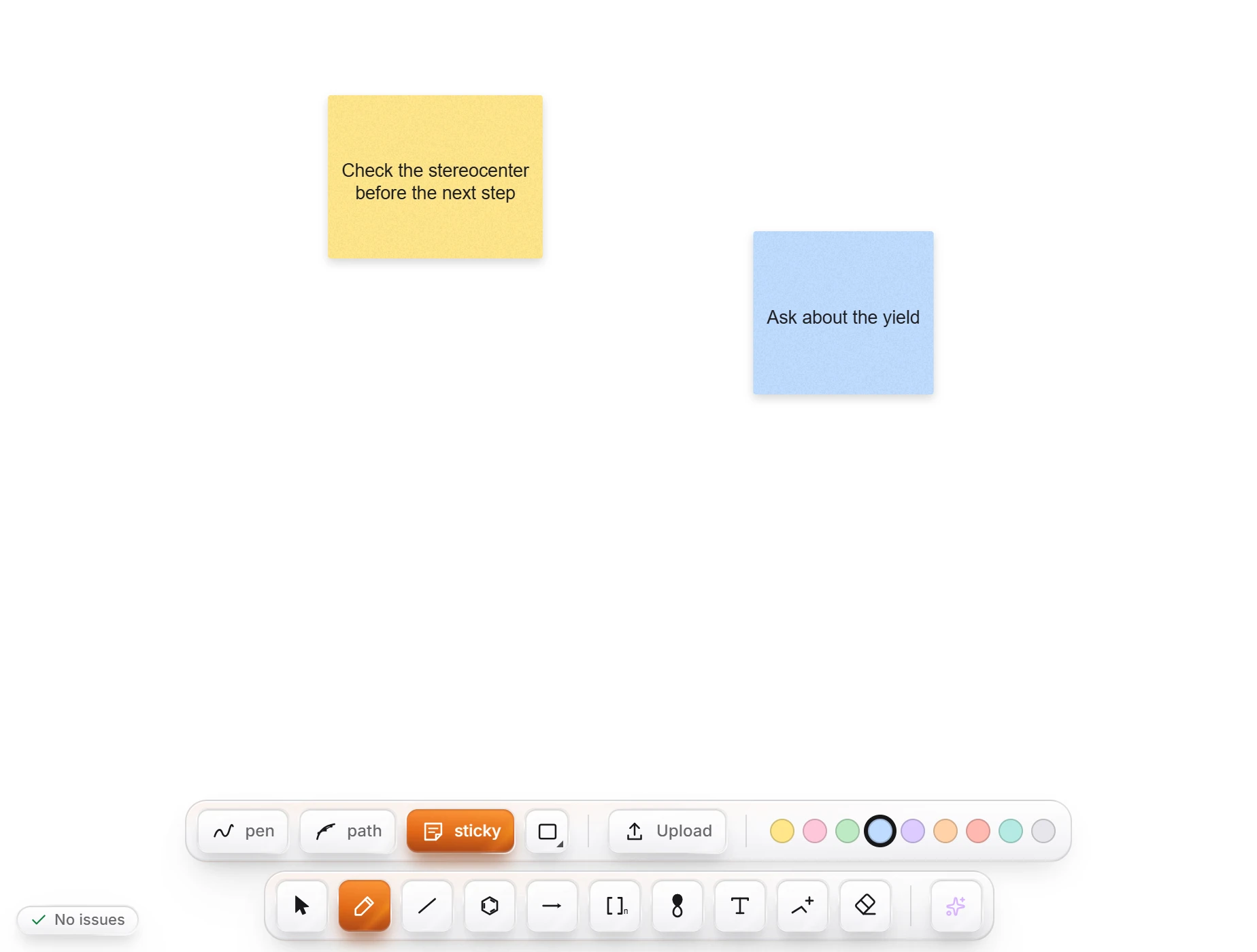
Press P for the pen row and choose sticky (or press N there), pick a paper color, and click the canvas. Shift+S drops a note from any tool. Type straight away; Enter starts a new line and Esc finishes. Text wraps and shrinks to fit the note.
Steps
Press P for the pen row and choose sticky (its key on that row is N). From any other tool, Shift+S drops a note under the pointer.
Pick a paper color on the row: yellow, pink, green, blue, purple, orange, red, teal or gray.
Click the canvas. A note appears where you clicked, ready to type.
Type. Enter starts a new line, and Esc finishes. Long text wraps, and the text shrinks to fit when the note fills up.
Change a note
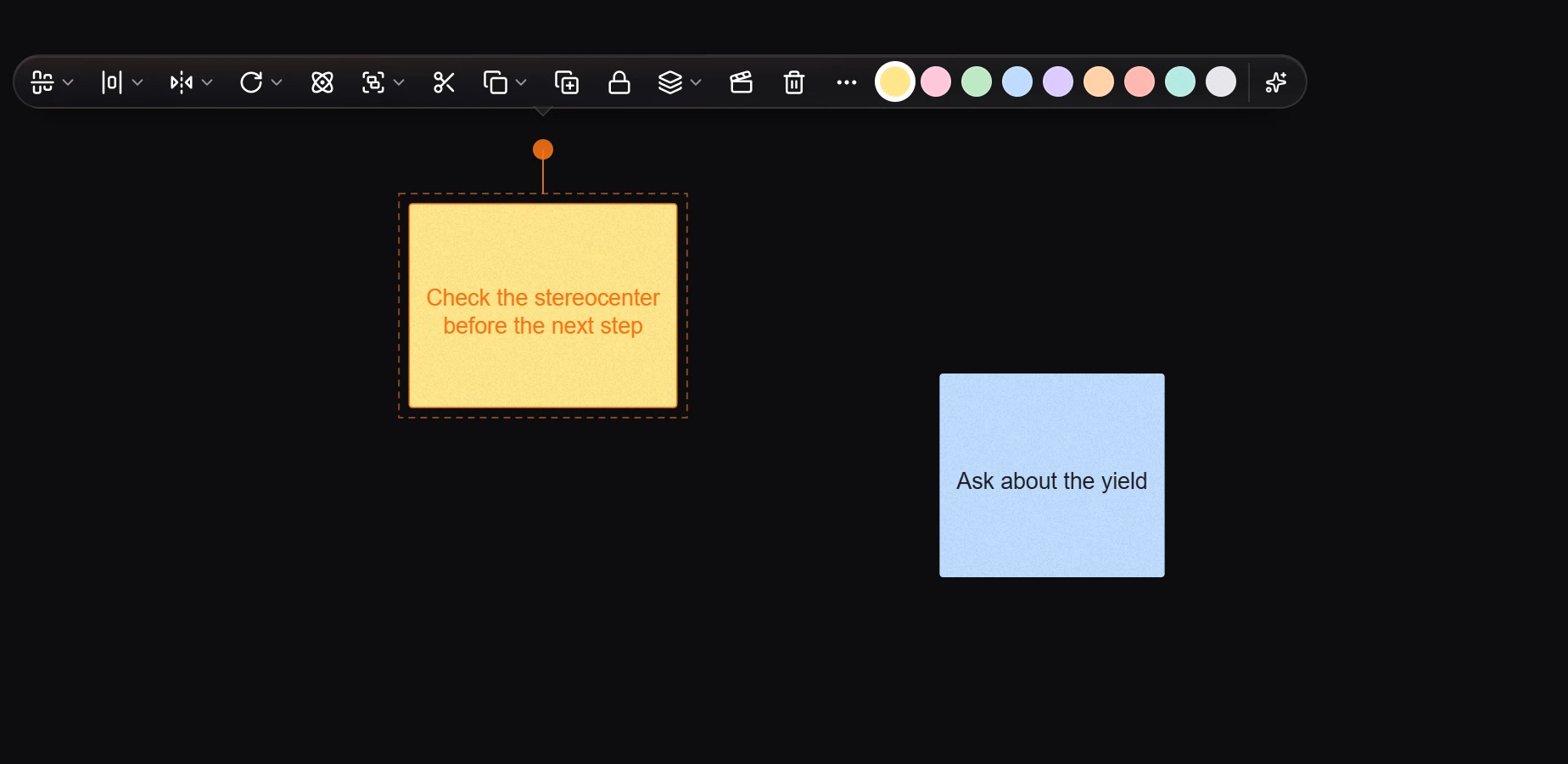
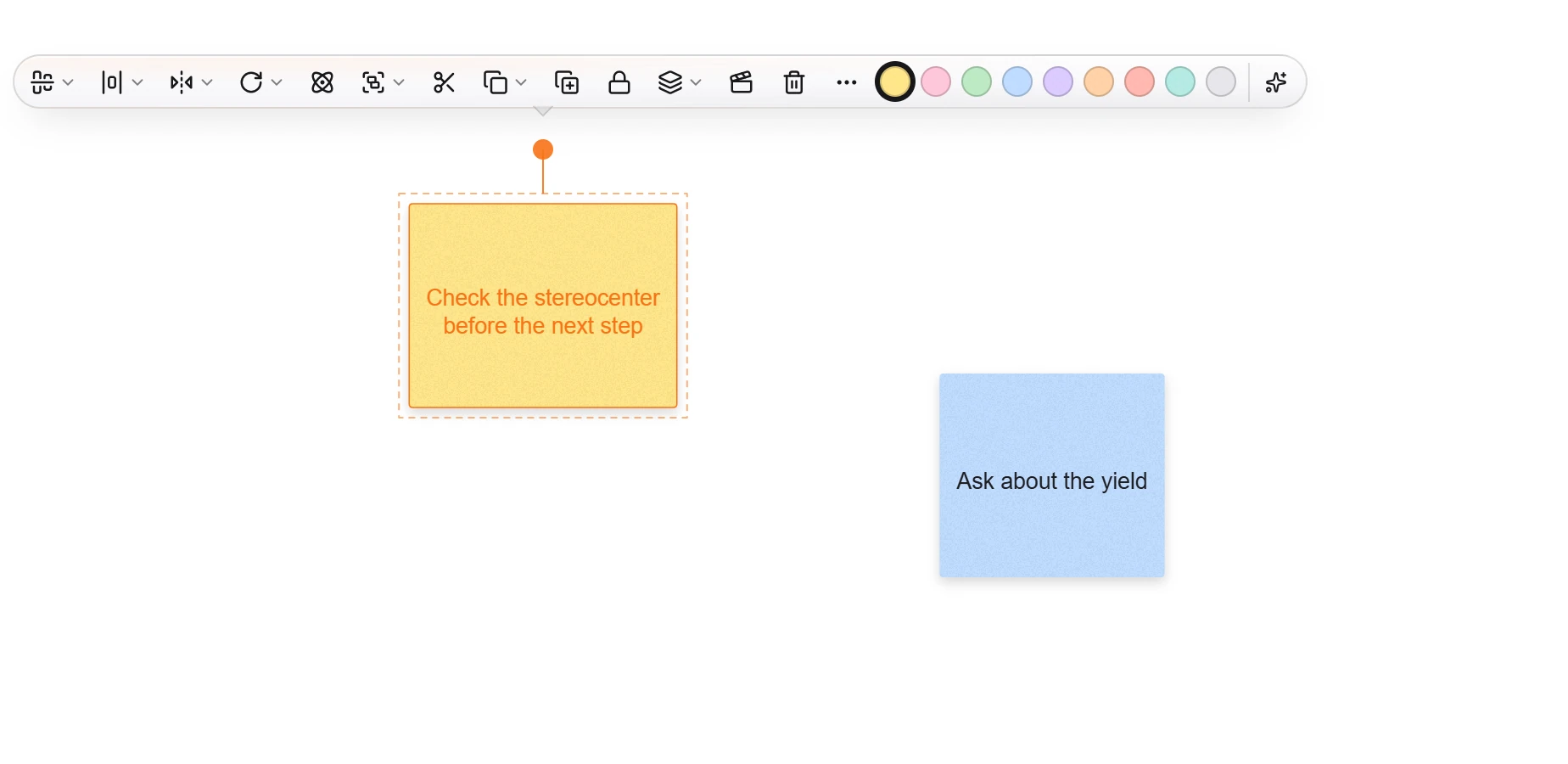
Color: select the note with Select (V). The selection bar shows the paper colors; press one.
Duplicate: hold Alt and drag the note.
Each note is listed in Layers as Sticky note, and it moves like any other object.
Tip
Notes are for you and your collaborators. For text that belongs in the figure itself, use the Text tool. For feedback pinned to a spot, use comments.
Is this helpful?
Last updated Nov 13, 2026
- Still stuck? Read the FAQ or contact support.
- Something wrong on this page? Tell us.
- For AI tools: llms.txt