
Selection and arranging
Select, move, flip, align, group, hide, lock and find things on the page, and the Layers panel.
Start here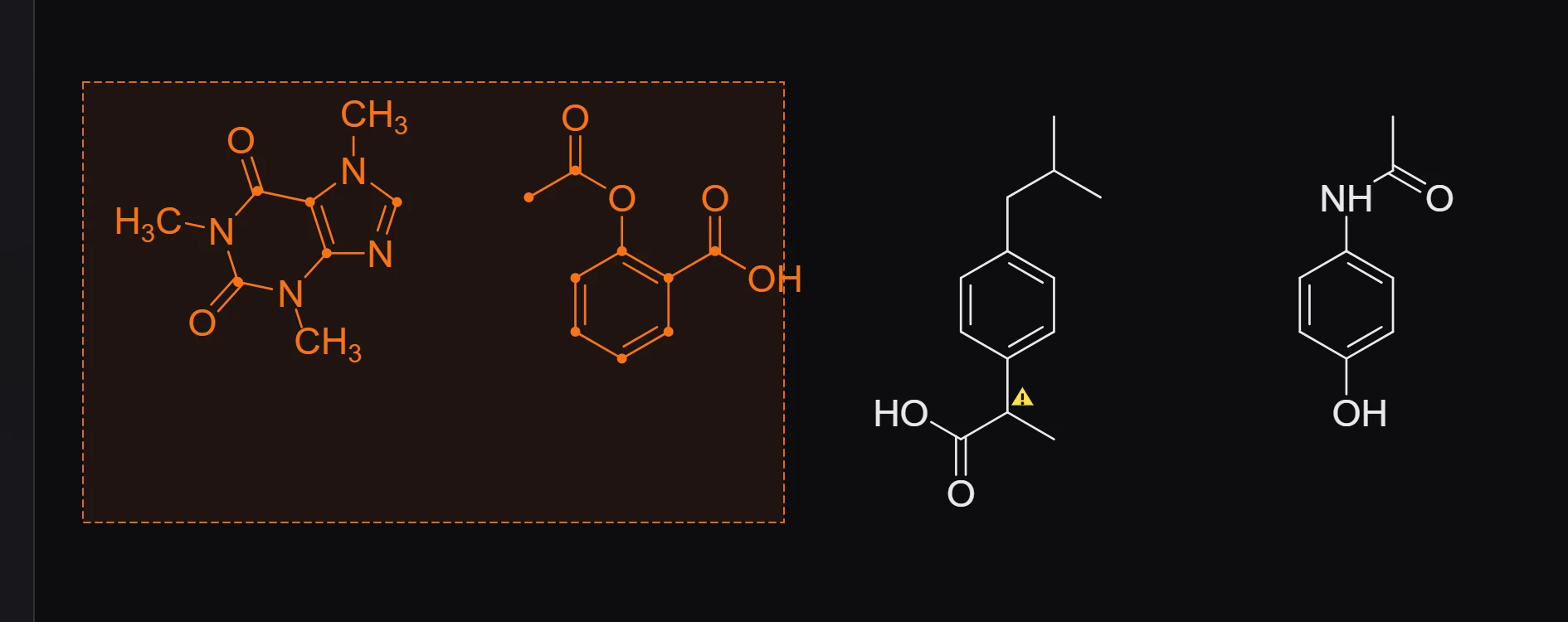
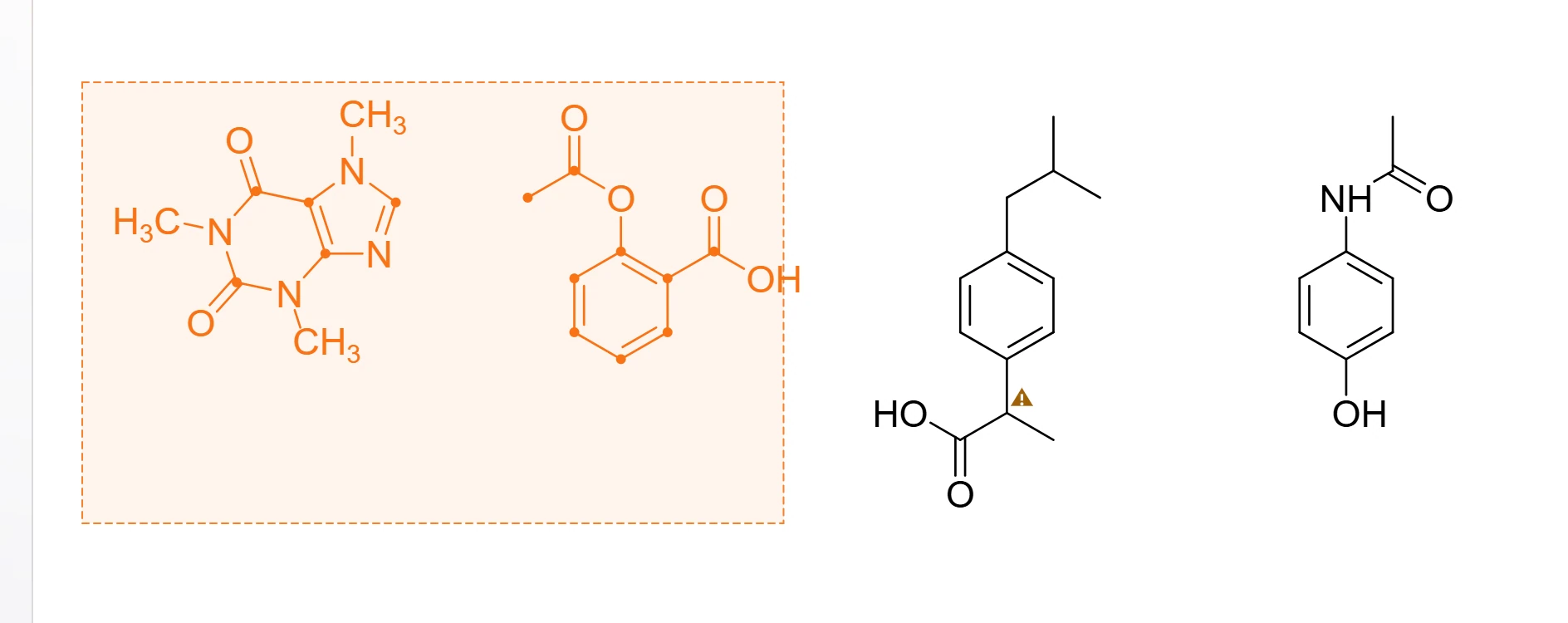 1 · How-toHow to select atoms, structures and objectsPress V. Click takes a whole structure, Marquee (M) takes only the atoms inside the box you drag, and Lasso (L) takes whatever you draw around. Select all is Ctrl+A, and Shift+click adds to the selection.
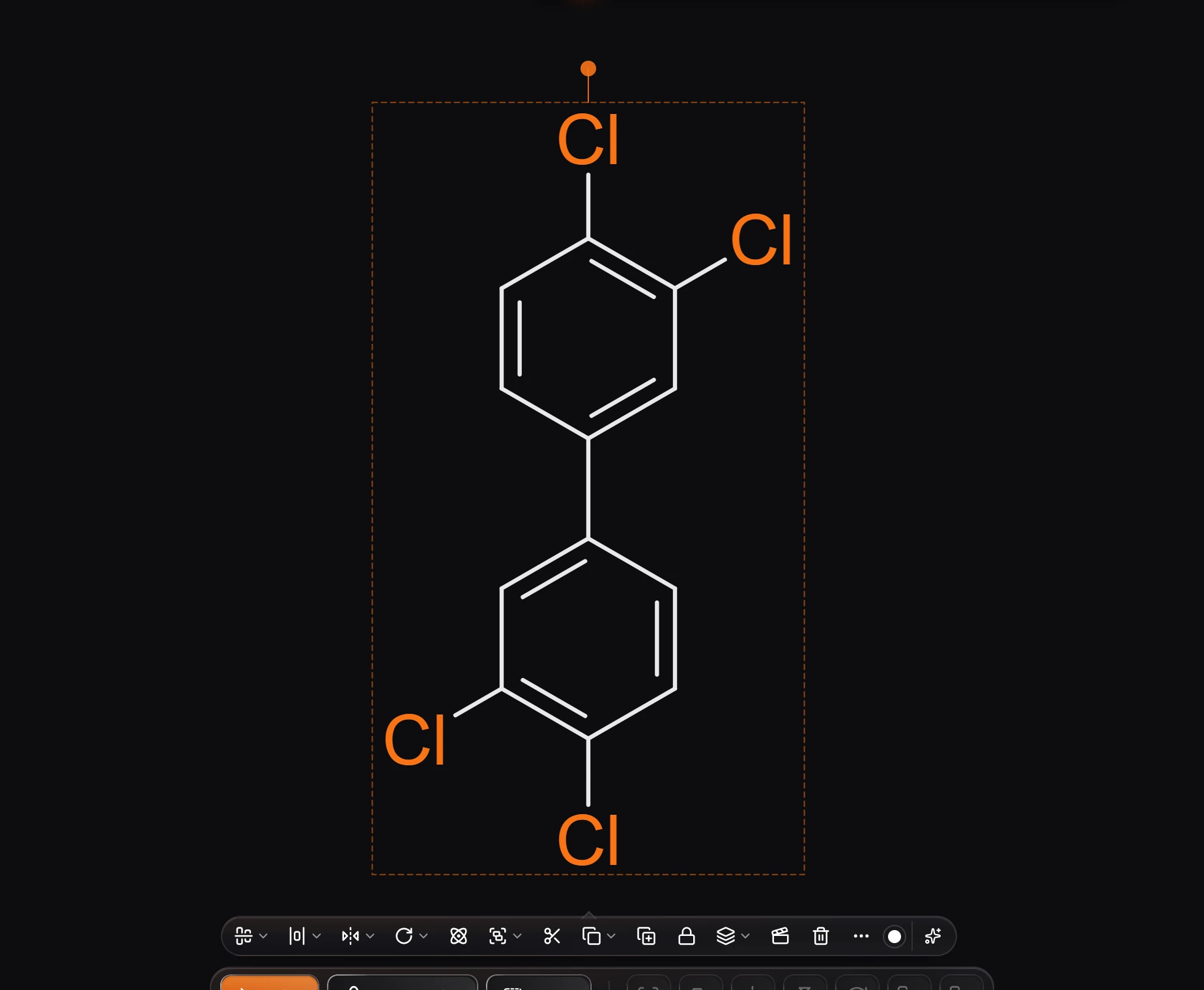
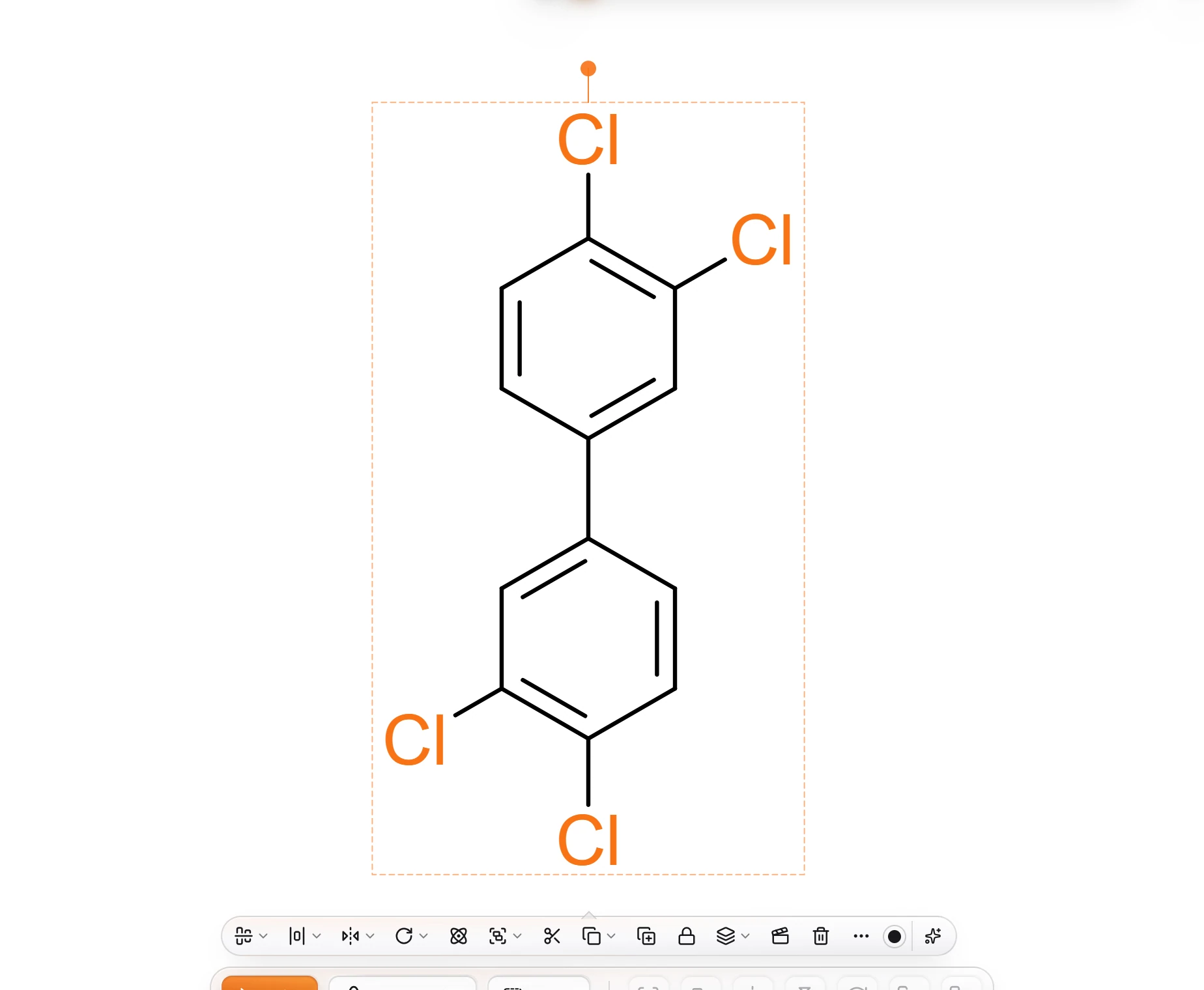 2 · How-toHow to select every atom or object of the same kindSelect one atom, bond or object, press Ctrl+K and choose Select same. Every atom of that element, every bond of that type, or every object of that kind and color is selected.
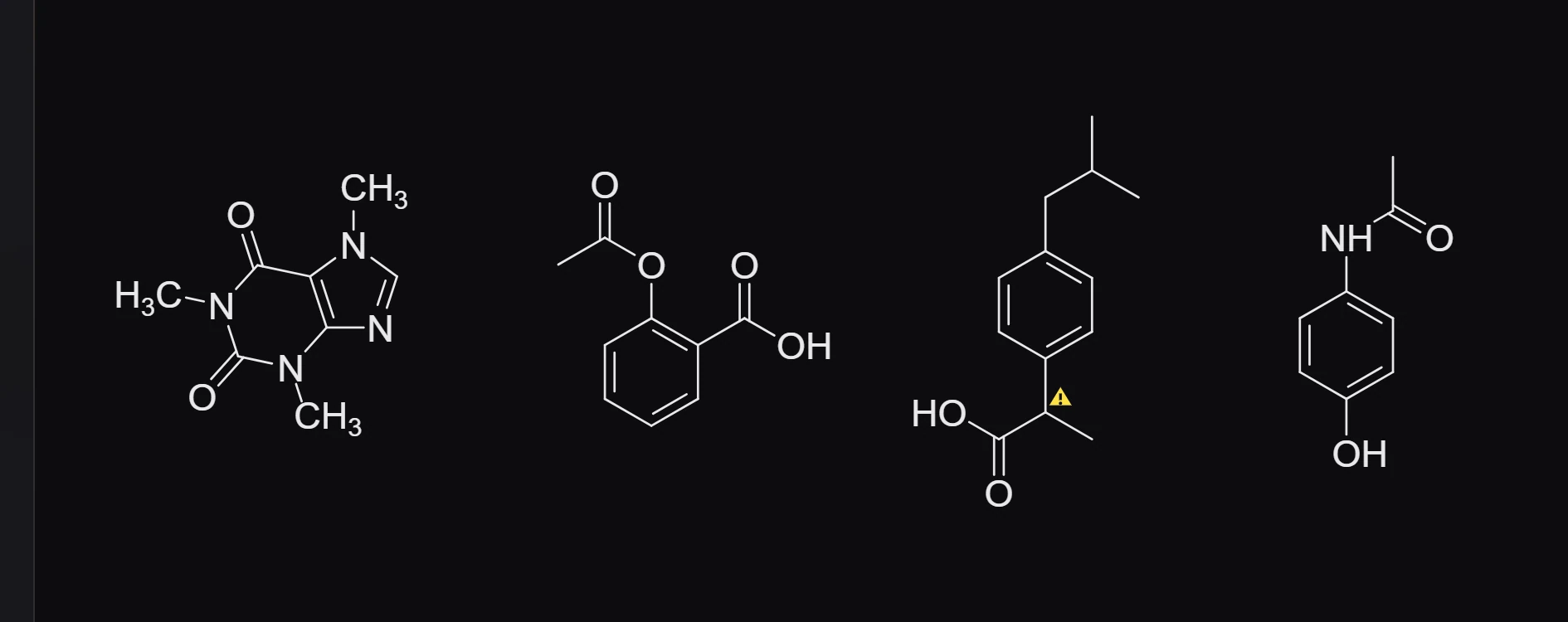
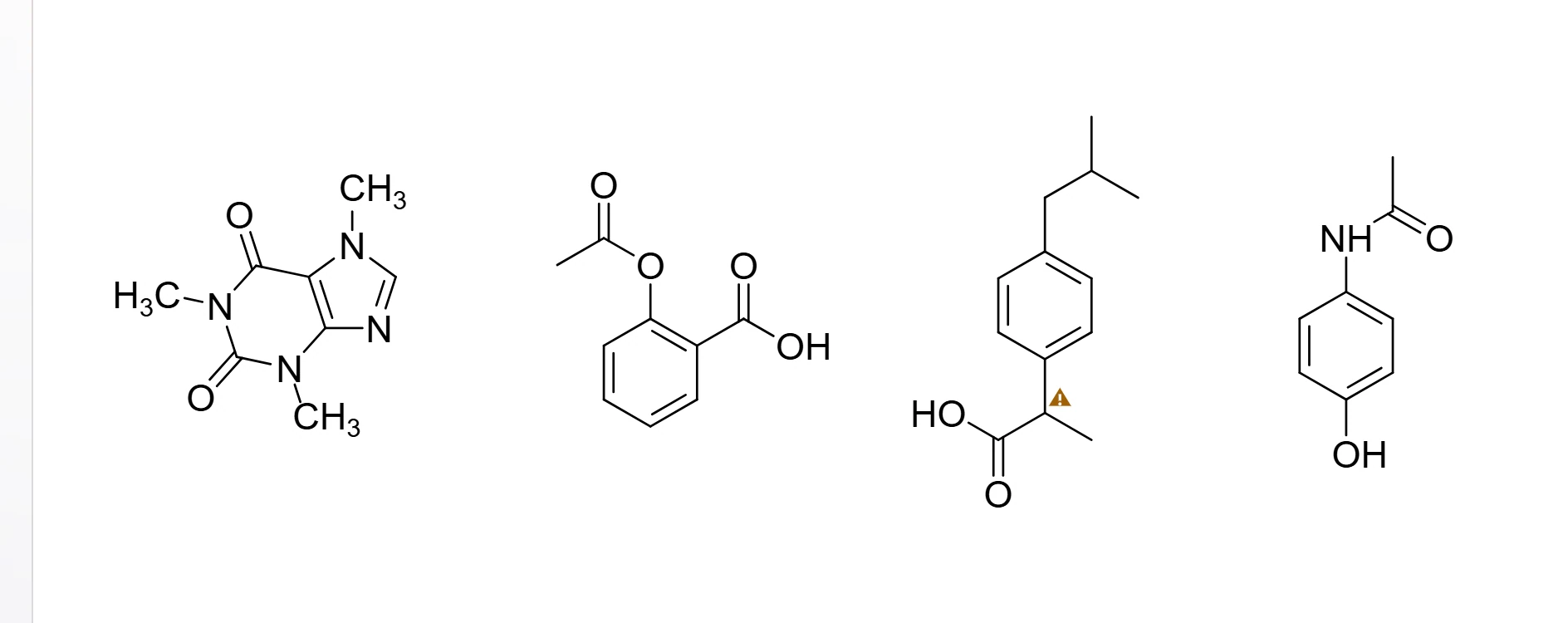 3 · How-toHow to align and space structures evenlySelect at least two things (three to space them) and use Object › Align and space, or the Ctrl+Shift+Alt shortcuts: L, C and R align left edges, vertical centers and right edges; T, M and B align tops, horizontal centers and bottoms; H and V space evenly across and down.
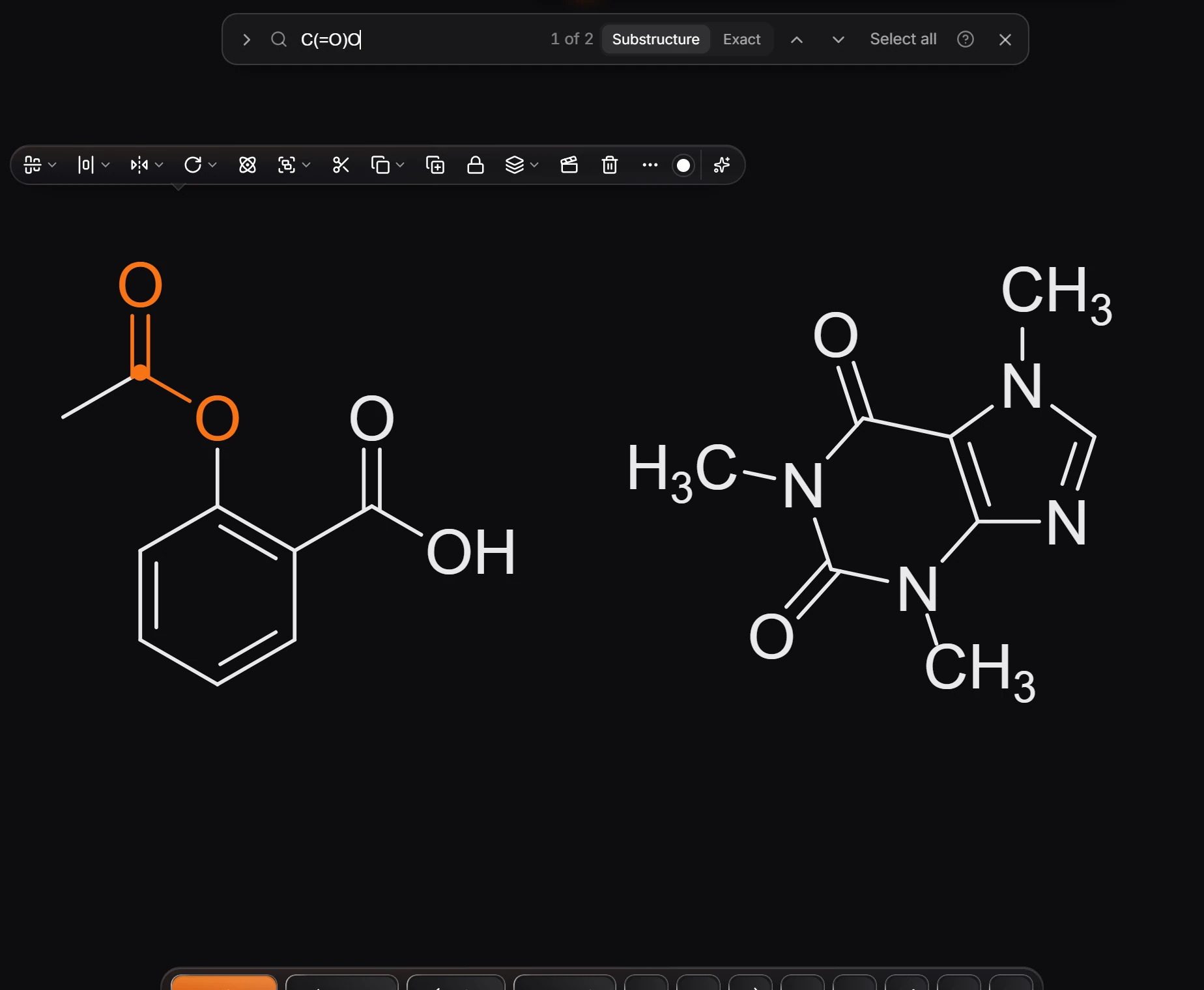
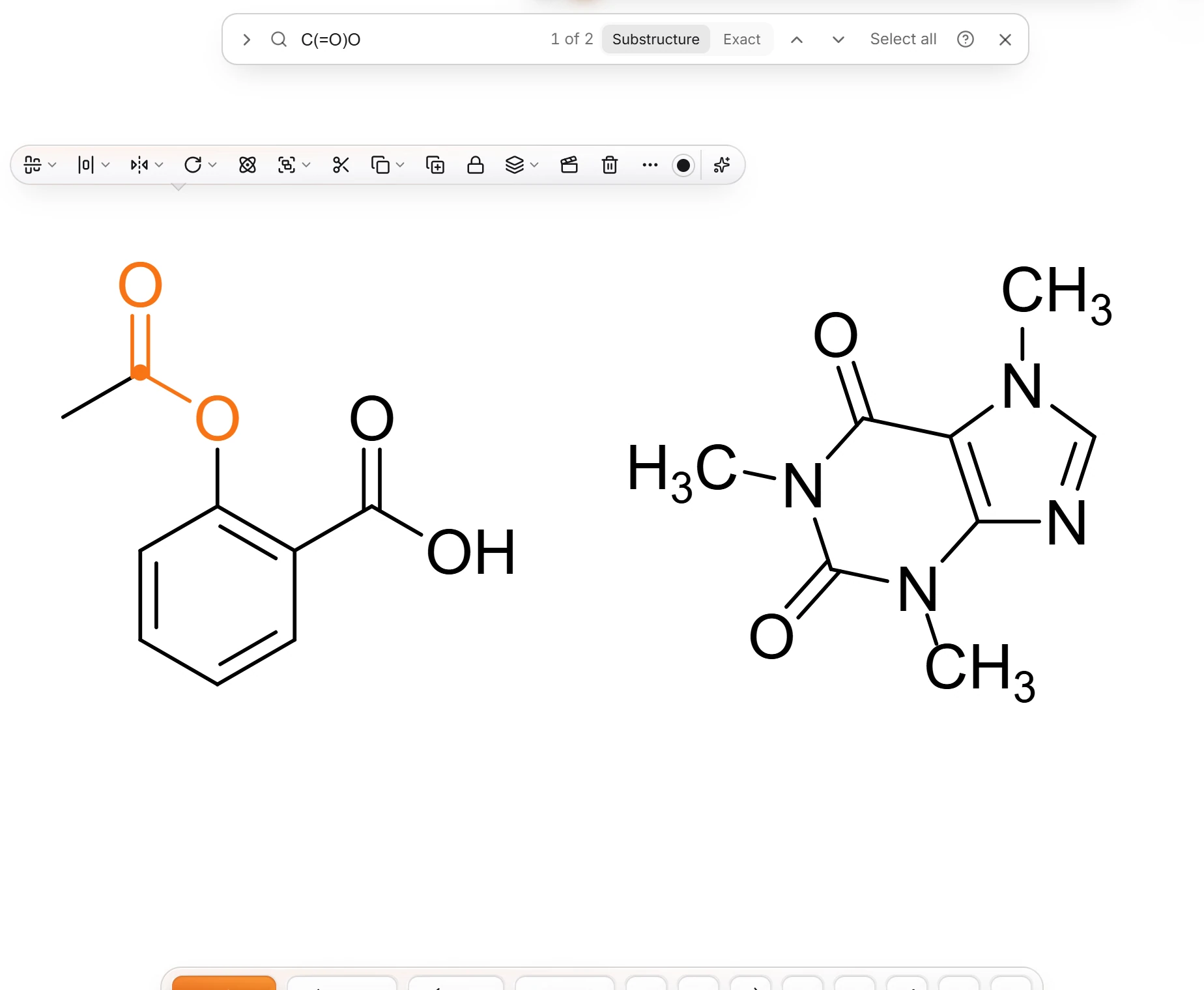 4 · How-toHow to find a structure on the pagePress Ctrl+F (Edit › Find and replace…), type a SMILES, and choose Substructure or Exact. The arrows step through the matches; Select all selects every one.
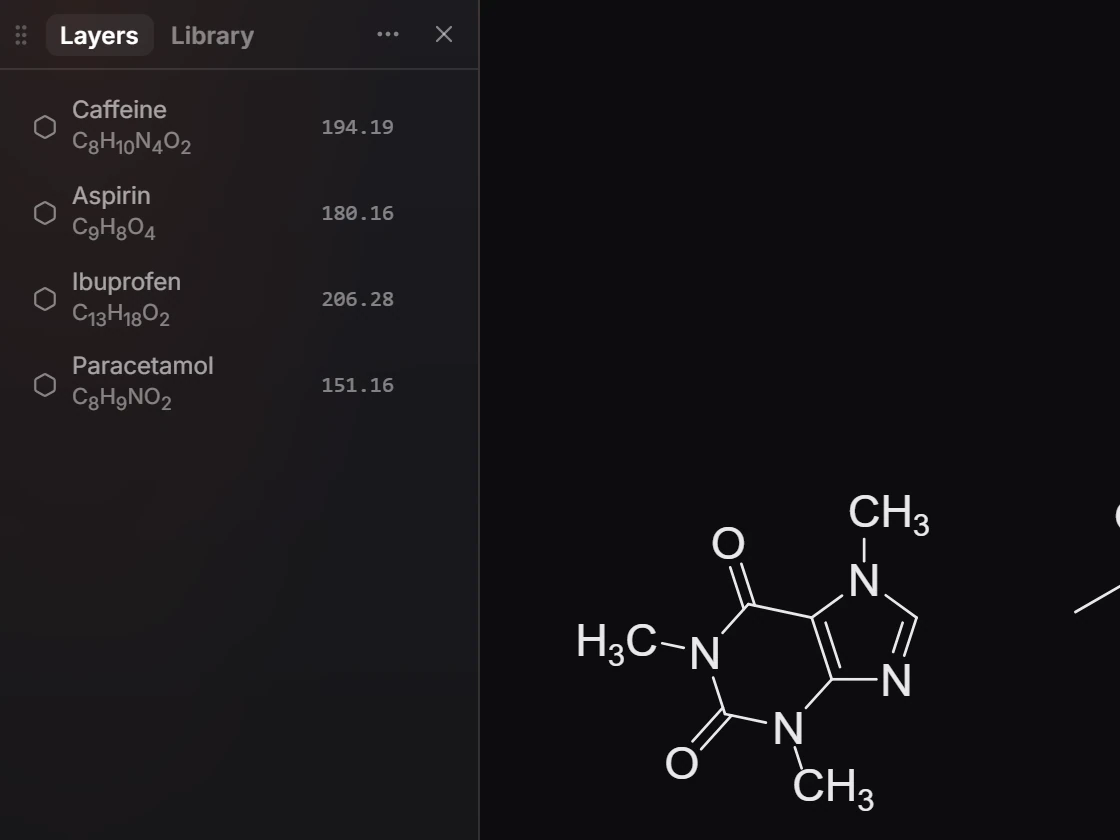
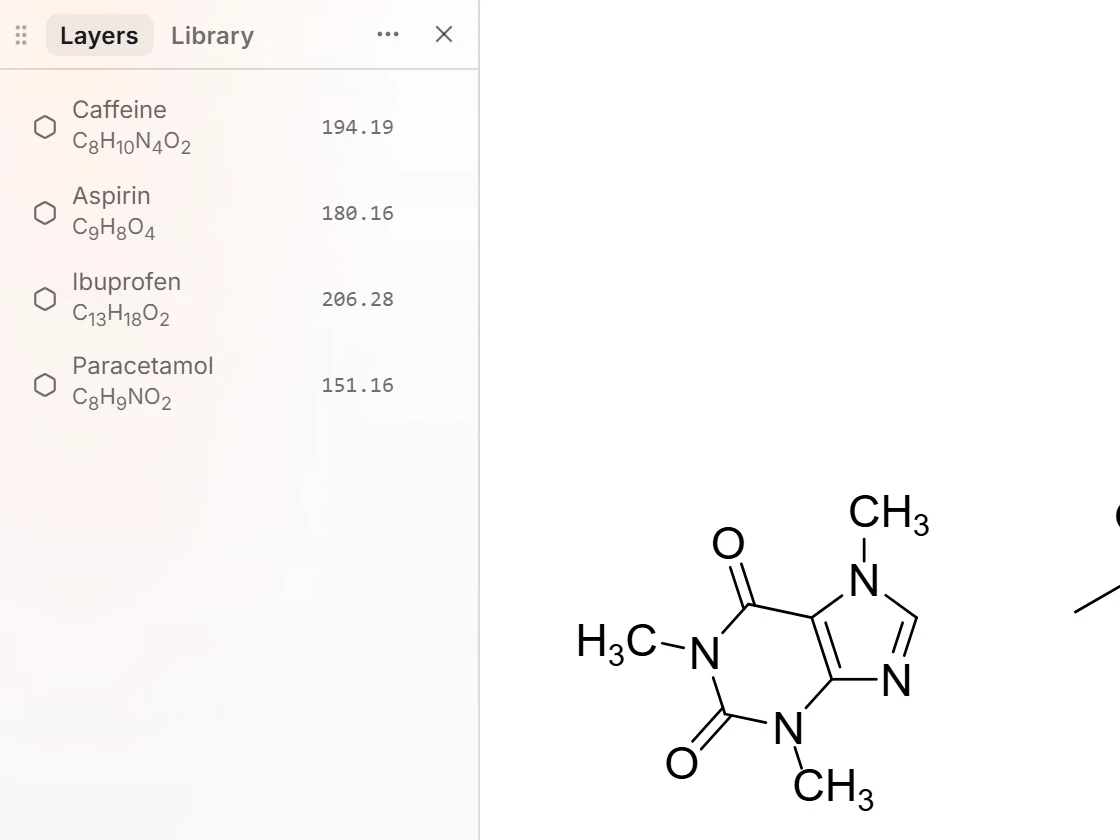 5 · ReferenceThe Layers panelLayers (Shift+L) lists every structure and object on the page, structures first, each with its formula and molecular weight. Click a row to select it, double-click a structure to name it, and use the eye to hide it.
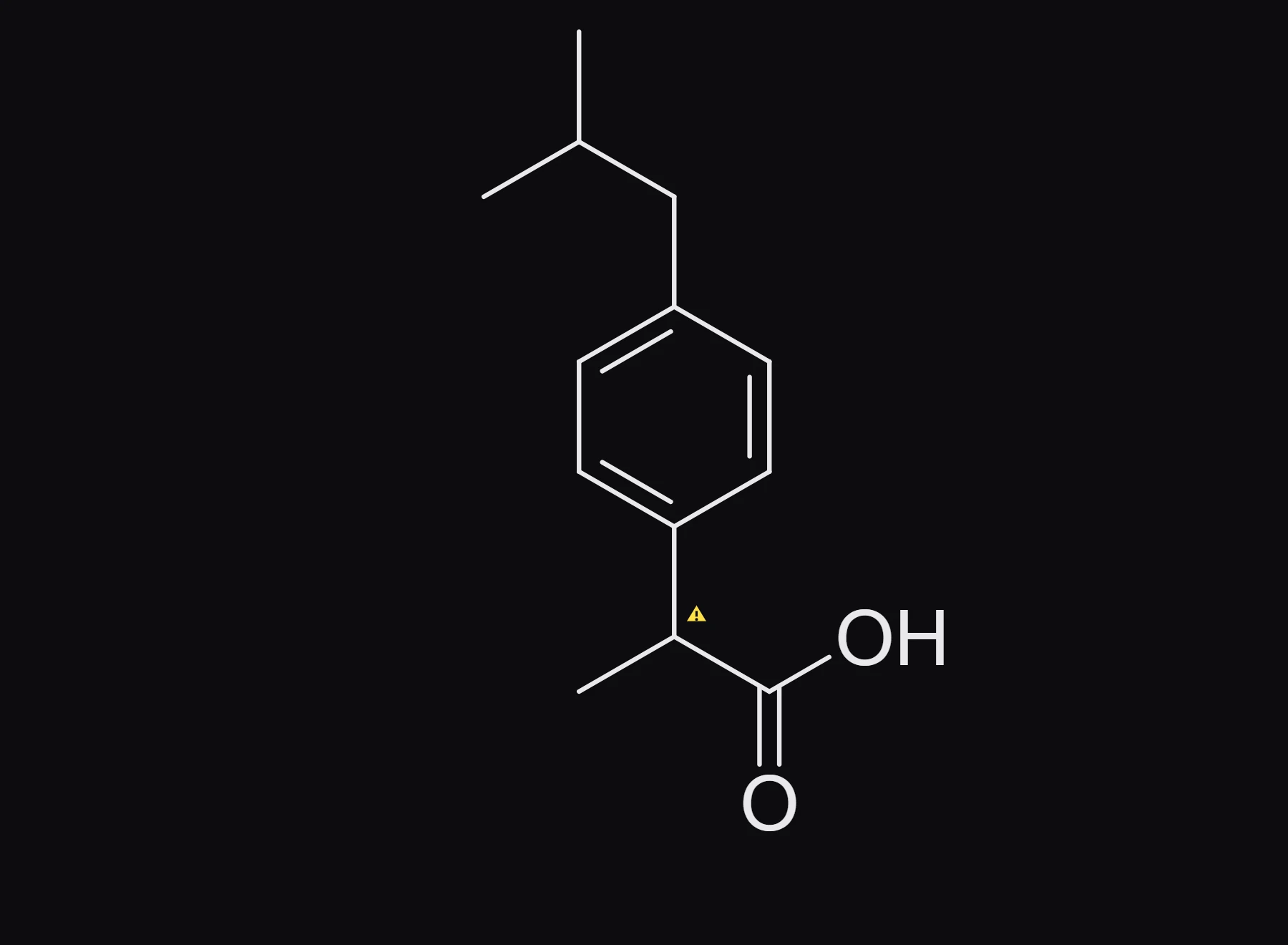
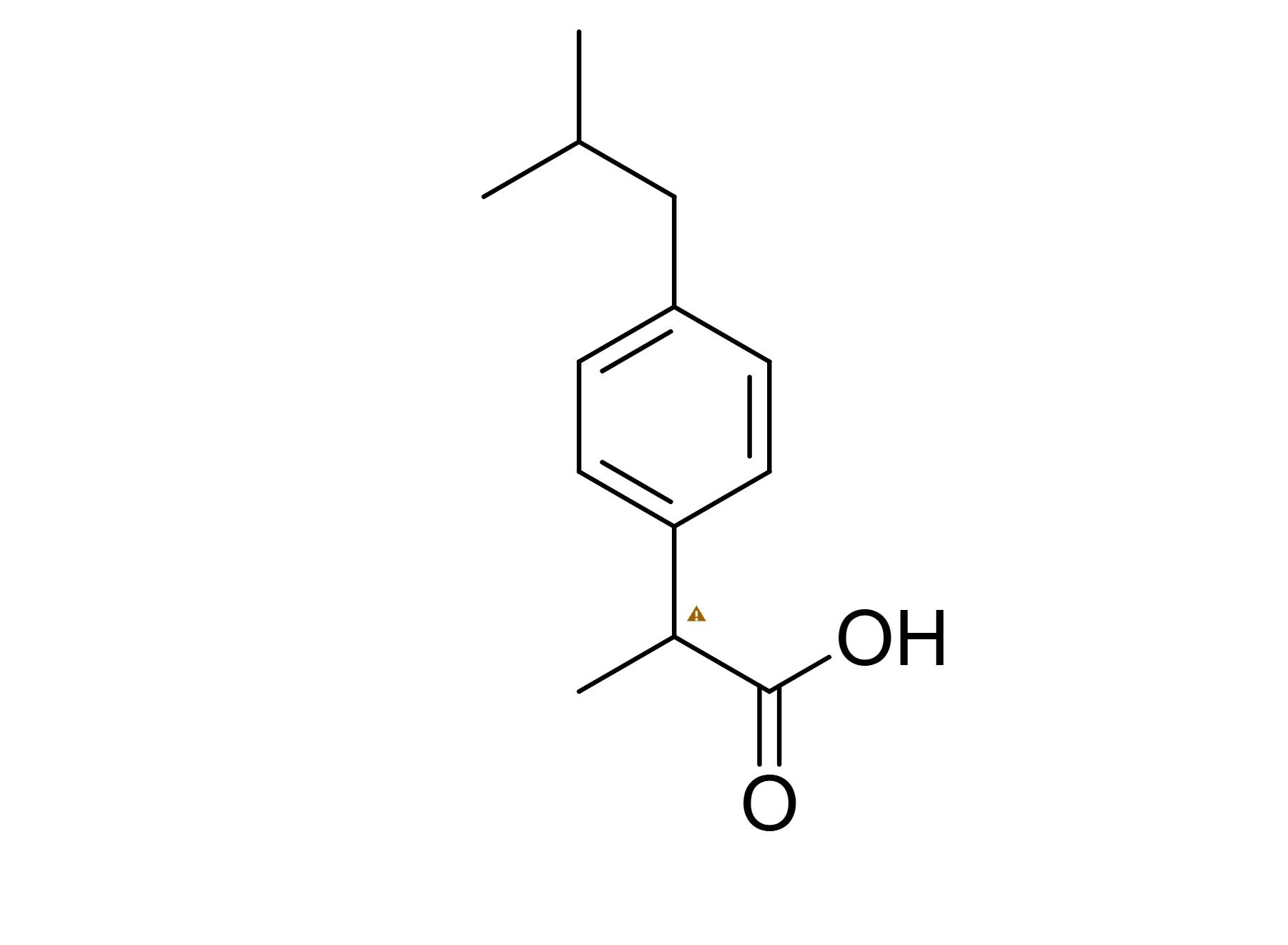 6 · How-toHow to move, rotate and flipSelect and drag to move. Use Object › Rotate 90° clockwise or counterclockwise, or the rotate button on the selection bar; Object › Flip horizontally or Flip vertically mirrors the selection.
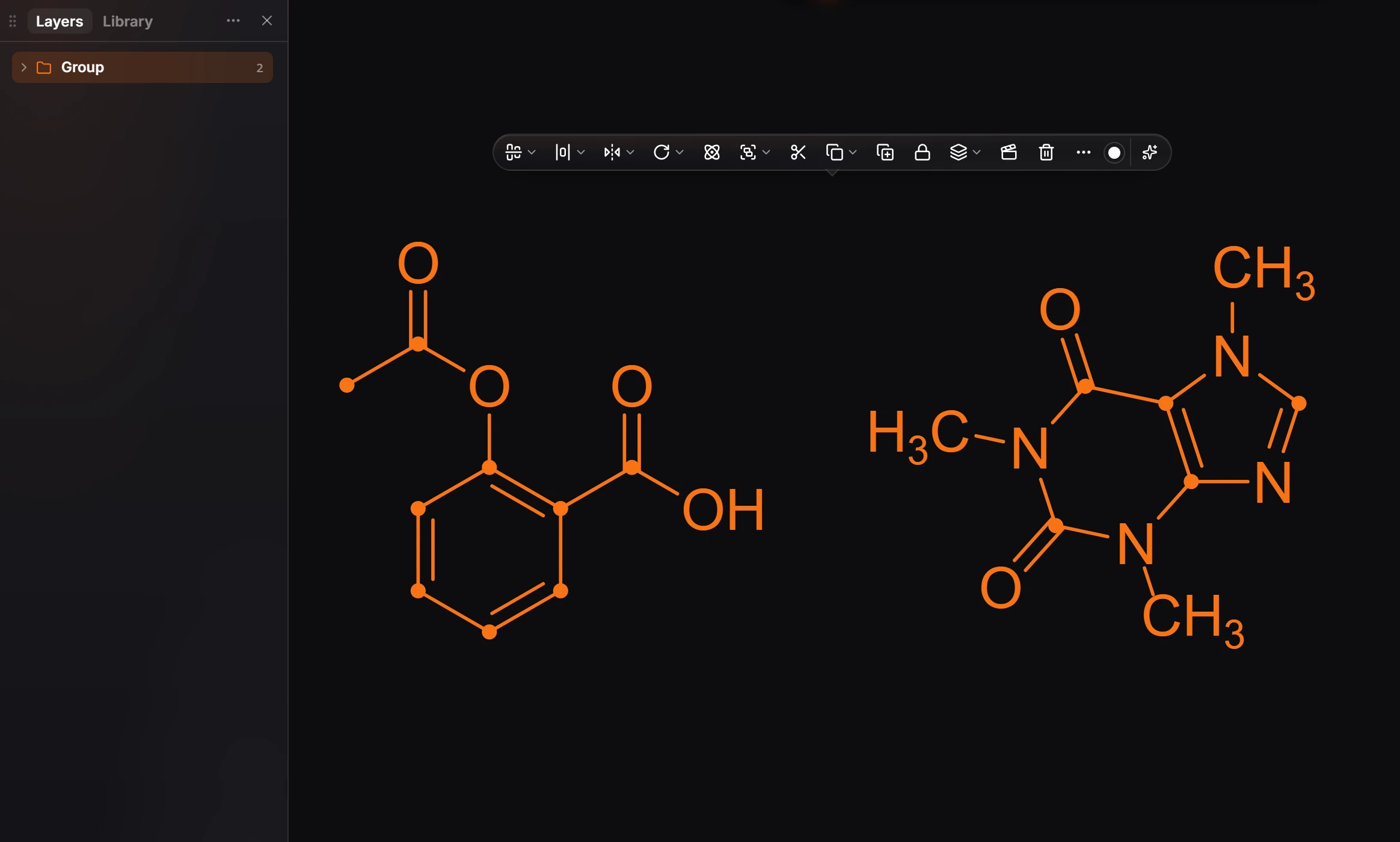
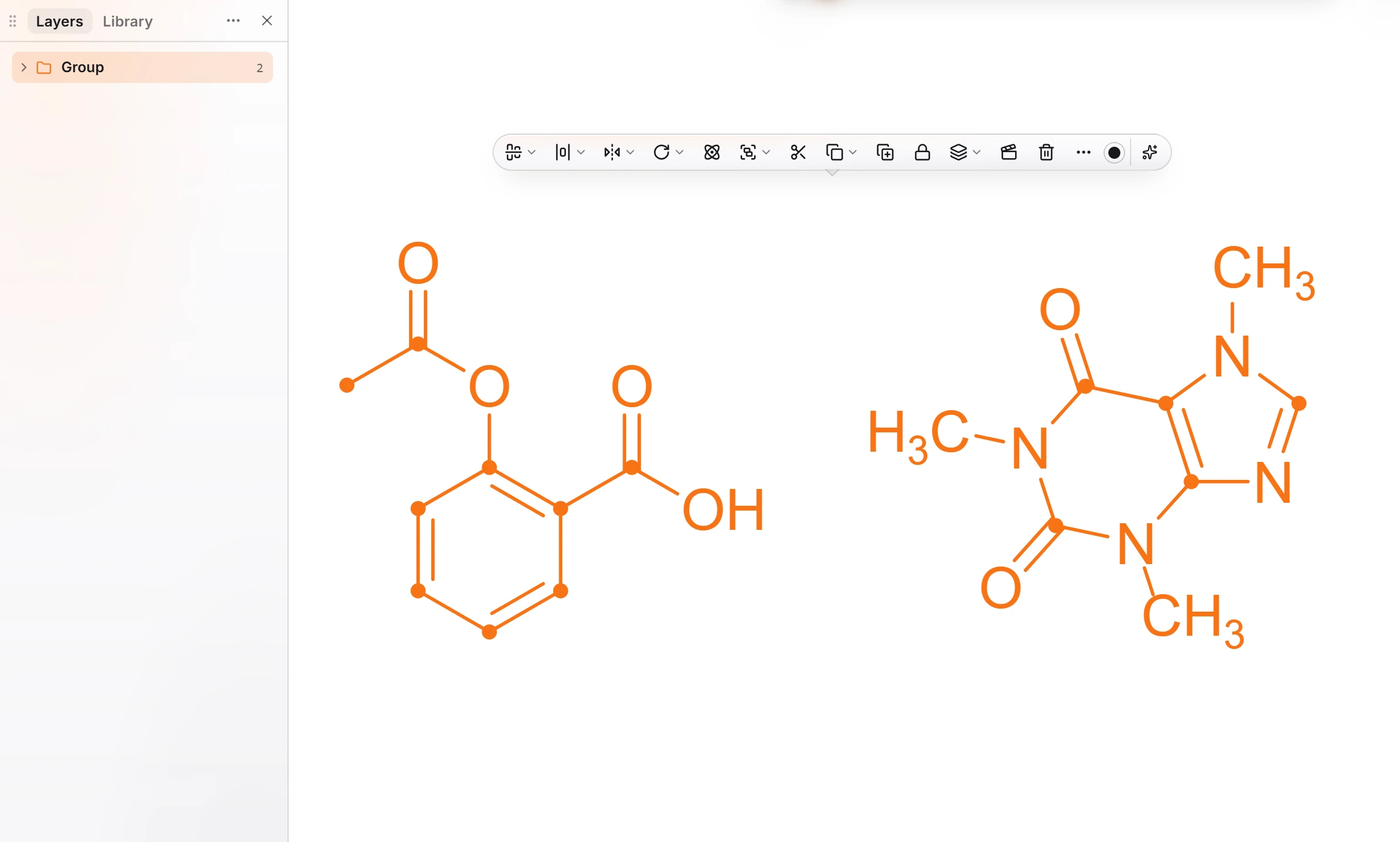 7 · How-toHow to group and ungroupSelect the objects and press Ctrl+G (Object › Group). Layers shows them as one Group. Ctrl+Shift+G (Object › Ungroup) splits it.
- 8 · How-toHow to bring to front or send to backSelect the object and press ] (Object › Bring to front) or [ (Object › Send to back).
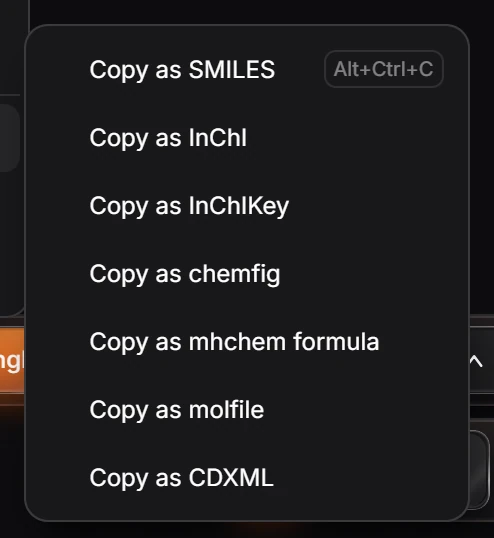
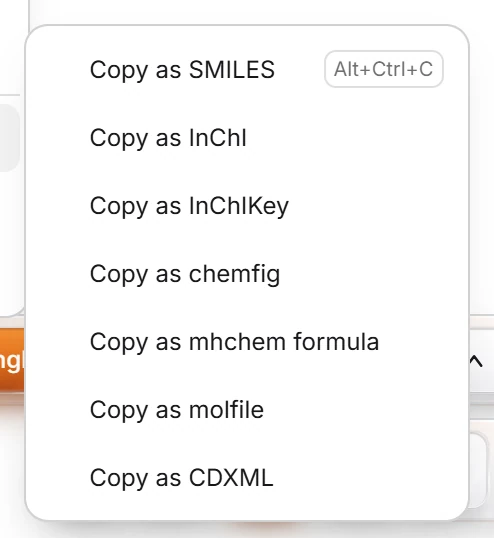 9 · How-toHow to duplicate, copy and pasteCtrl+C and Ctrl+V copy and paste; Ctrl+Shift+D duplicates beside the original; Ctrl+Shift+V pastes in the same place. Edit › Copy as copies the structure as SMILES, InChI, molfile, CDXML and more.
- 10 · How-toHow to copy and paste styleSelect the object with the style you want and press Ctrl+Alt+Shift+C (Object › Copy style). Select the others and press Ctrl+Alt+Shift+V (Object › Paste style).
- 11 · How-toHow to hide and lock objectsSelect and press Ctrl+Shift+H (Object › Hide selection) to hide, or choose Object › Lock or unlock to lock. View › Show everything hidden shows them again.
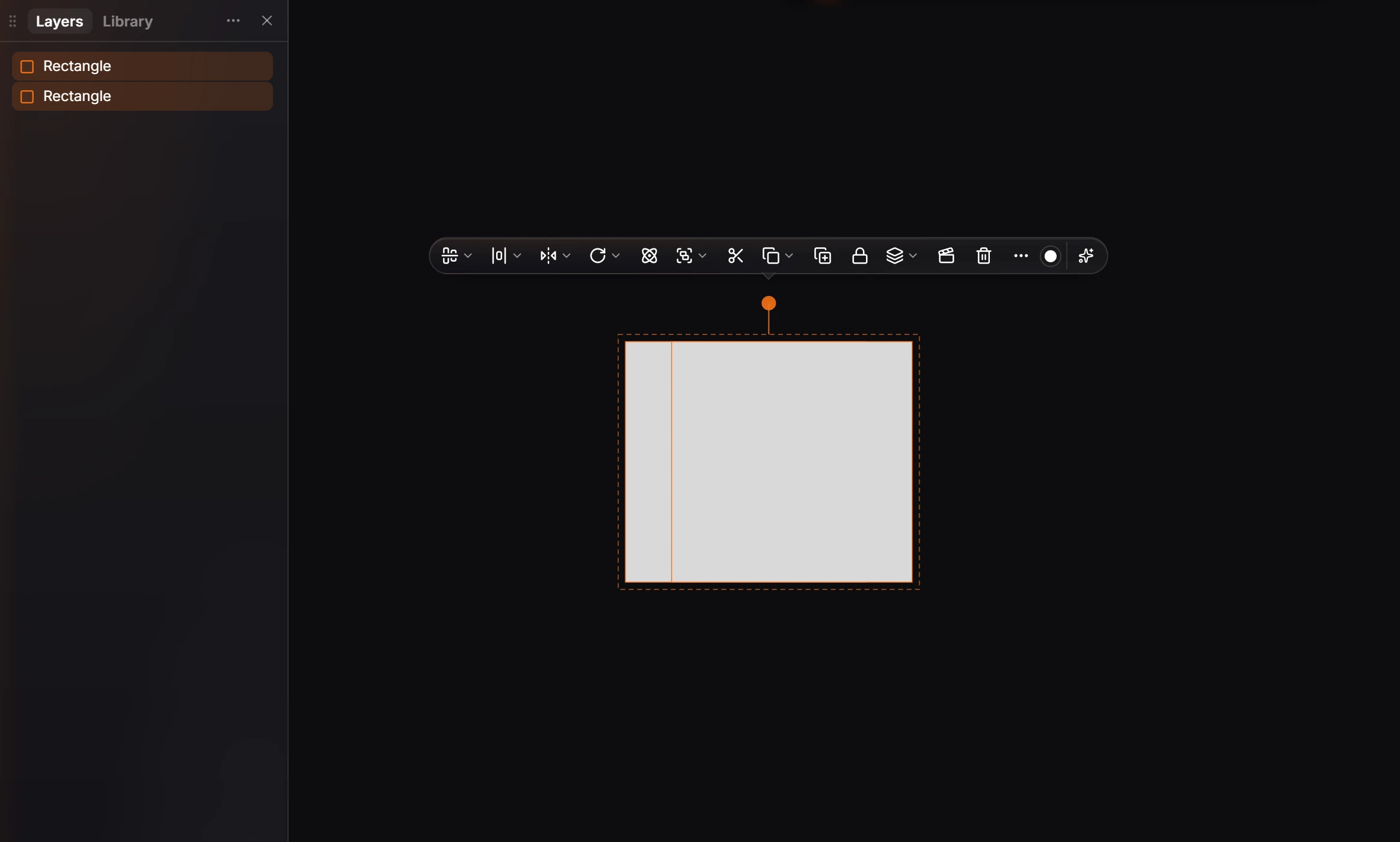
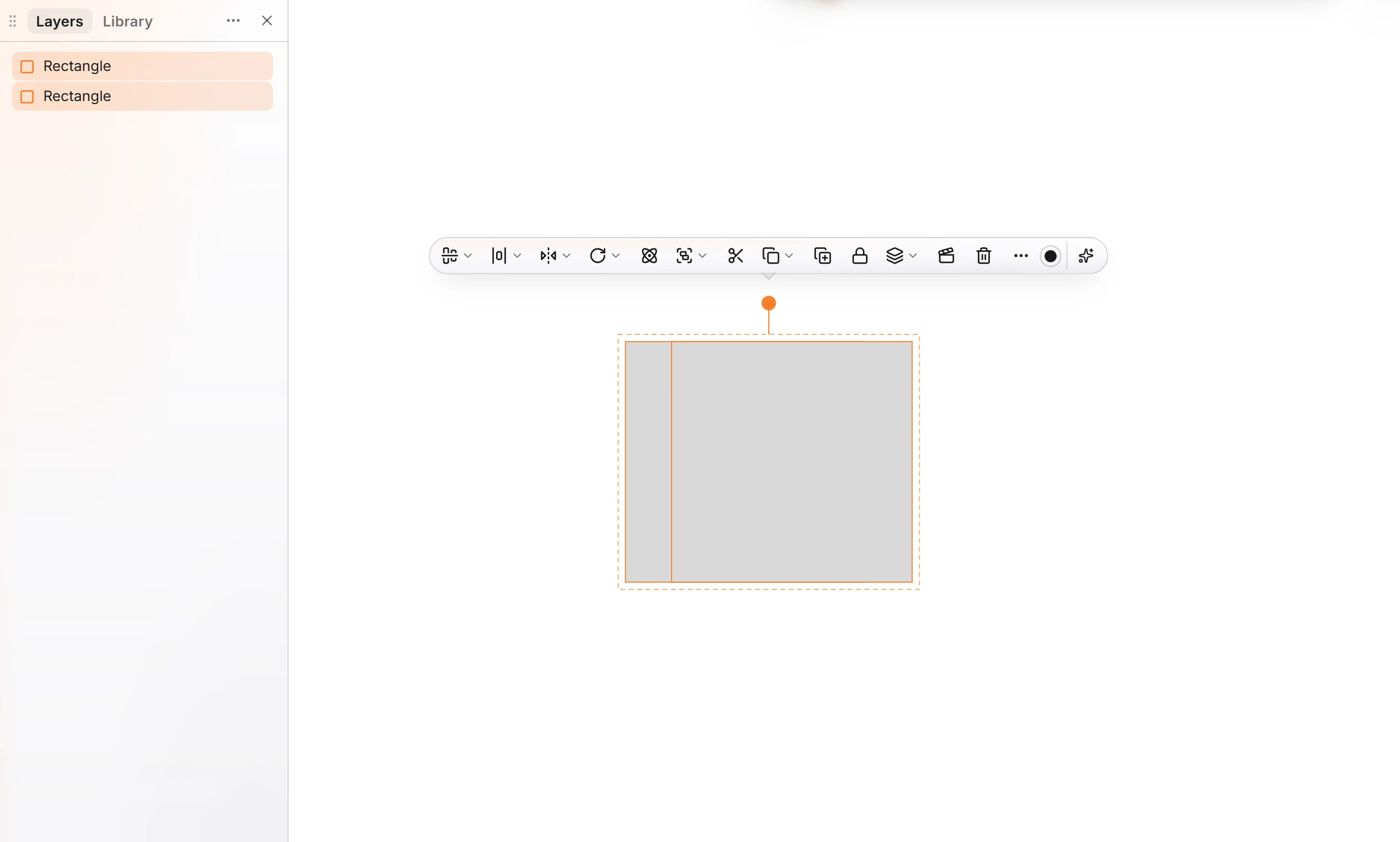 12 · How-toHow to combine shapesSelect two or more closed shapes, such as rectangles or ellipses, and choose Object › Combine shapes › Union, Subtract, Intersect or Exclude (Alt+Shift+U, S, I or E).
- Still stuck? Read the FAQ or contact support.
- Something wrong on this page? Tell us.
- For AI tools: llms.txt