
How to align and space structures evenly
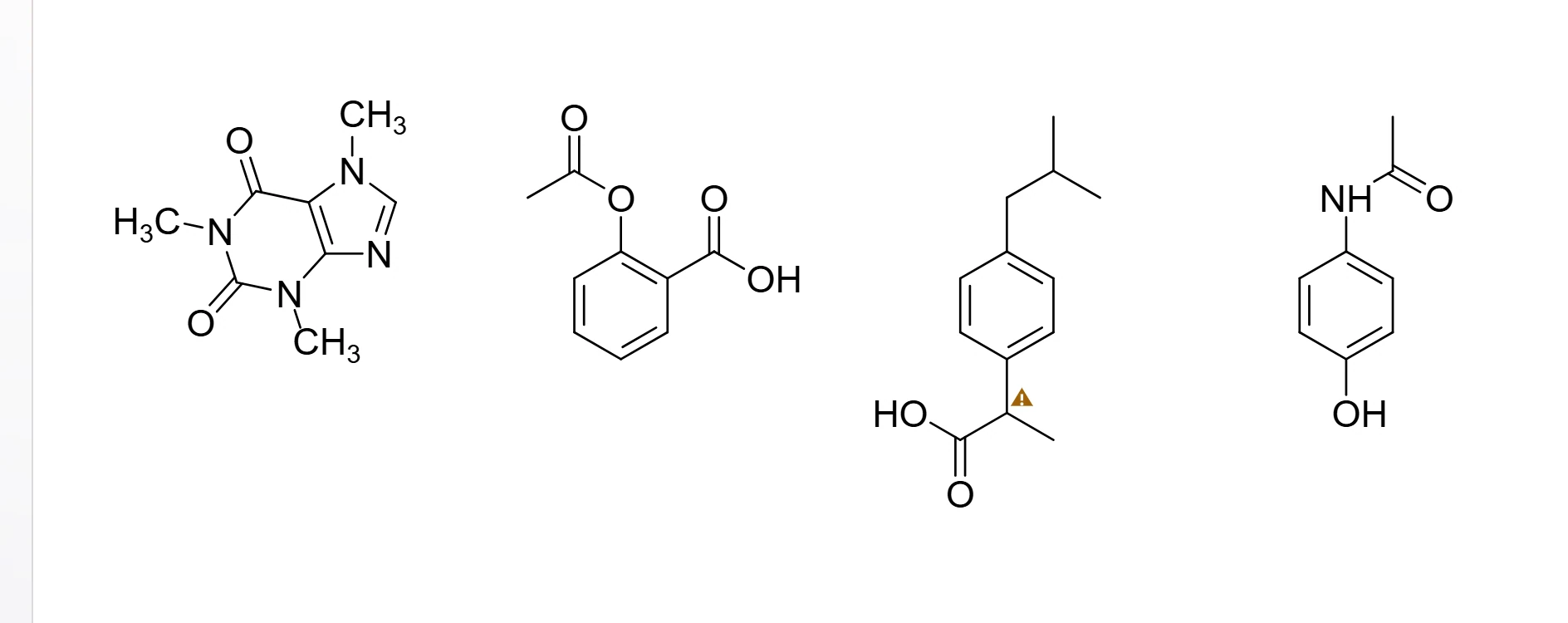
Select at least two things (three to space them) and use Object › Align and space, or the Ctrl+Shift+Alt shortcuts: L, C and R align left edges, vertical centers and right edges; T, M and B align tops, horizontal centers and bottoms; H and V space evenly across and down.
Steps
Select the structures or objects, for example with Ctrl+A. Align needs at least two; spacing needs at least three.


Choose Object › Align and space in the Main menu and pick a command, or press its shortcut.

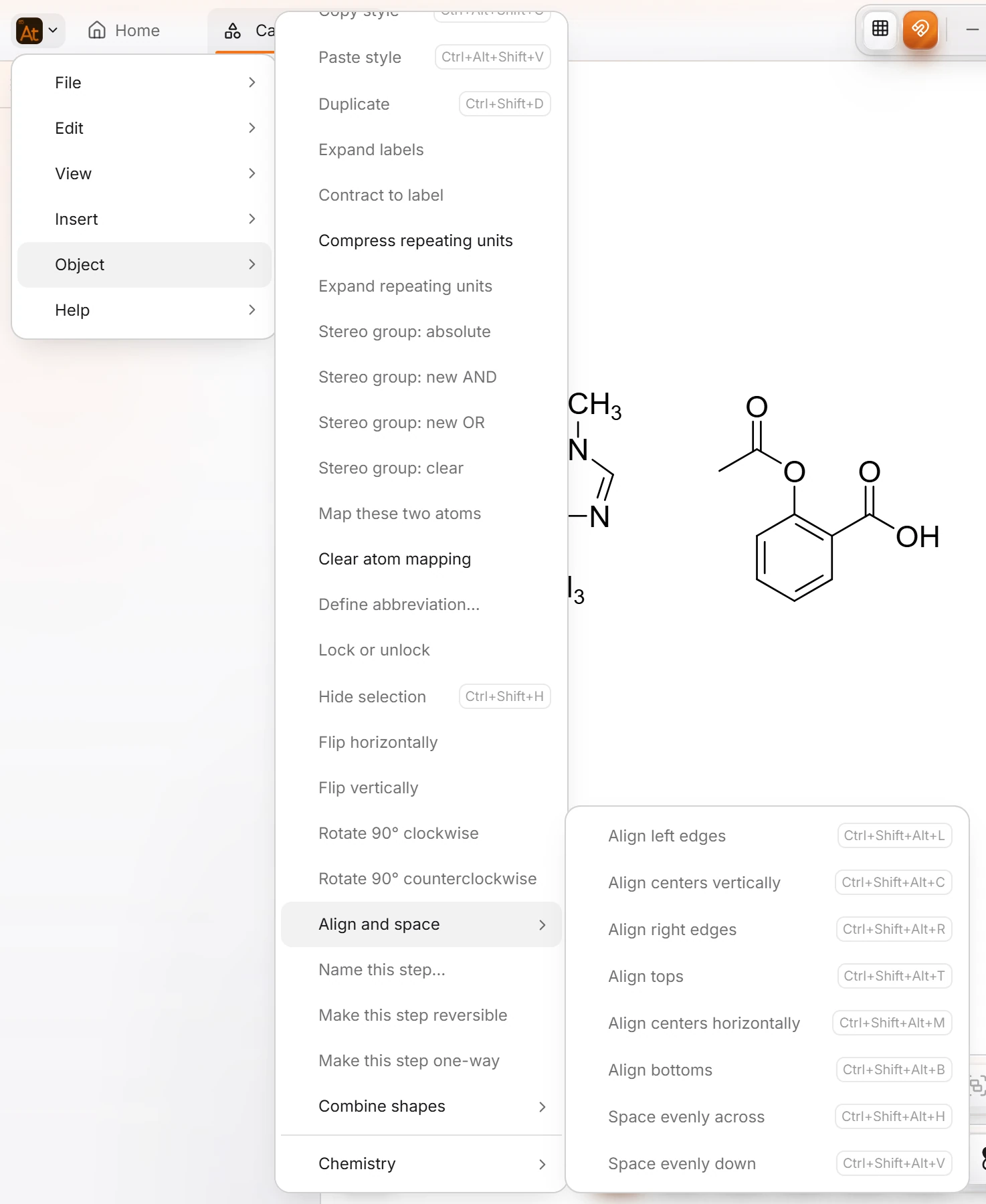
Everything moves at once. Ctrl+Z puts it back.

The commands
| Command | Shortcut |
|---|---|
| Align left edges | Ctrl+Shift+Alt+L |
| Align centers vertically | Ctrl+Shift+Alt+C |
| Align right edges | Ctrl+Shift+Alt+R |
| Align tops | Ctrl+Shift+Alt+T |
| Align centers horizontally | Ctrl+Shift+Alt+M |
| Align bottoms | Ctrl+Shift+Alt+B |
| Space evenly across | Ctrl+Shift+Alt+H |
| Space evenly down | Ctrl+Shift+Alt+V |
The same commands are in the bar of actions above a selection.
Is this helpful?
Last updated Nov 12, 2026
- Still stuck? Read the FAQ or contact support.
- Something wrong on this page? Tell us.
- For AI tools: llms.txt