
How to combine shapes
Select two or more closed shapes, such as rectangles or ellipses, and choose Object › Combine shapes › Union, Subtract, Intersect or Exclude (Alt+Shift+U, S, I or E).
Steps
Draw two or more closed shapes that overlap, such as rectangles from the Annotate tool's shapes. See the pen and shapes.
Select them all.
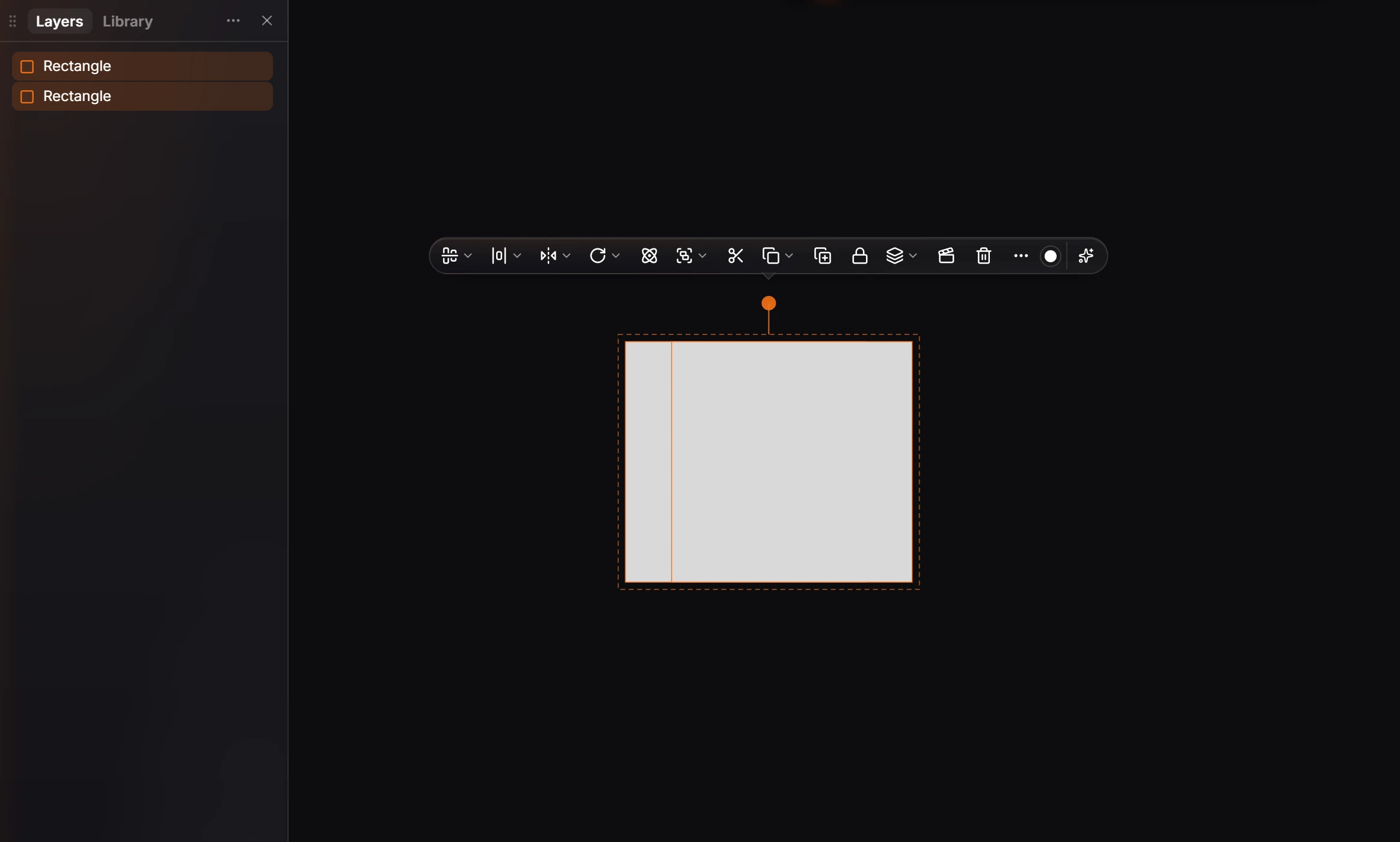
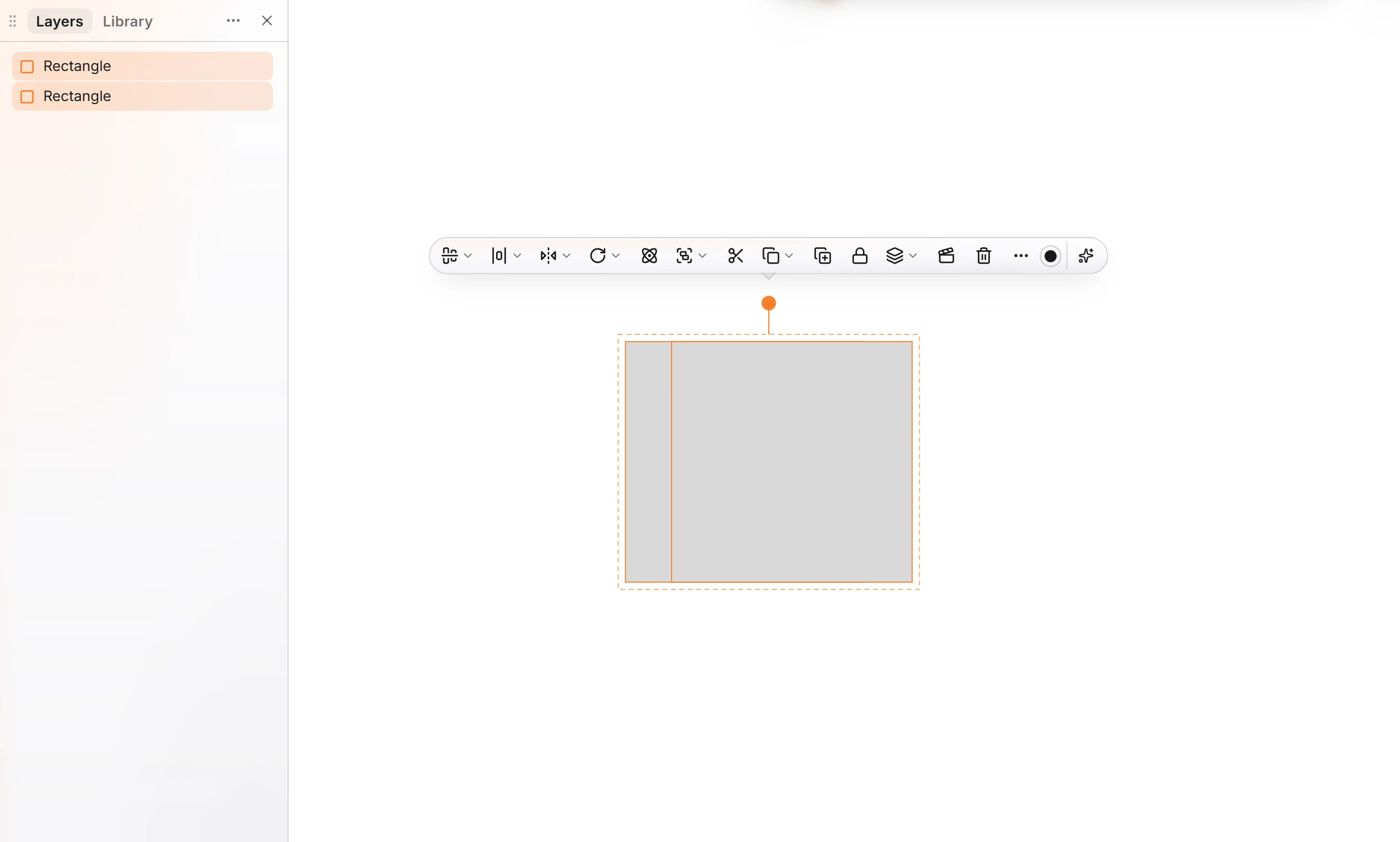
Choose one from Main menu › Object › Combine shapes:
| Command | Shortcut | Keeps |
|---|---|---|
| Union | Alt+Shift+U | Everything either shape covers |
| Subtract | Alt+Shift+S | The first shape minus the others |
| Intersect | Alt+Shift+I | Only where they overlap |
| Exclude | Alt+Shift+E | Where they do not overlap |

The result is one shape, named after the command in Layers.
Note
Combine shapes works on closed shapes such as rectangles, ellipses and polygons. Brackets, frames and lines are not closed shapes, so they are not combined.
Is this helpful?
Last updated Nov 12, 2026
- Still stuck? Read the FAQ or contact support.
- Something wrong on this page? Tell us.
- For AI tools: llms.txt