
The Layers panel
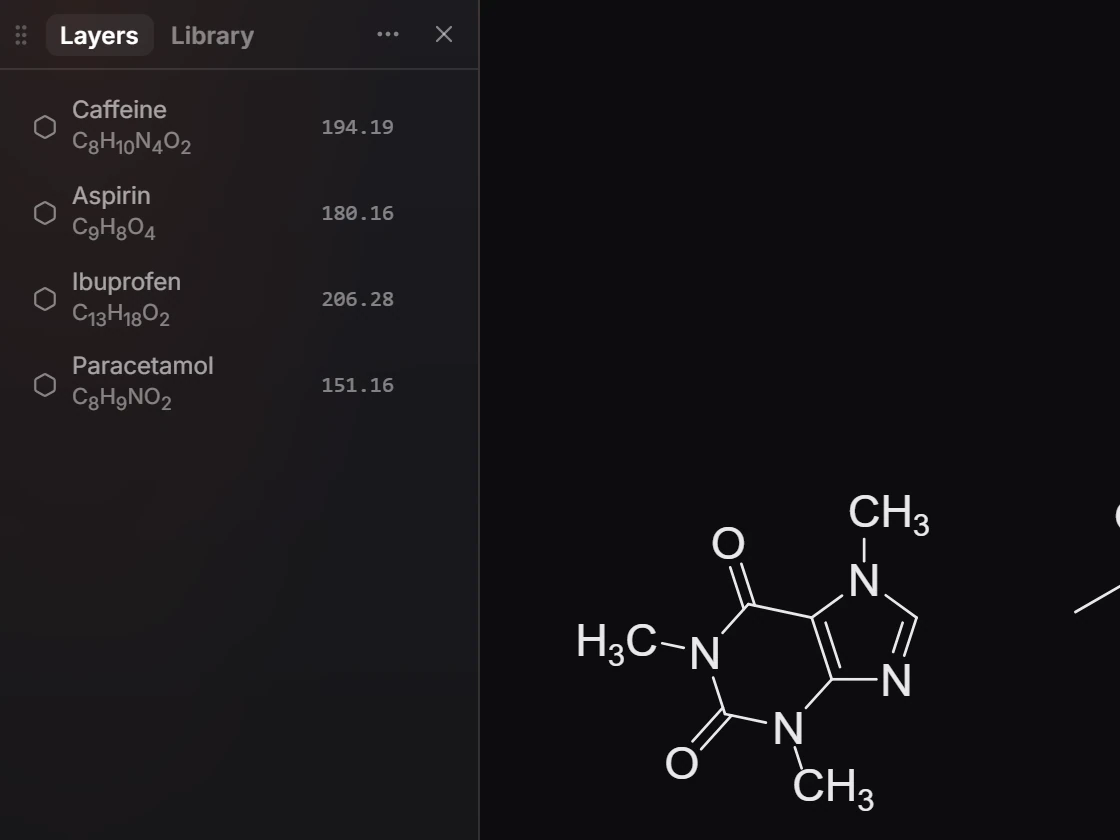
Layers (Shift+L) lists every structure and object on the page, structures first, each with its formula and molecular weight. Click a row to select it, double-click a structure to name it, and use the eye to hide it.
Open it
Layers is the first tab in the left column. Press Shift+L to show or hide it.
Rows
Each structure gets a row with its name, its formula and its molecular weight; arrows, text and shapes follow. A structure Athanor recognizes is named for you, such as Caffeine. Click a row to select that thing on the page. Double-click a structure's row to give it your own name.
Find things
When the page holds many things, type in the panel's search box to filter the rows by name, formula or kind. You can also type a group name such as "ester" or "phenyl", or a SMILES pattern, to find every structure that contains it.
Hide and show
The eye beside a row hides it. A hidden thing is kept and saved, but it is not drawn, cannot be clicked and is left out of exports.
- Hide selection is Ctrl+Shift+H.
- View › Show everything hidden brings it all back.
Groups
Group a selection with Ctrl+G (Object › Group). A group shows as a folder you can open, close and rename. Ctrl+Shift+G ungroups it.
Naming many structures
The panel's ⋯ menu has:
- Name every structure: each structure with no name of its own takes its IUPAC name.
- Rename structures…: numbers the selected structures, or all of them, to a pattern such as "Compound #", left to right.
Is this helpful?
Last updated Nov 12, 2026
- Still stuck? Read the FAQ or contact support.
- Something wrong on this page? Tell us.
- For AI tools: llms.txt