
Figures, diagrams and documents
Shapes and the pen, brackets and frames, glassware and safety labels, tables, charts, flowcharts, physics diagrams, pictures and document pages.
Start here
 1 · How-toHow to draw with the pen and shapesPick the Annotate tool (the pen in the tool bar). Choose pen for freehand ink, path for smooth curves, or the shapes button, set the color and thickness, and draw.

 2 · How-toHow to draw brackets and framesPress S for the Brackets tool, pick bracket, parentheses, box, frame or ellipse above the tools, and drag around what it should enclose.
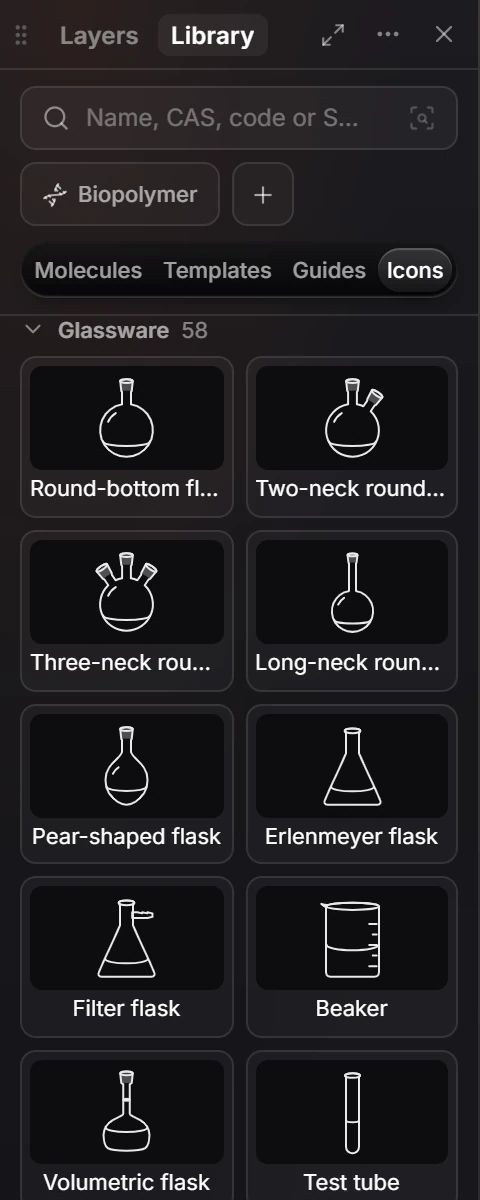
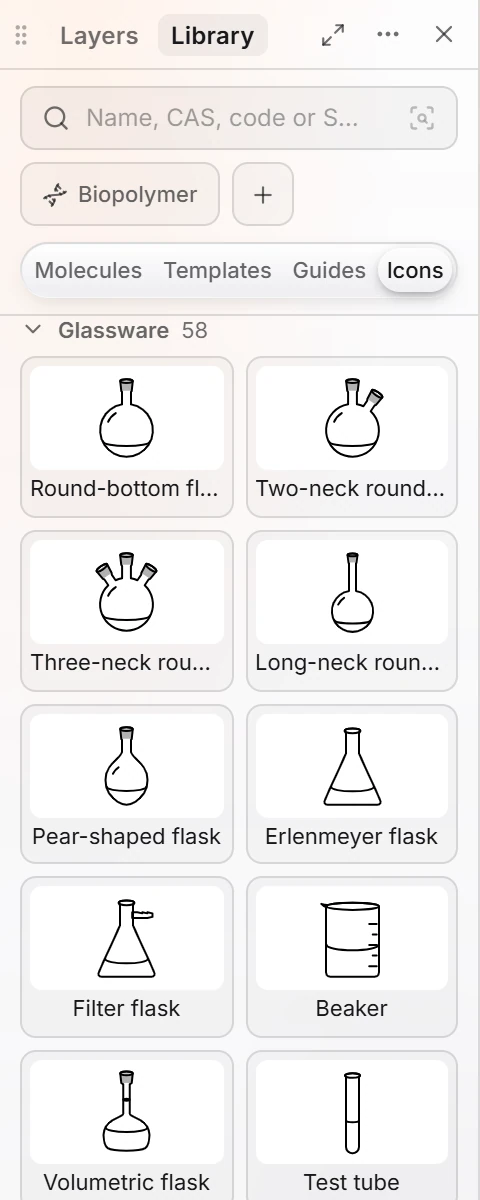 3 · How-toHow to draw lab glasswareOpen Library › Icons and scroll to Glassware, or pick Lab glassware in the Brackets tool. Drag a piece onto the page and build the apparatus.
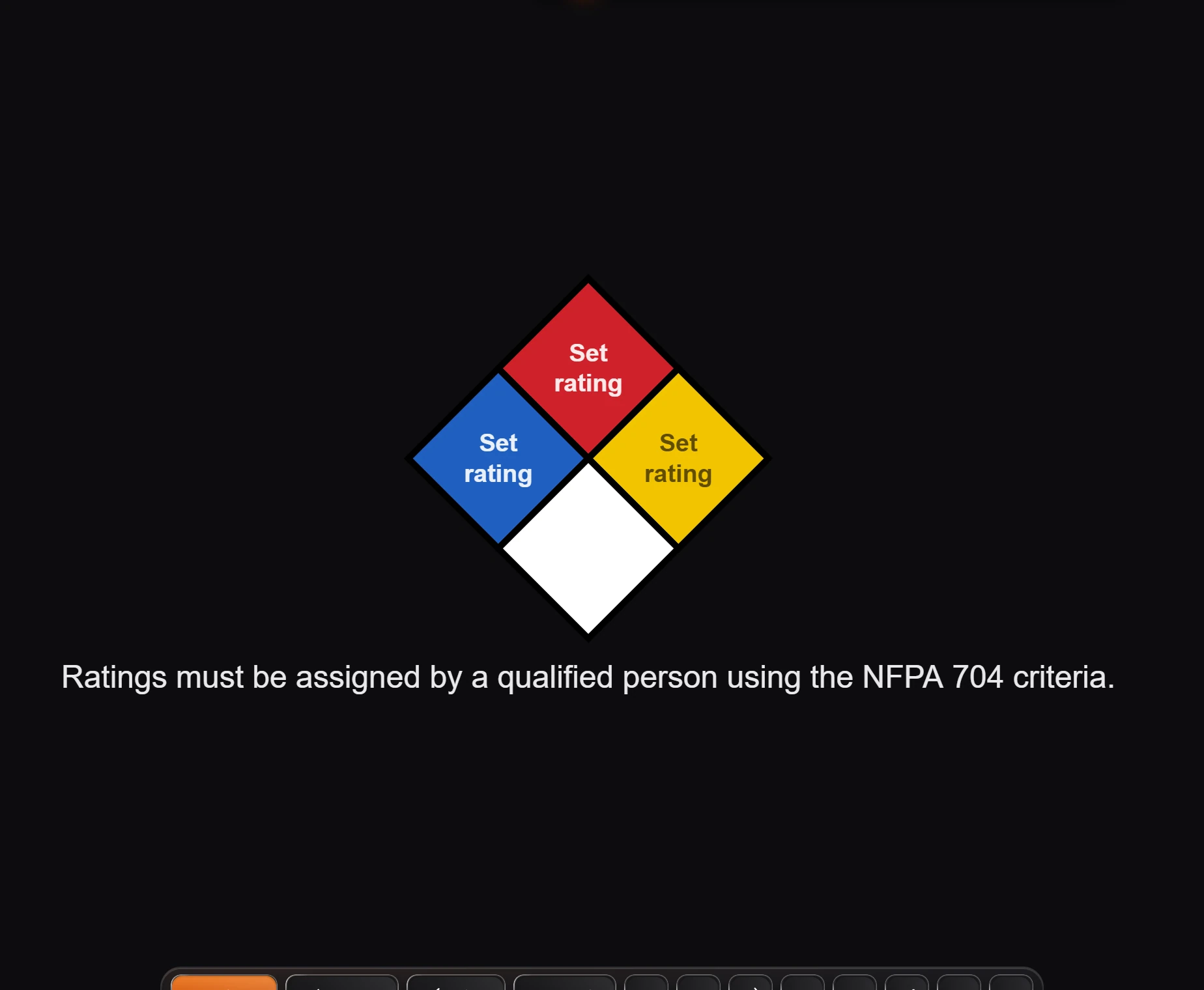
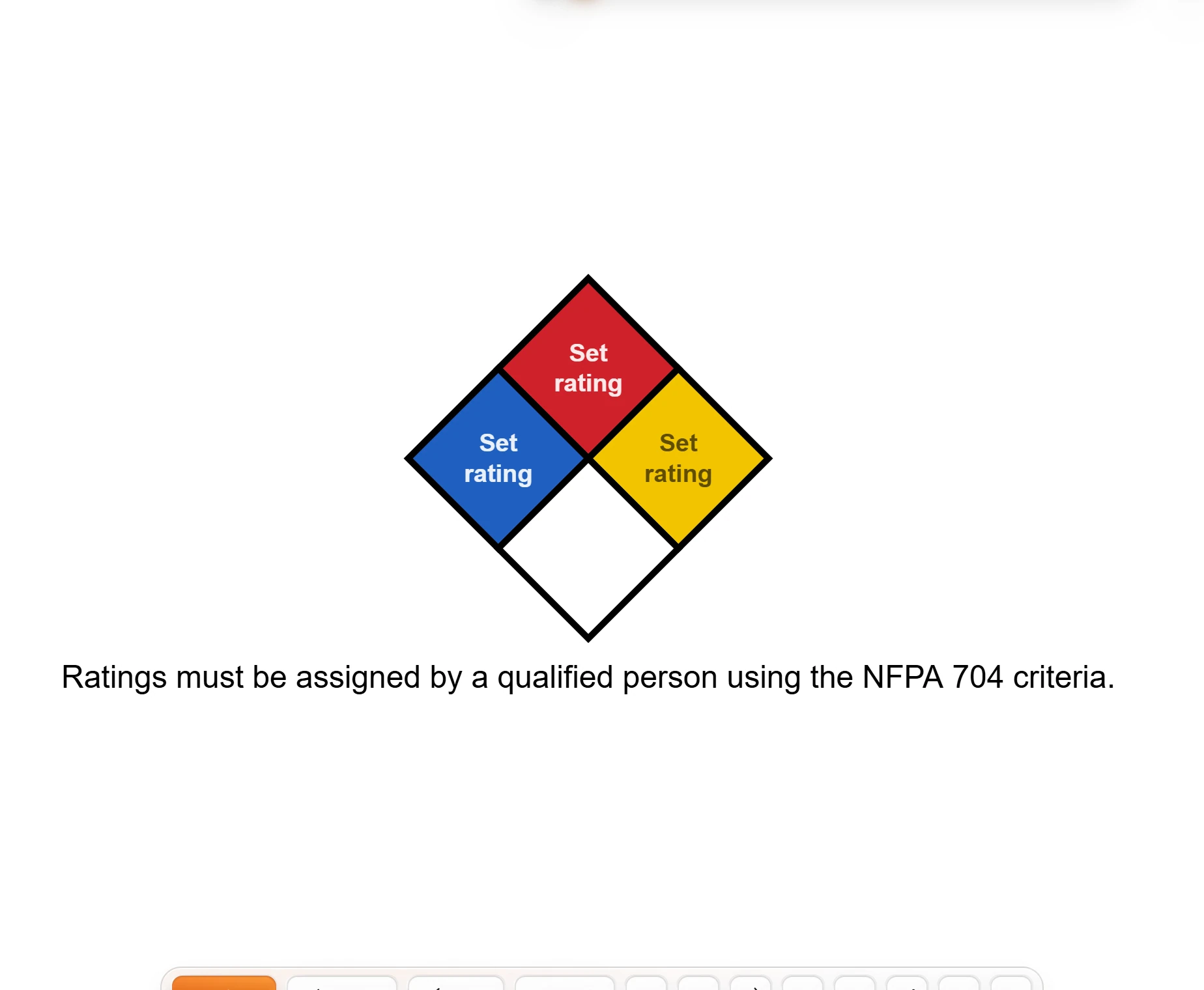 4 · How-toHow to add NFPA and GHS safety labelsChoose Insert › Insert NFPA 704 diamond or Insert › Insert GHS label, then set the ratings, pictograms and statements in Properties.
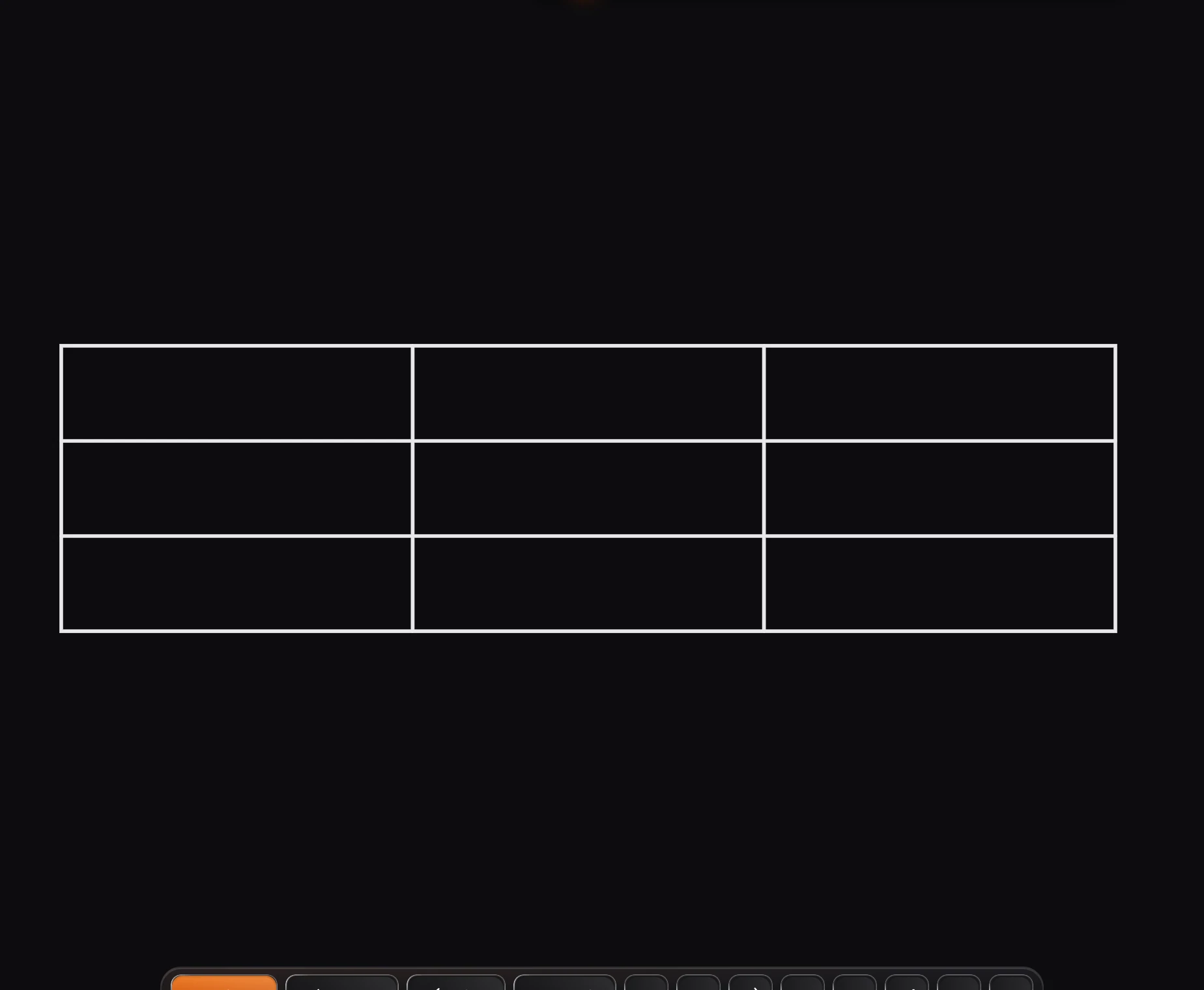
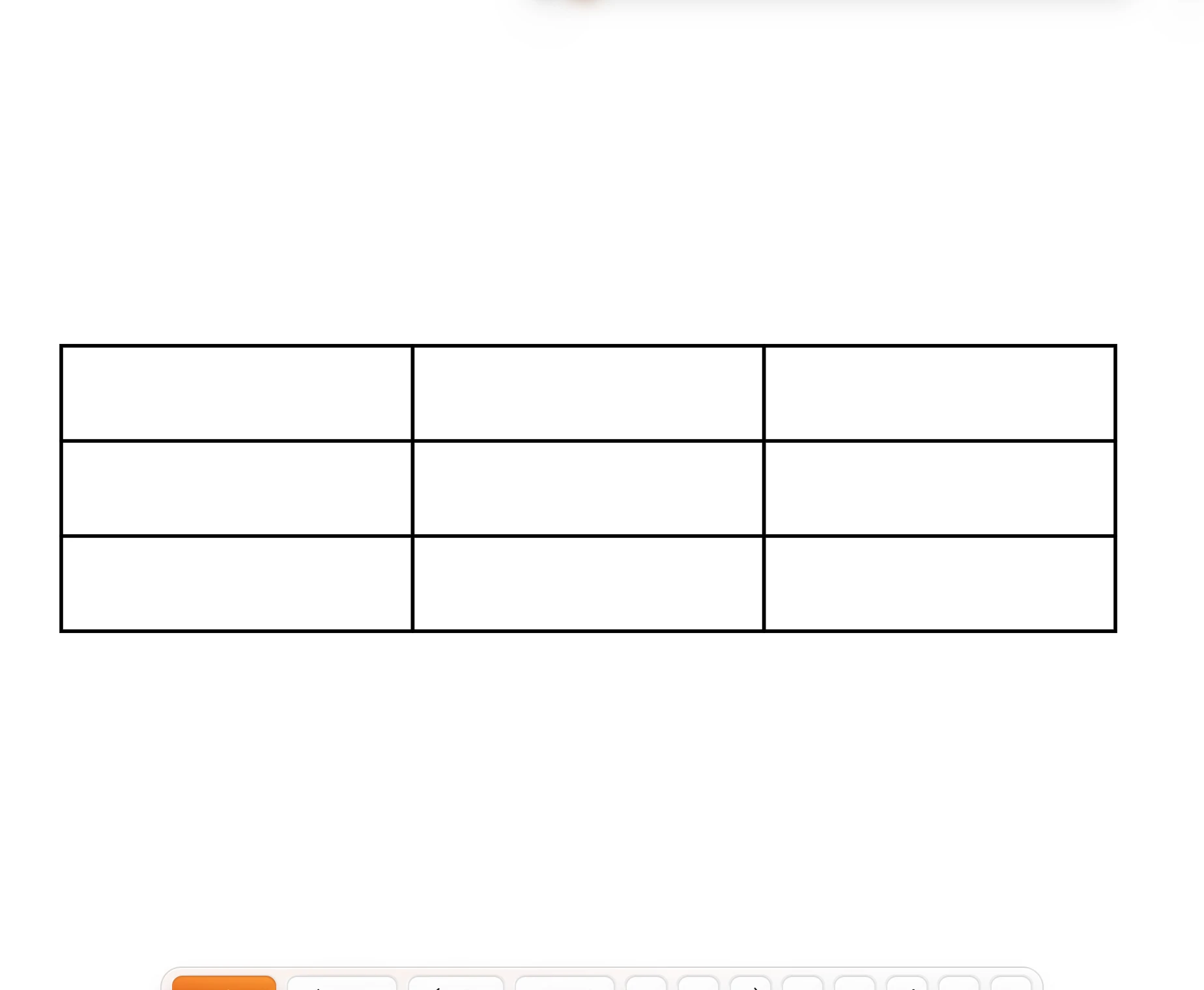 5 · How-toHow to insert a tableChoose Insert › Insert table. A blank three by three table is placed on the page.
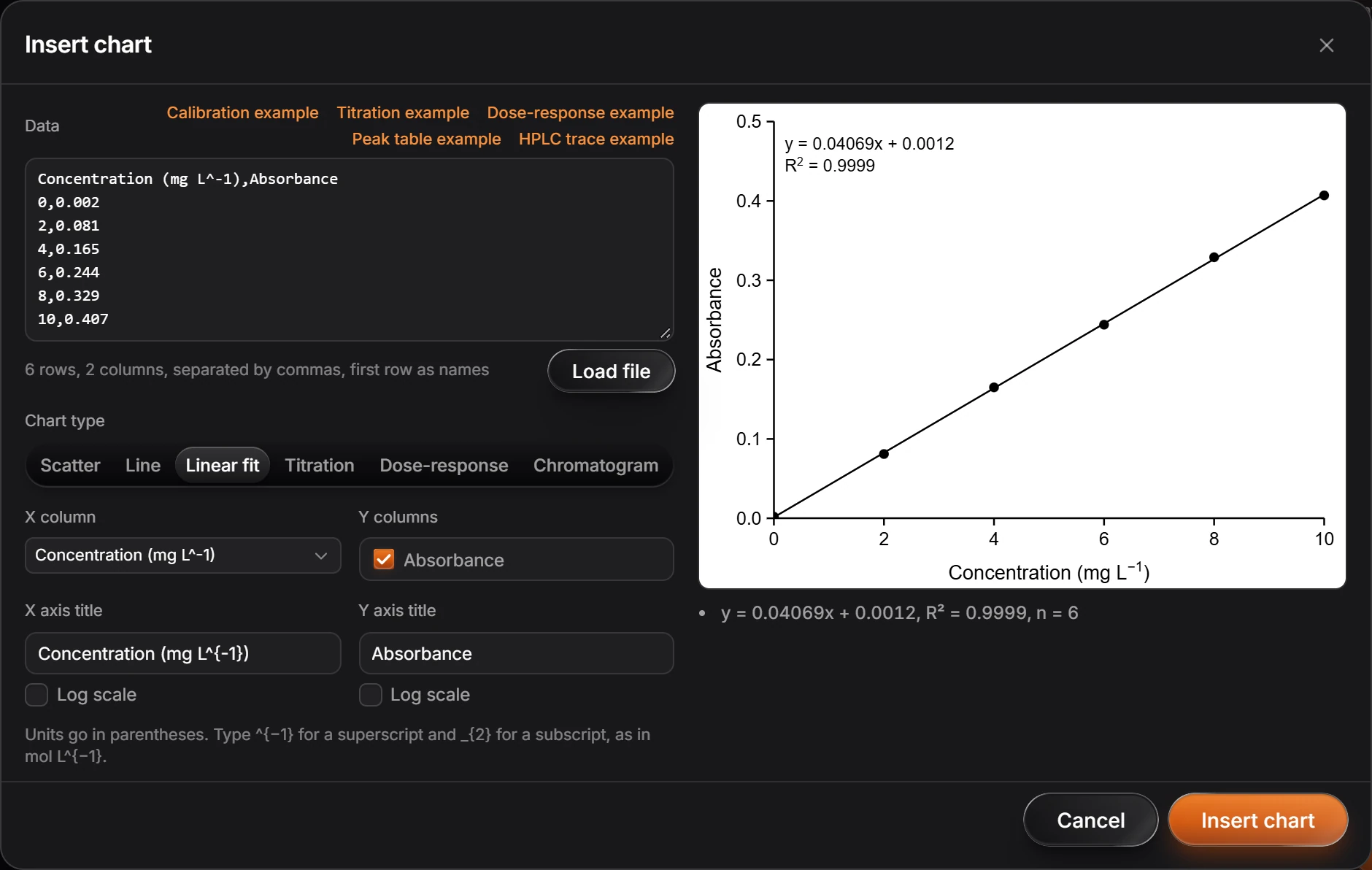
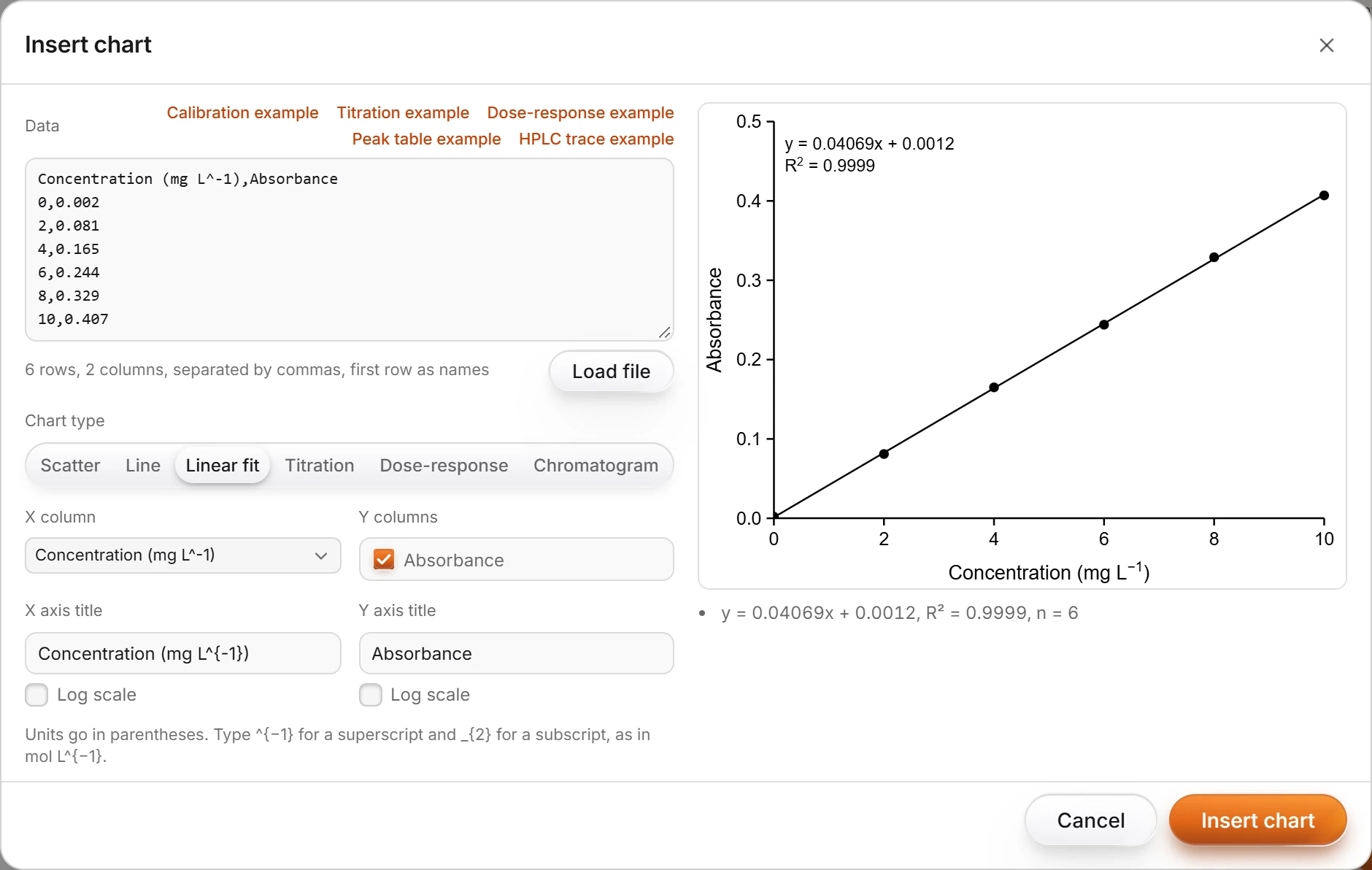 6 · How-toHow to insert a chartChoose Insert › Insert chart, paste data or load a .csv file (or pick an example), choose the chart type and columns, and press Insert chart.
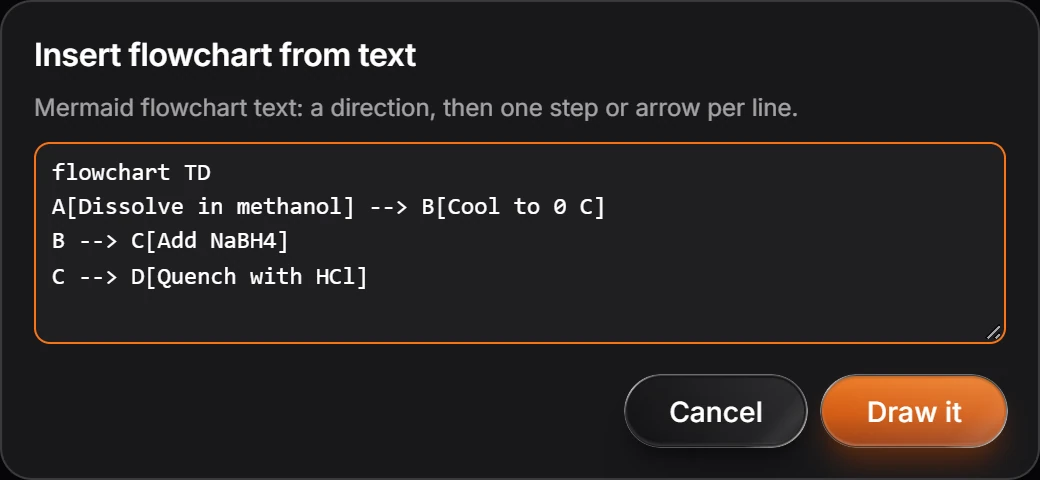
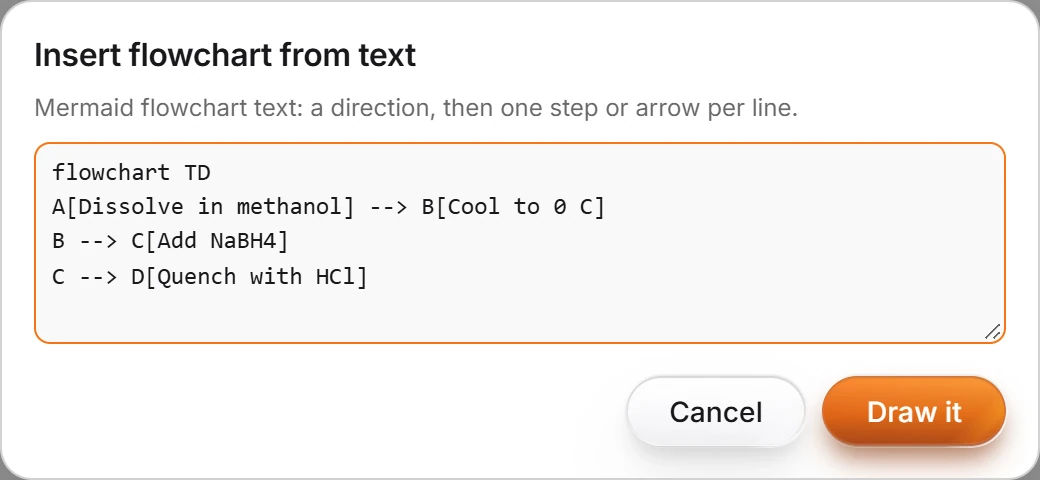 7 · How-toHow to draw a flowchart from textChoose Insert › Insert flowchart from text, type Mermaid flowchart text (flowchart TD, then lines such as A[Dissolve] --> B[Stir]), and press Draw it.
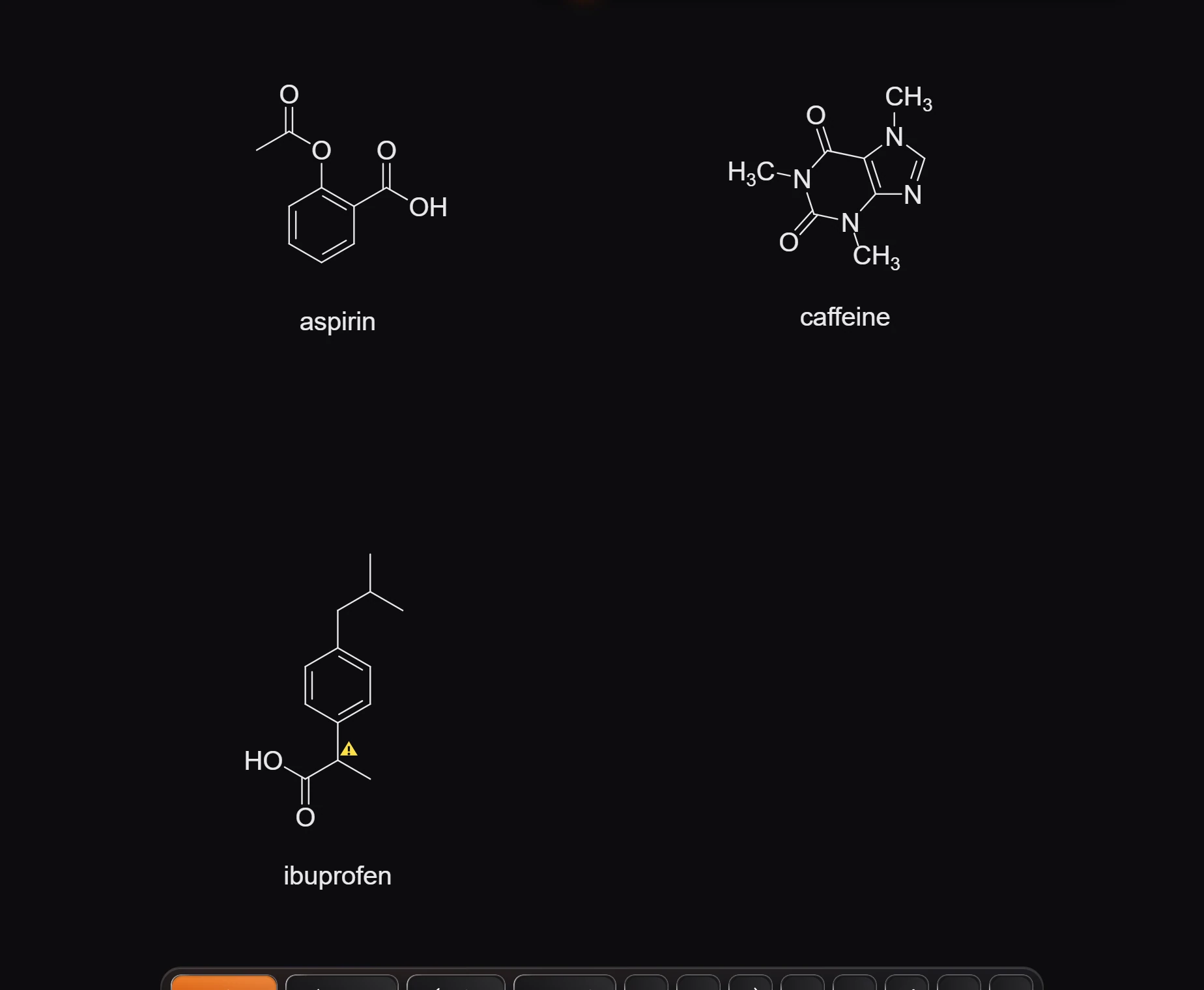
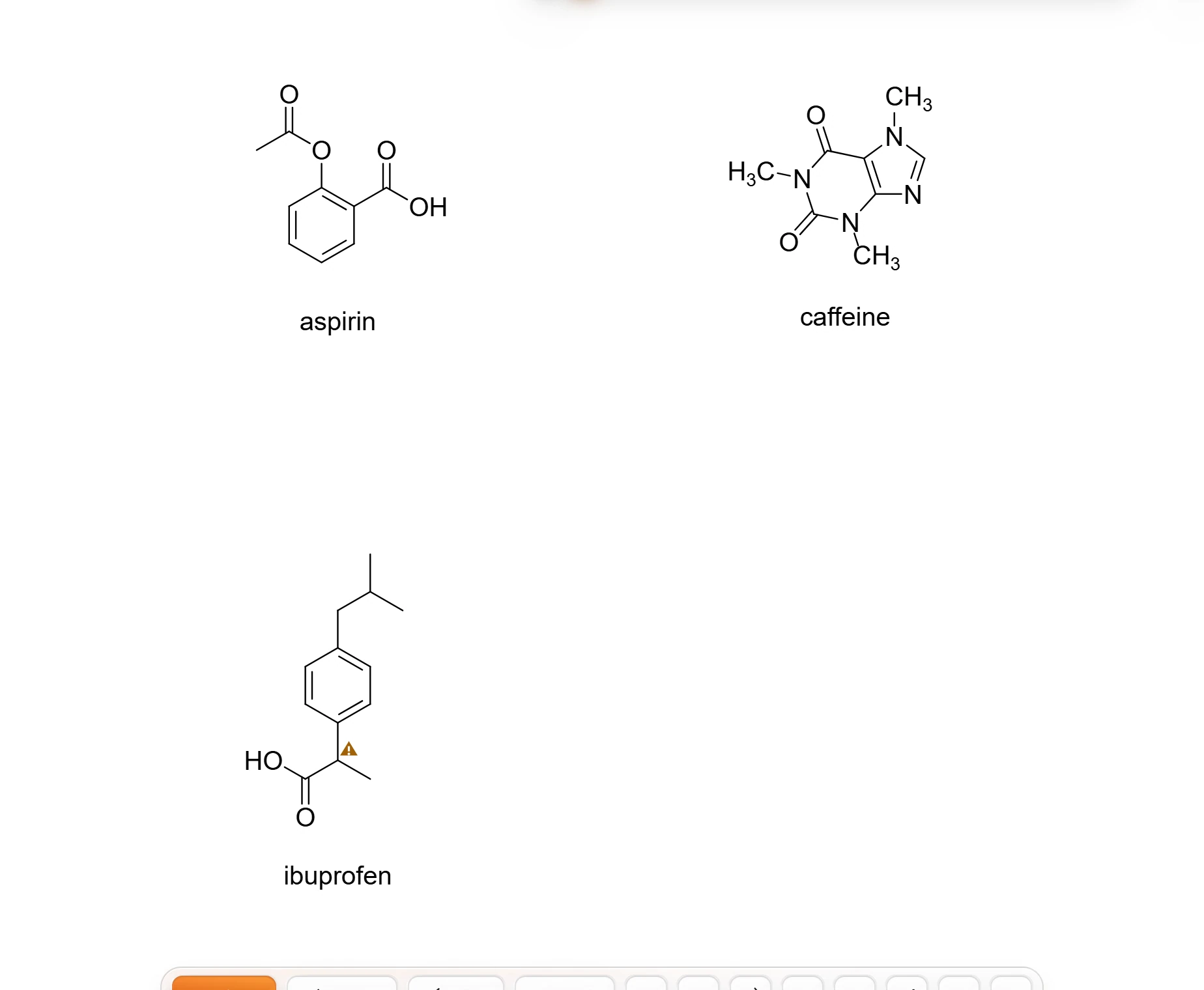 8 · How-toHow to insert compounds from a listChoose Insert › Insert compounds from a list, type or paste one name per line, and press Place them.
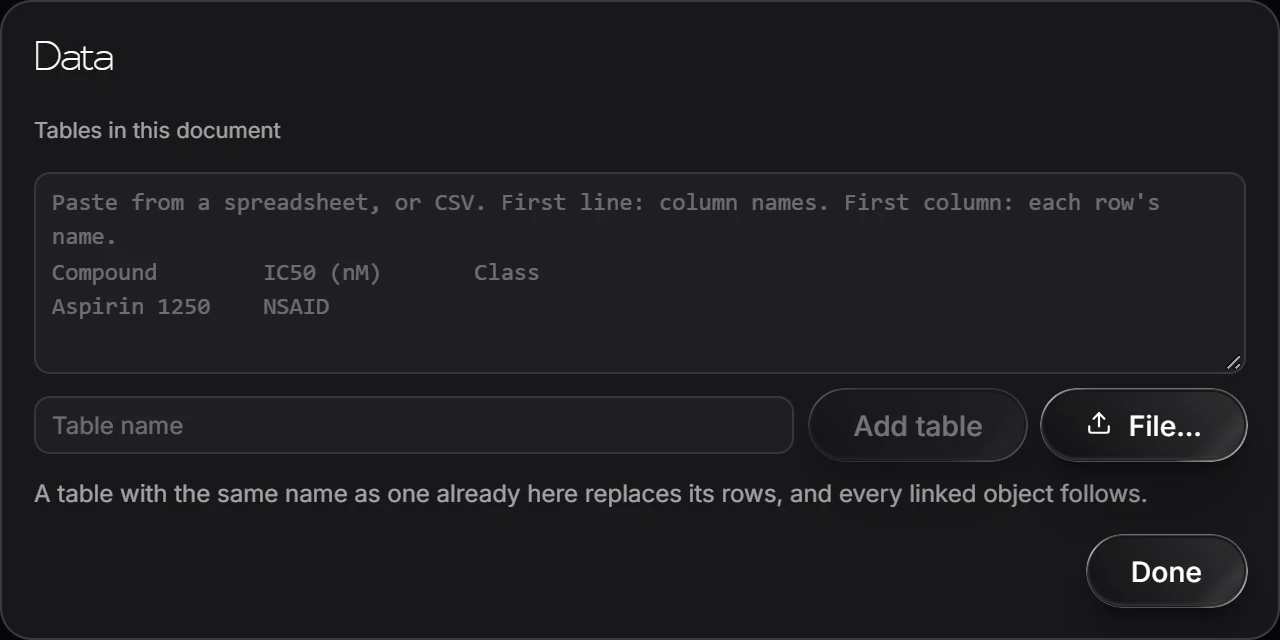
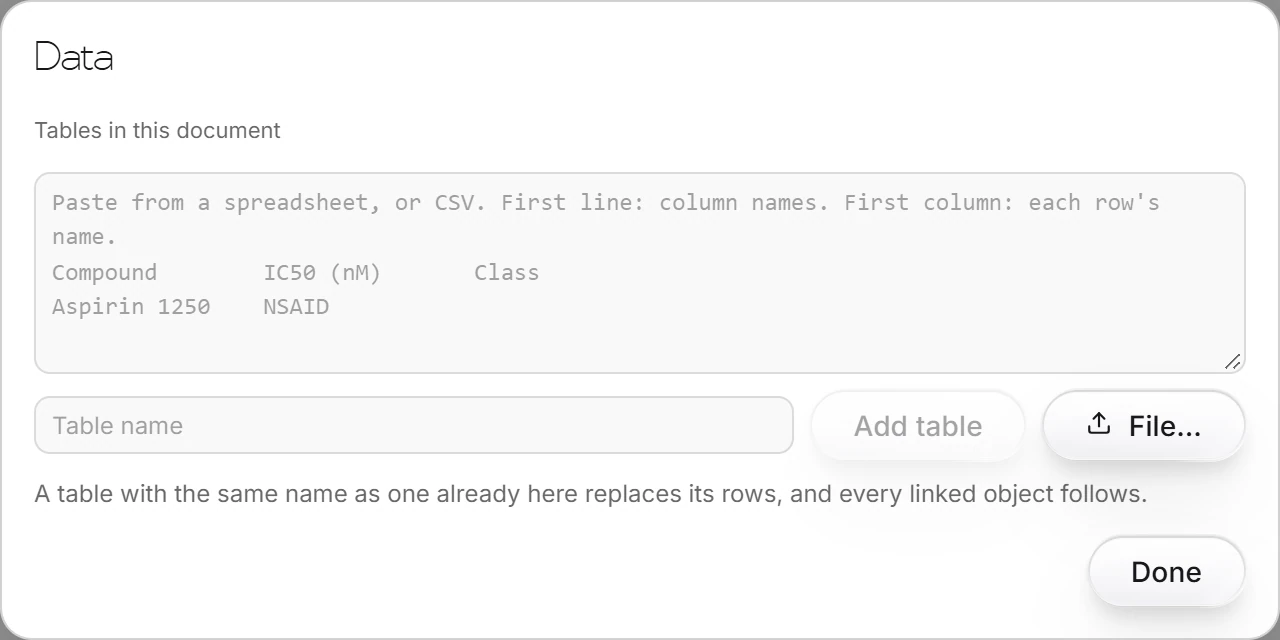 9 · How-toHow to link shapes to dataChoose Insert › Link shapes to data, paste a table from a spreadsheet or CSV (first line column names, first column each row name), name it and press Add table.
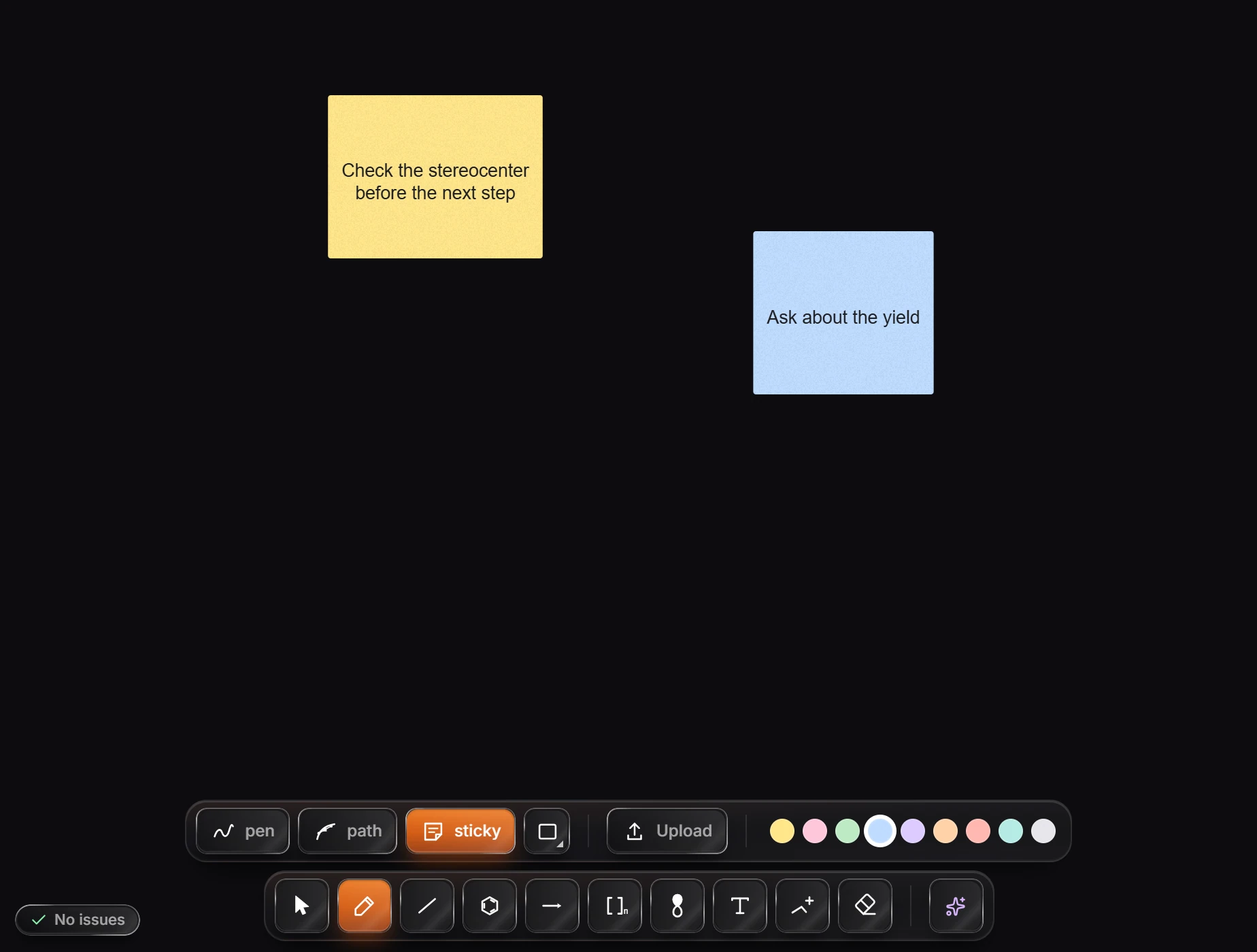
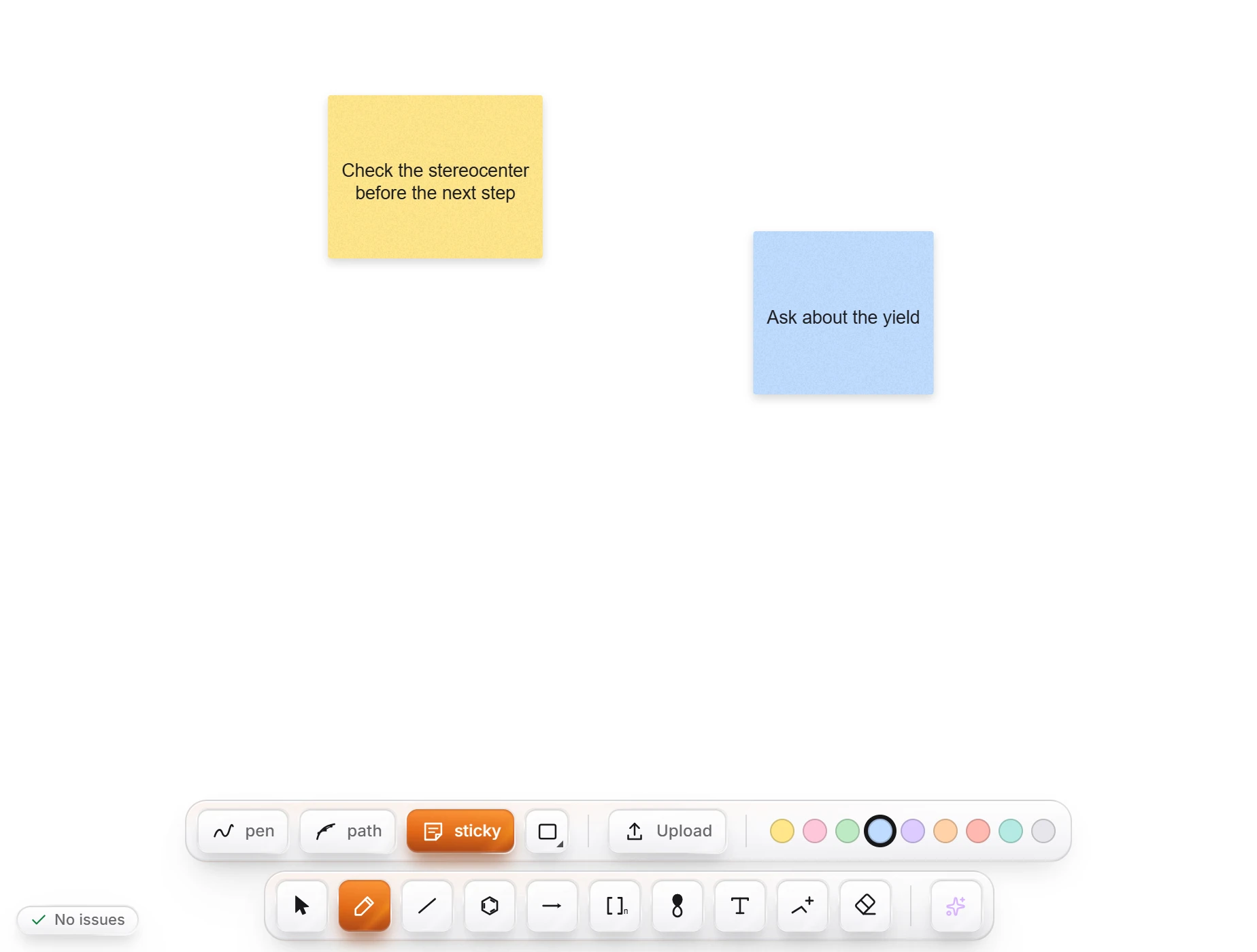 10 · How-toHow to add sticky notesPress P for the pen row and choose sticky (or press N there), pick a paper color, and click the canvas. Shift+S drops a note from any tool. Type straight away; Enter starts a new line and Esc finishes. Text wraps and shrinks to fit the note.
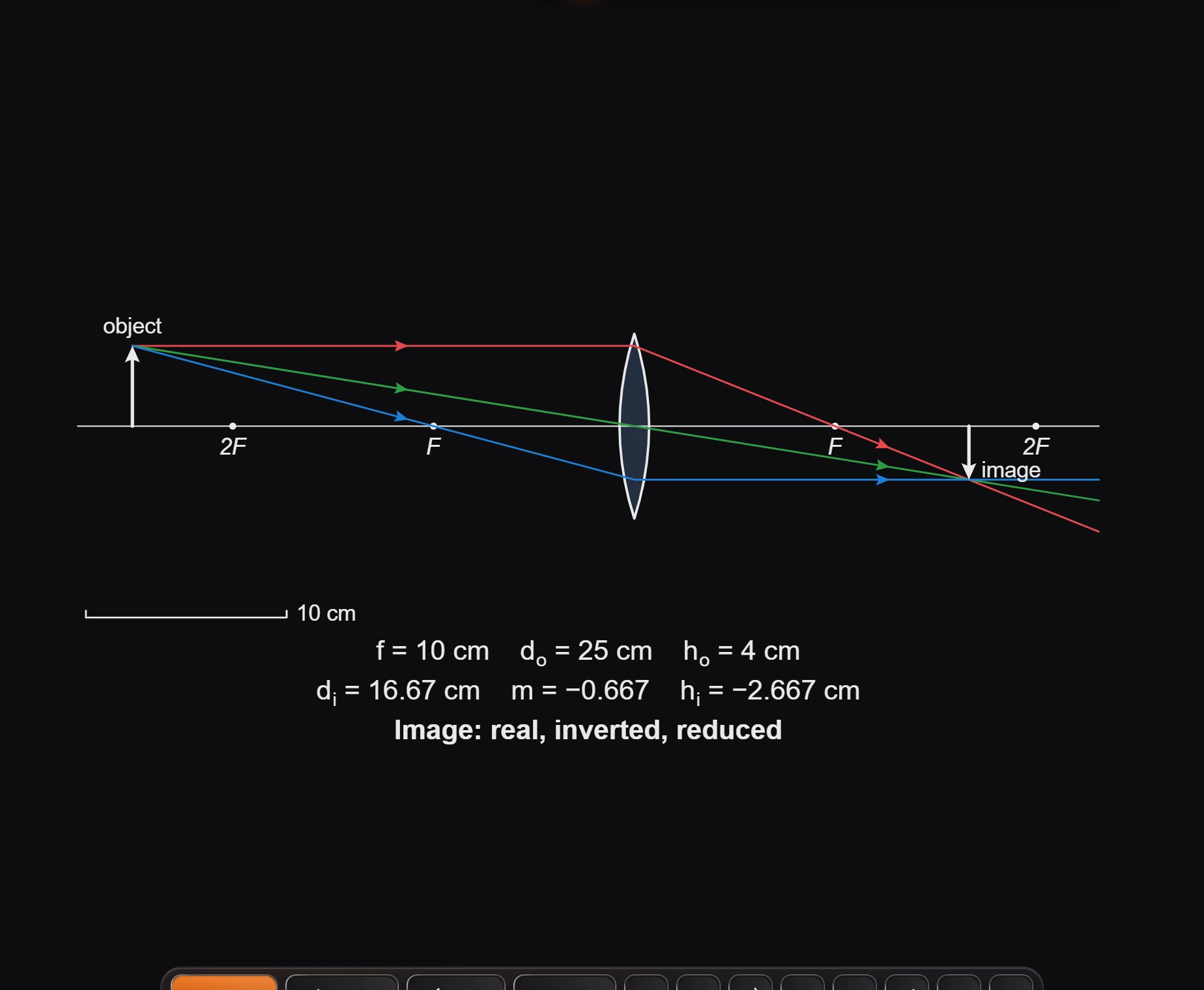
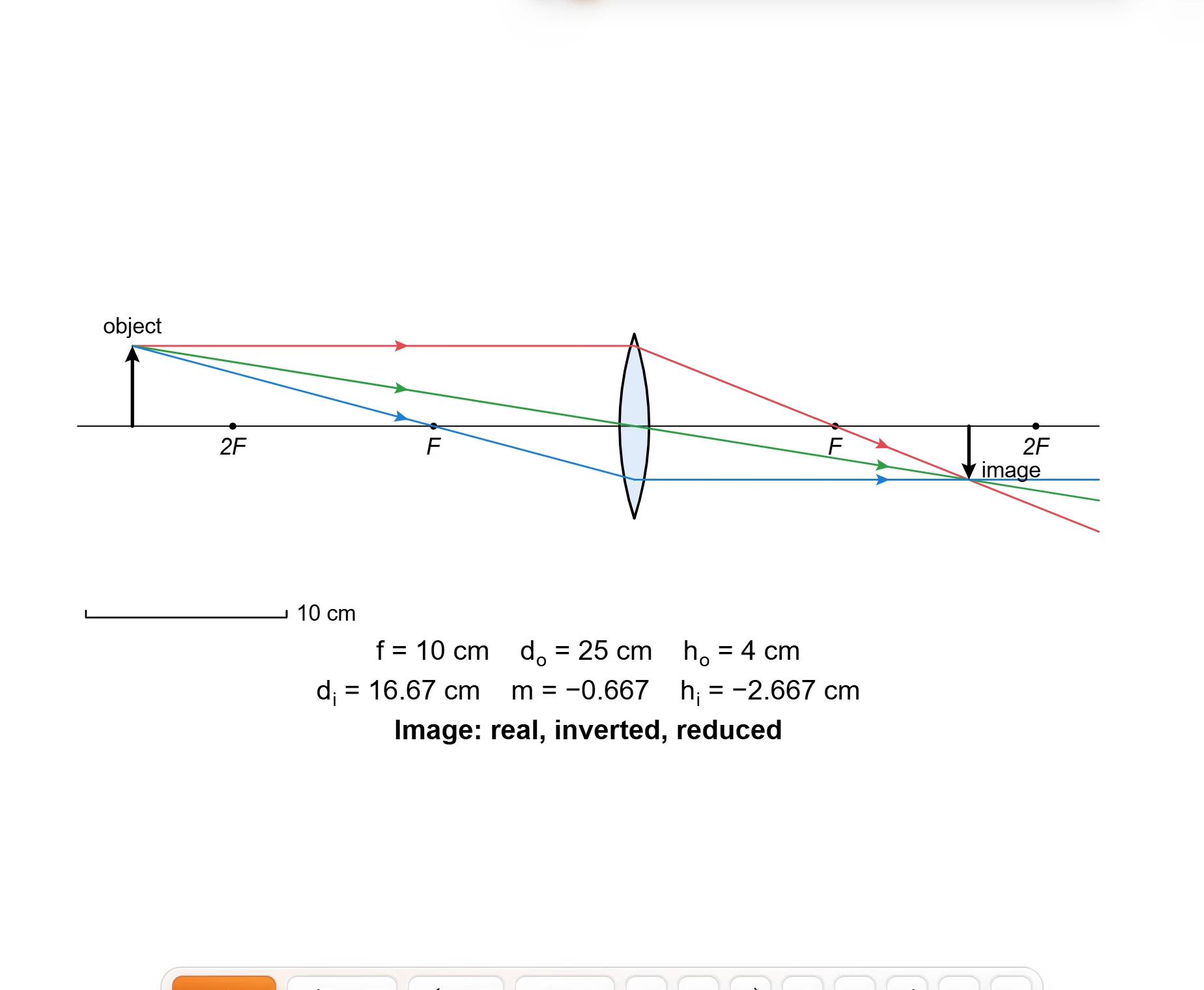 11 · How-toHow to insert an optics bench or P-V diagramChoose Insert › Insert optics bench for a lens ray diagram with image distance and magnification, or Insert › Insert P-V diagram for a gas process with W, ΔU and Q.
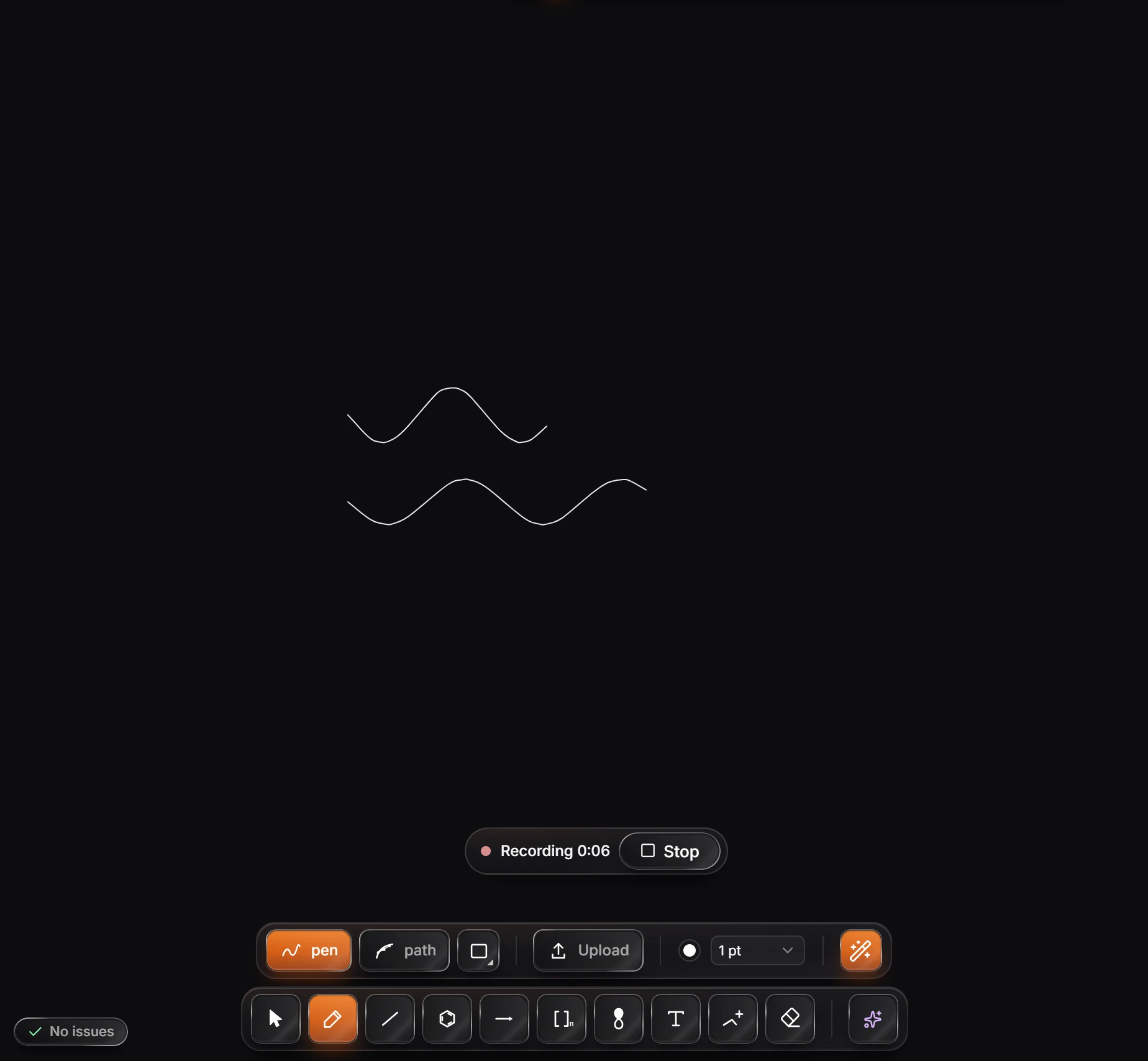
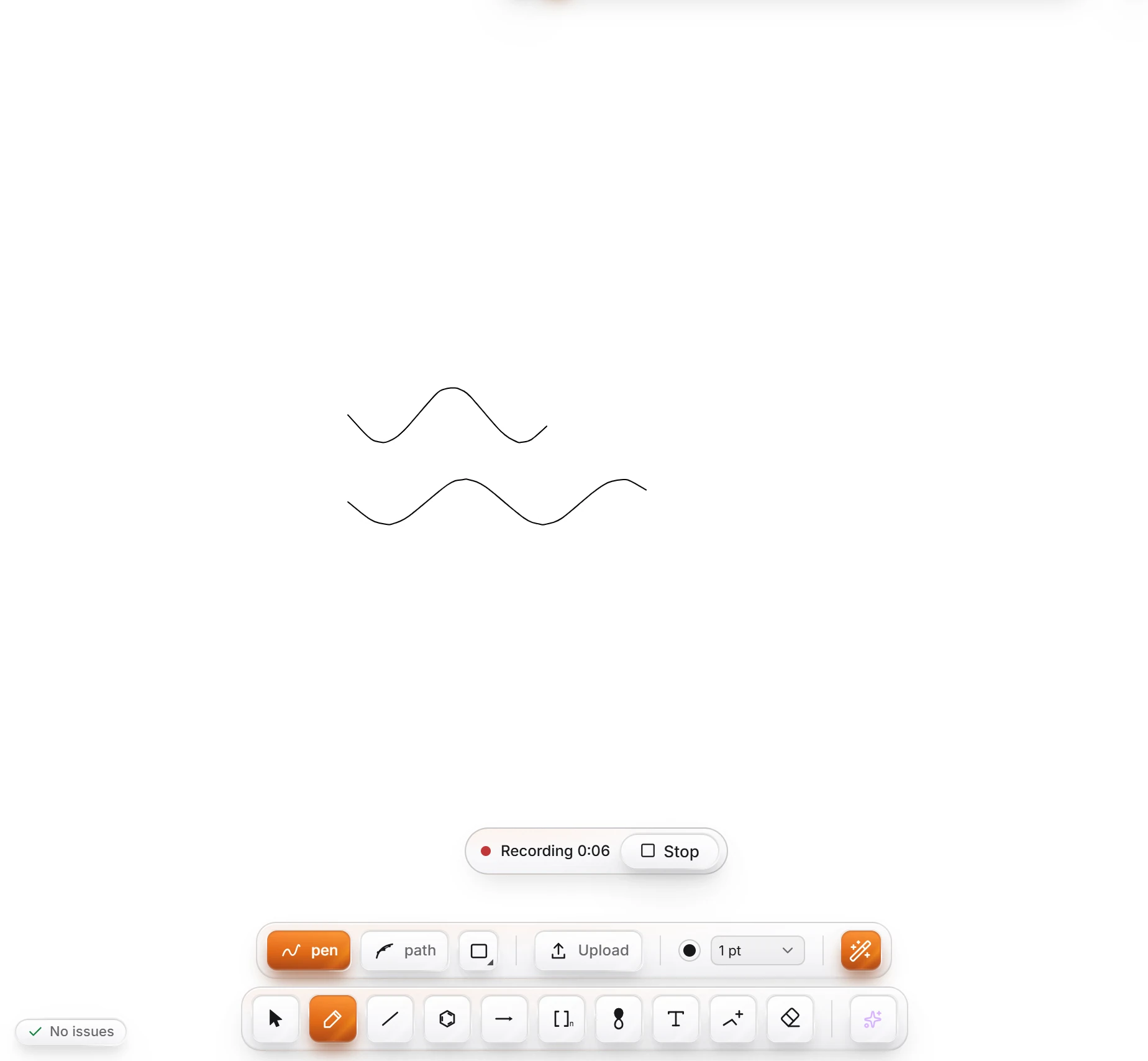 12 · How-toHow to record audio with your writingChoose Insert › Record audio with your writing, allow the microphone, and write with the pen while you talk. Press Stop when you are done. The recording appears as a chip at the top right of the canvas, where you can play, rename or delete it.
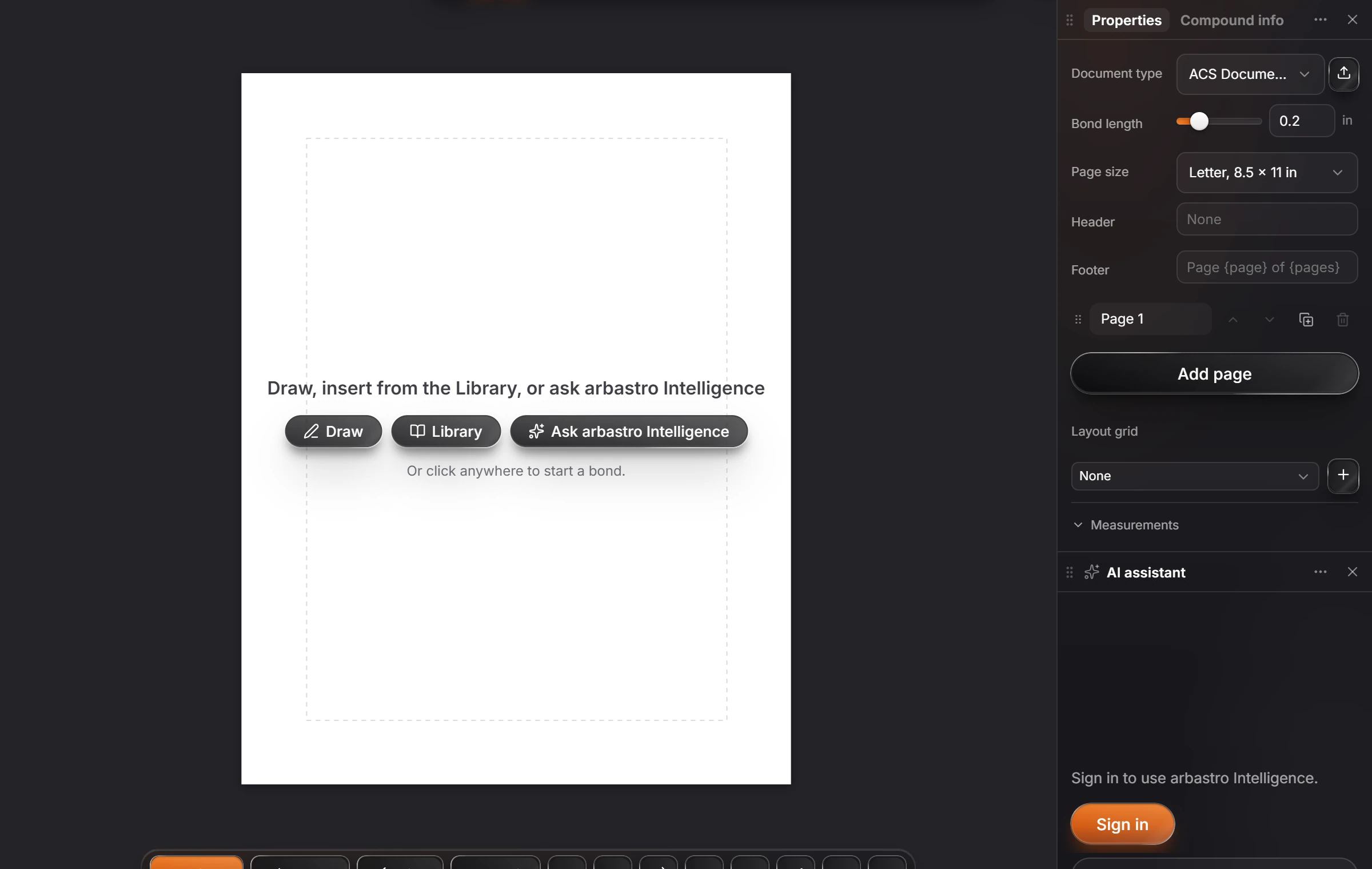
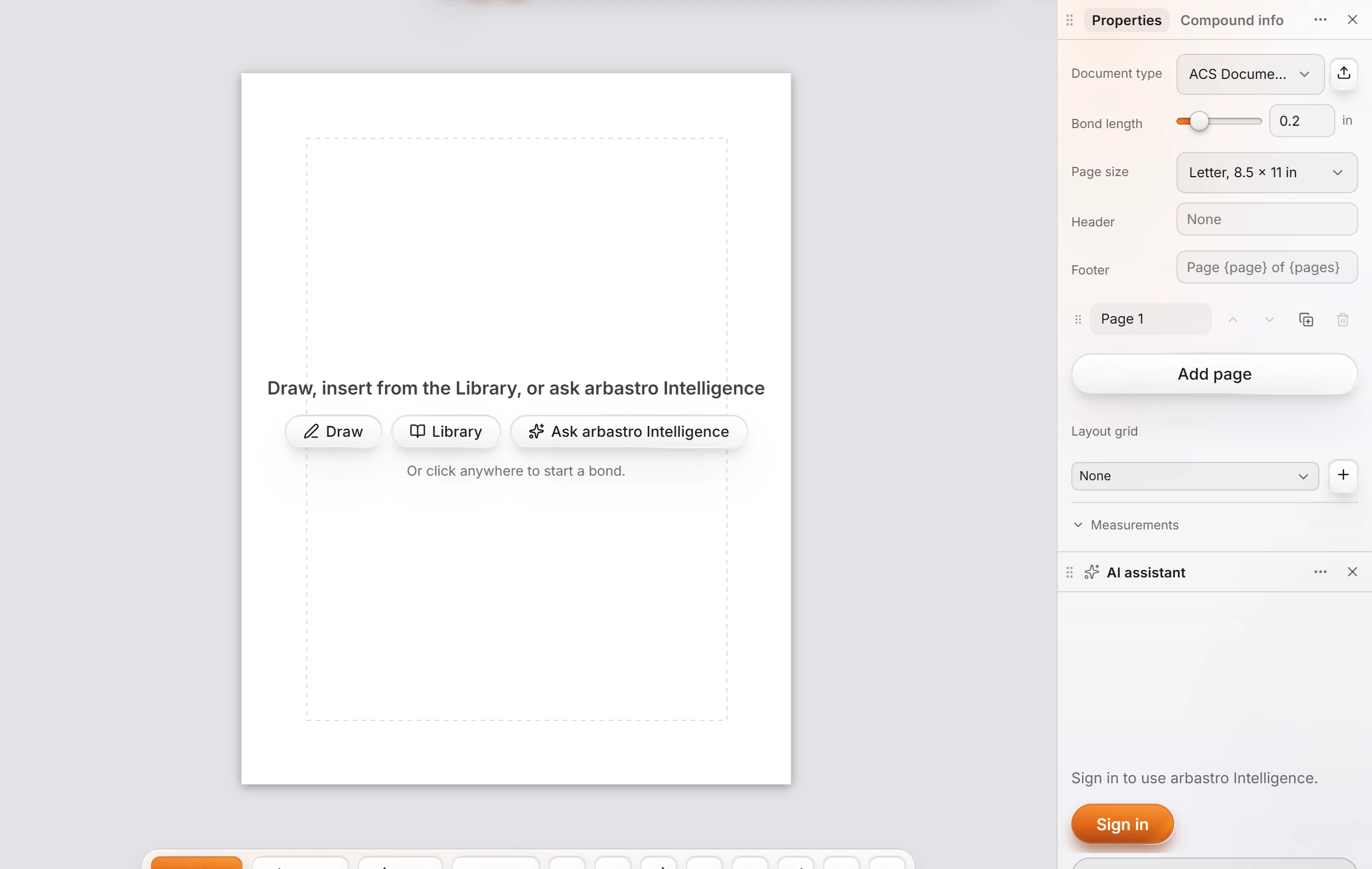 13 · How-toHow to work on pagesChoose View › Show page frame. Properties then shows Page size, Header, Footer, the list of pages with Add page, and Layout grid. New documents can start on pages in Settings › General.
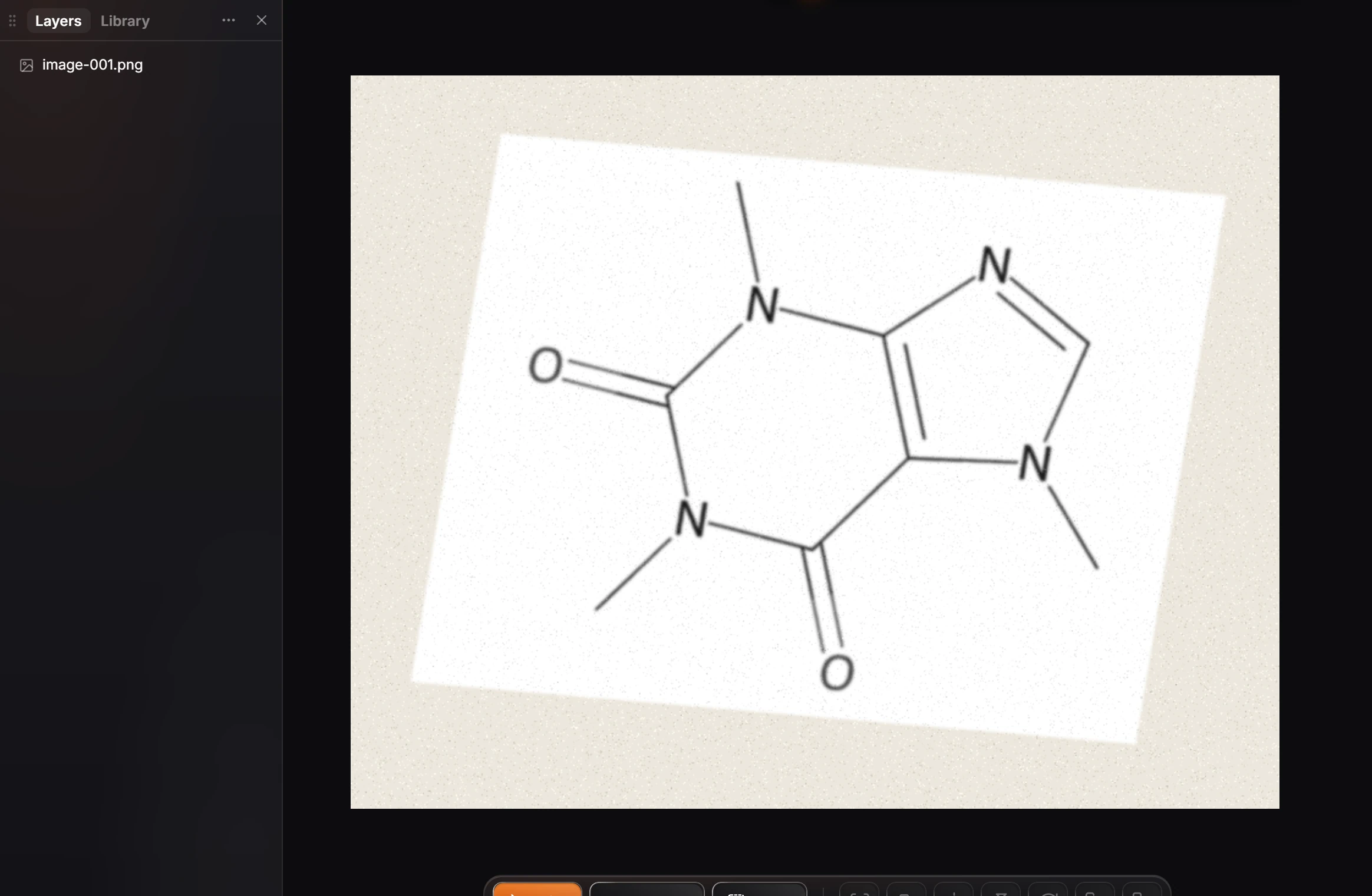
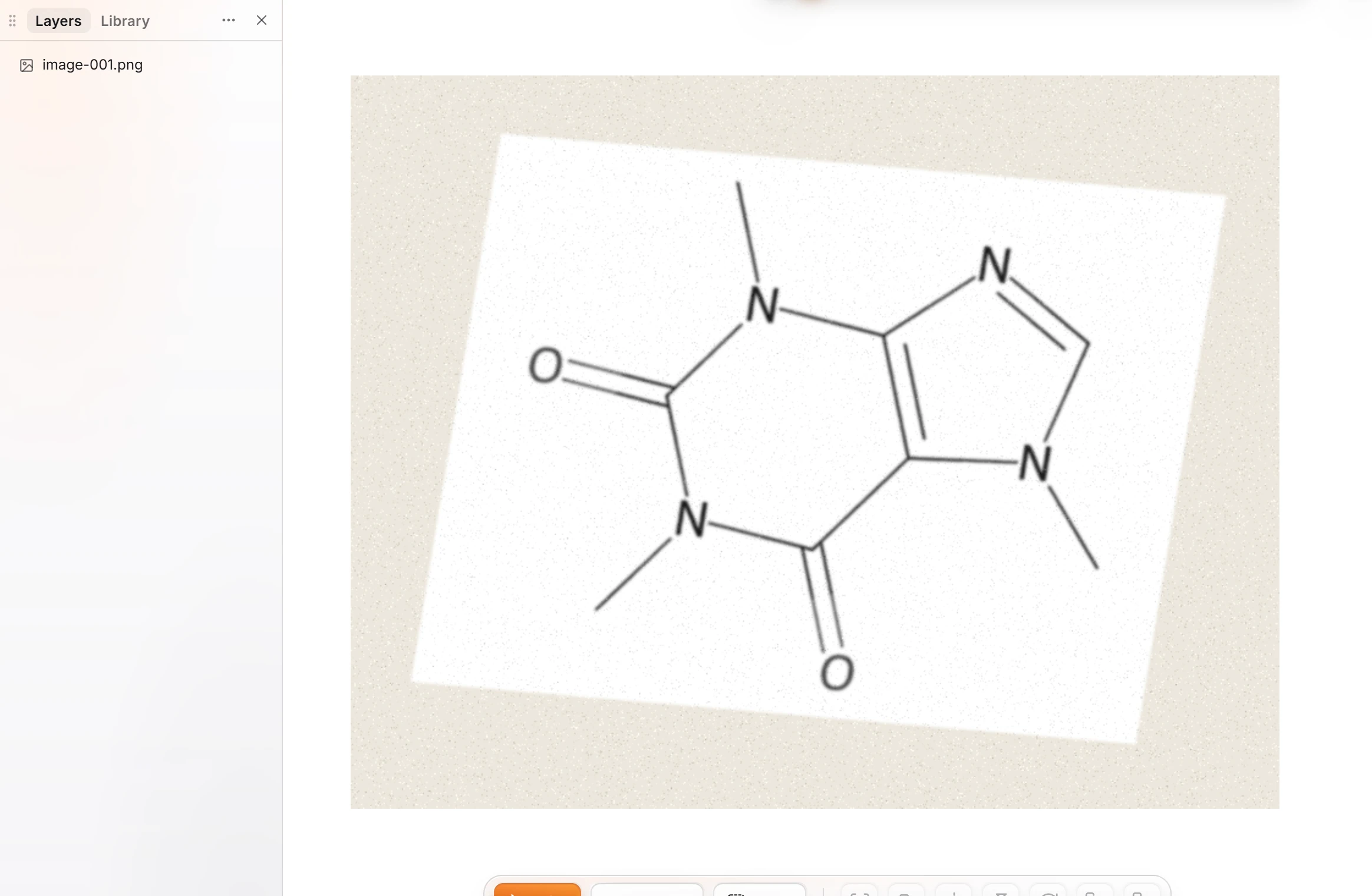 14 · How-toHow to add a picture or file to the pageChoose Insert › Upload a file and pick the file. A picture is placed on the page and listed in Layers by its file name.
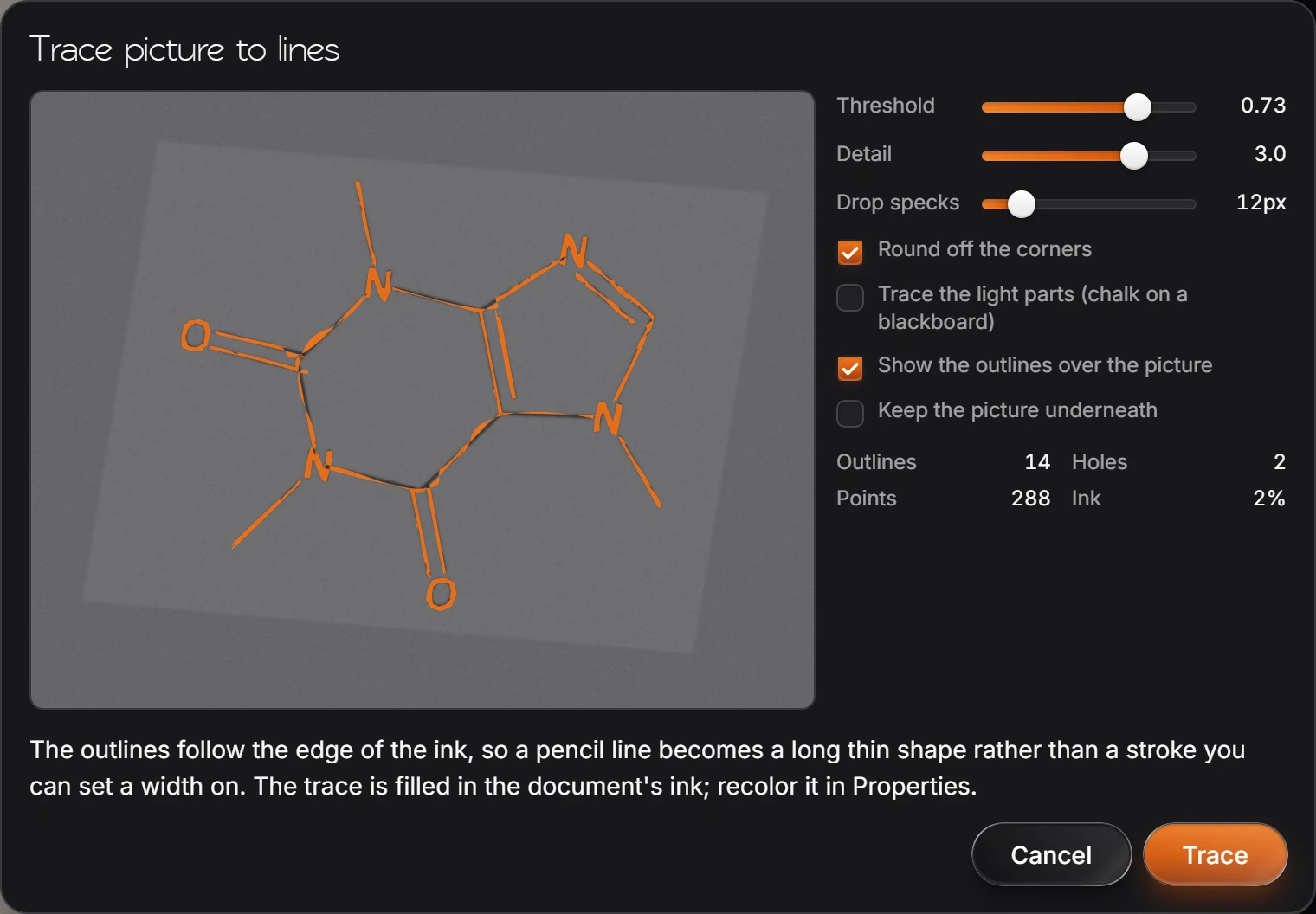
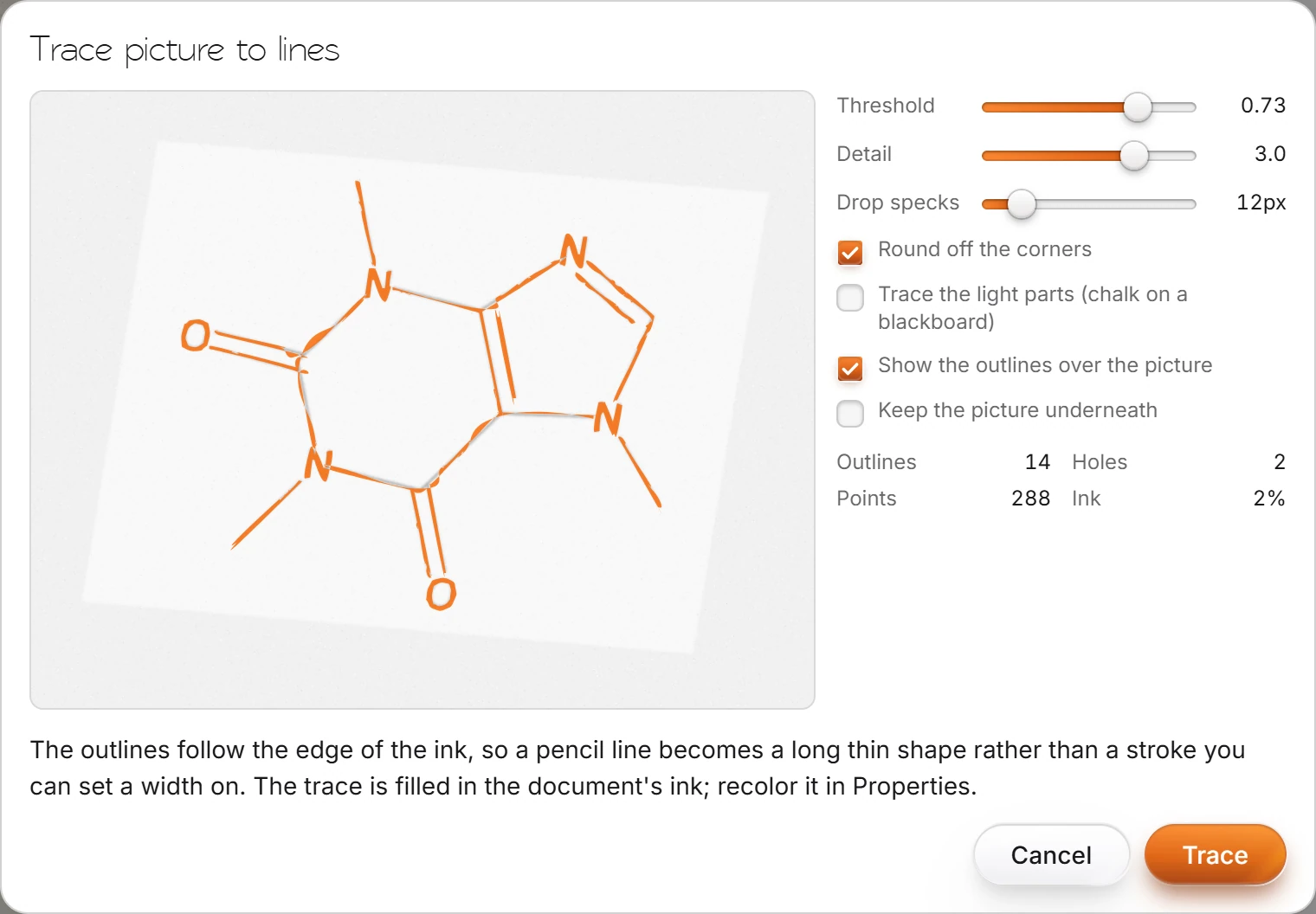 15 · How-toHow to trace a picture to linesSelect the picture and choose Edit › Trace picture to lines. Set the threshold, detail and speck size, watch the preview, and press Trace.
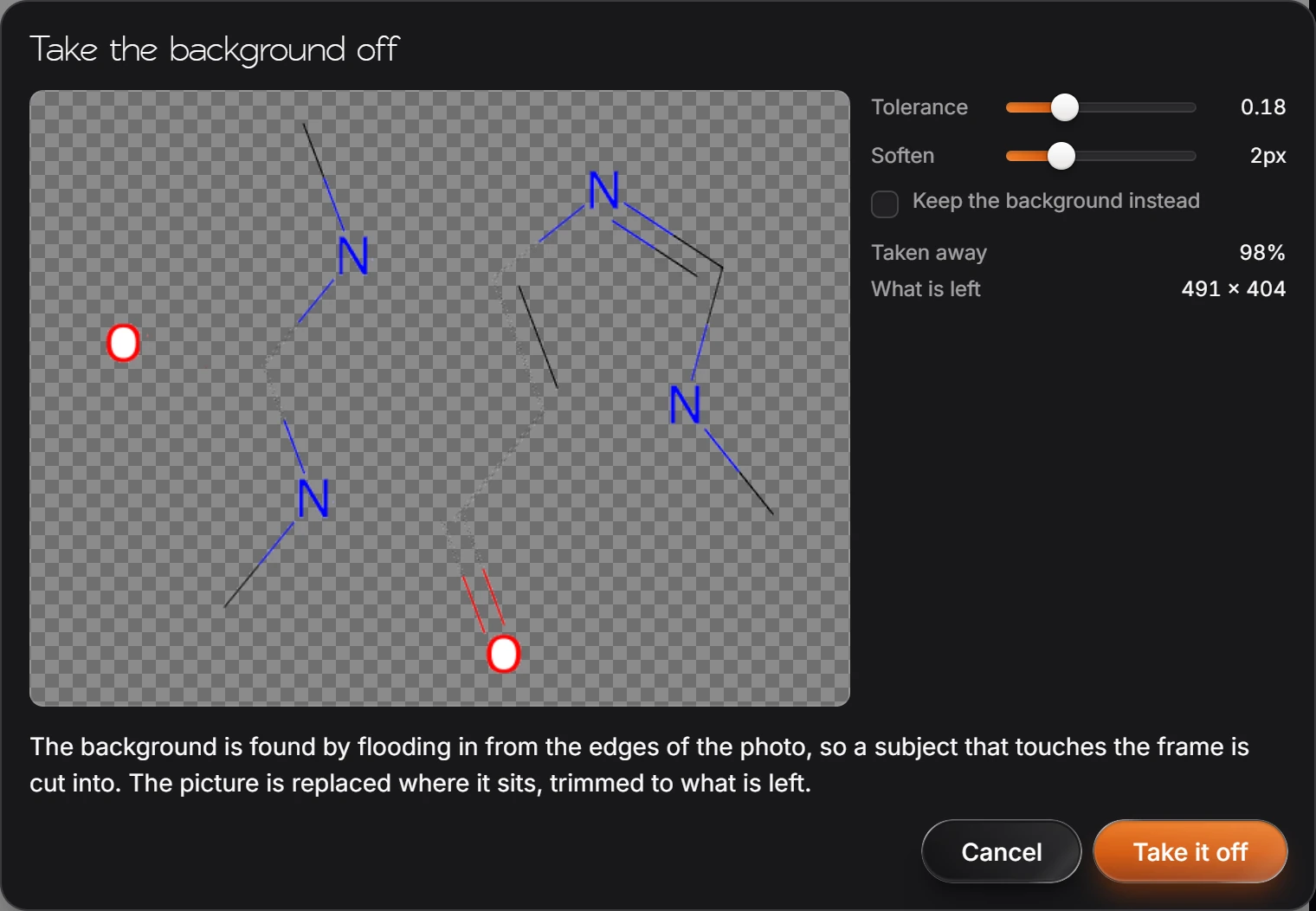
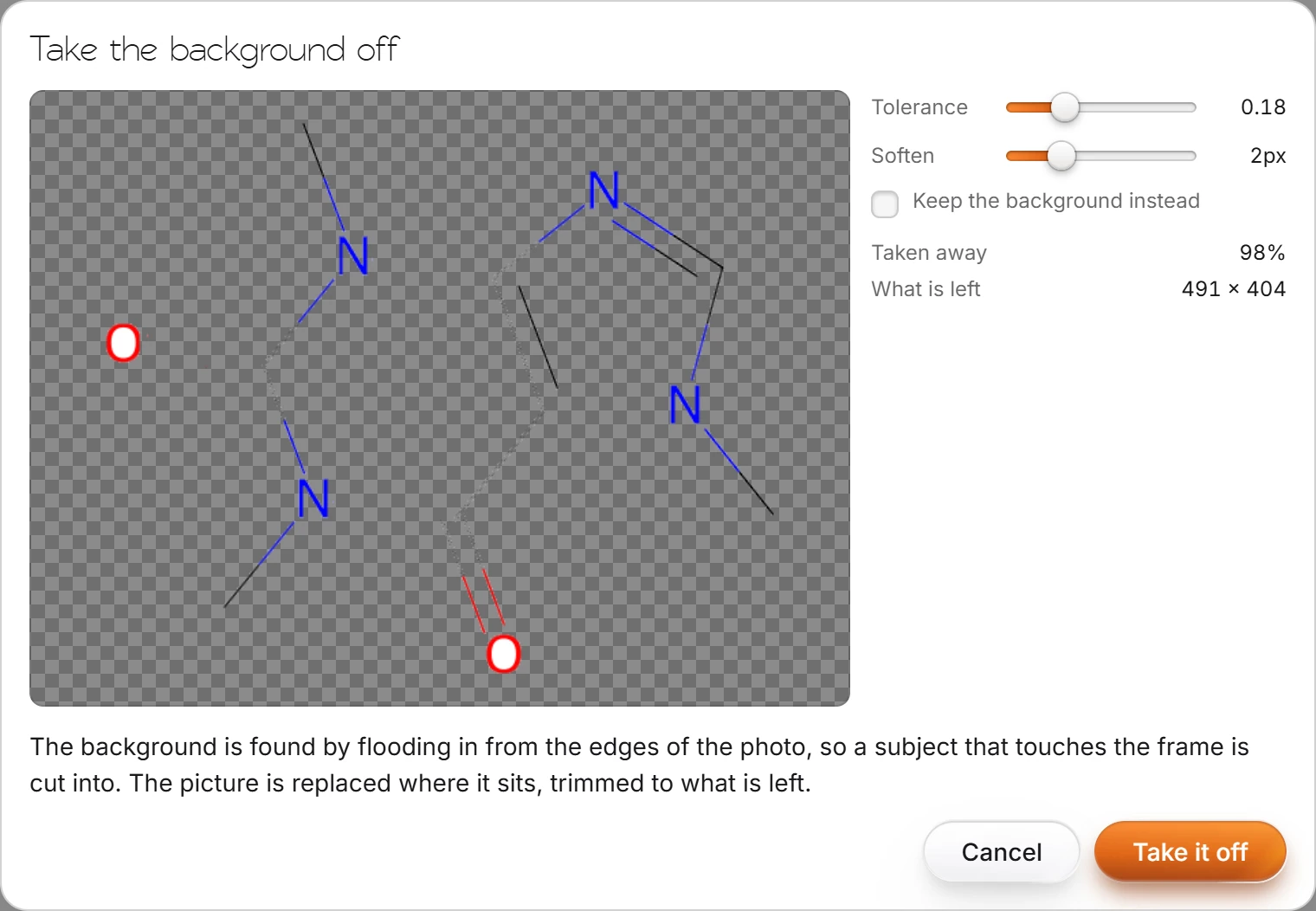 16 · How-toHow to take the background off a photoSelect the picture and choose Edit › Take the background off a photo. Set Tolerance and Soften, check how much is taken away, and press Take it off.
- Still stuck? Read the FAQ or contact support.
- Something wrong on this page? Tell us.
- For AI tools: llms.txt