
How to record audio with your writing
Choose Insert › Record audio with your writing, allow the microphone, and write with the pen while you talk. Press Stop when you are done. The recording appears as a chip at the top right of the canvas, where you can play, rename or delete it.
Steps
Choose Main menu › Insert › Record audio with your writing (or press Ctrl+K and type Record audio).
Allow the microphone if your browser asks. A Recording bar with a timer and Stop appears at the bottom of the canvas.
Write with the pen (P, then pen) while you talk.
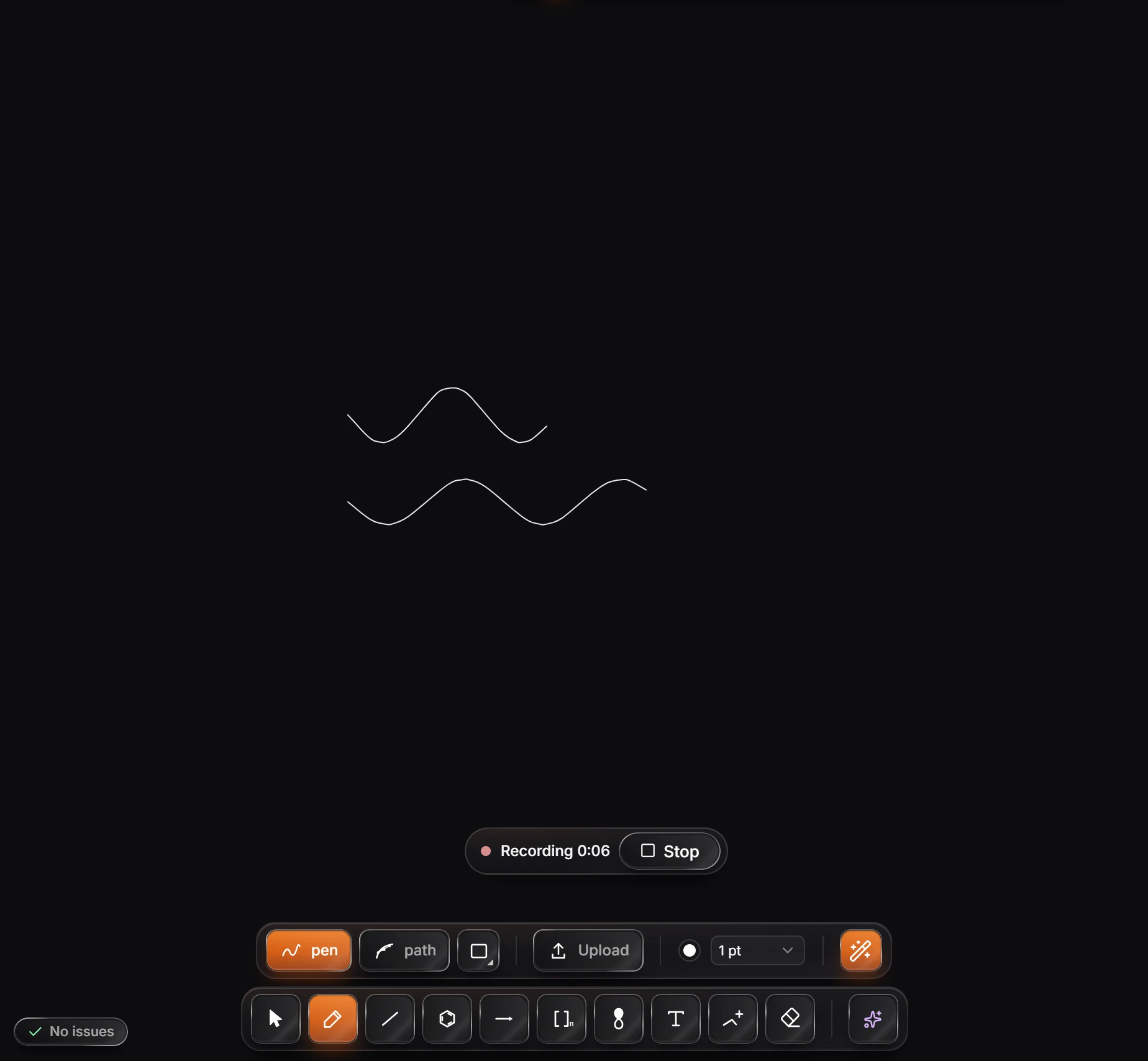
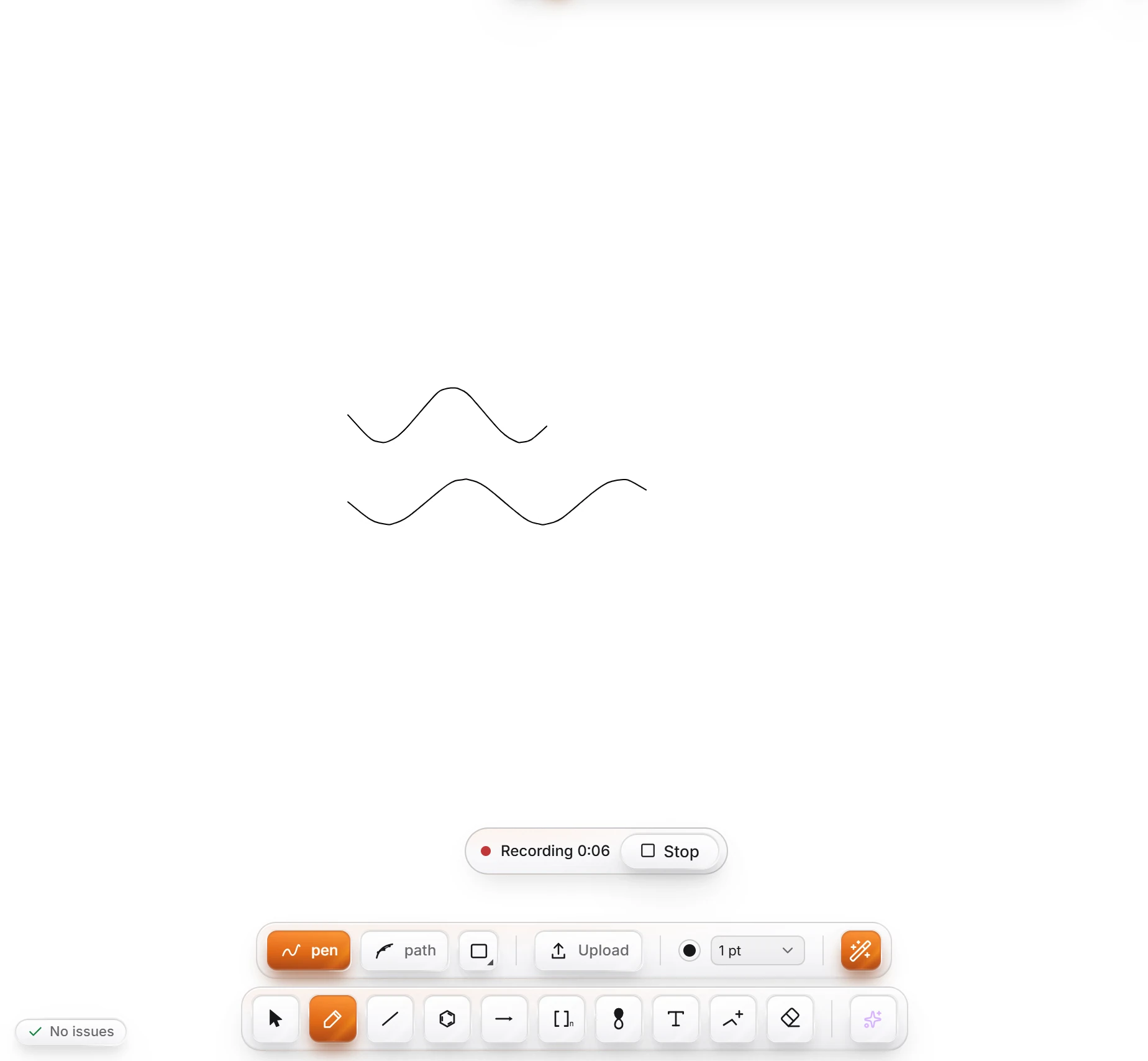
Press Stop. A notice says how long the recording is, and that it is kept in this document.
Play, rename or delete
Each recording shows as a chip at the top right of the canvas, such as Recording 1 0:08.
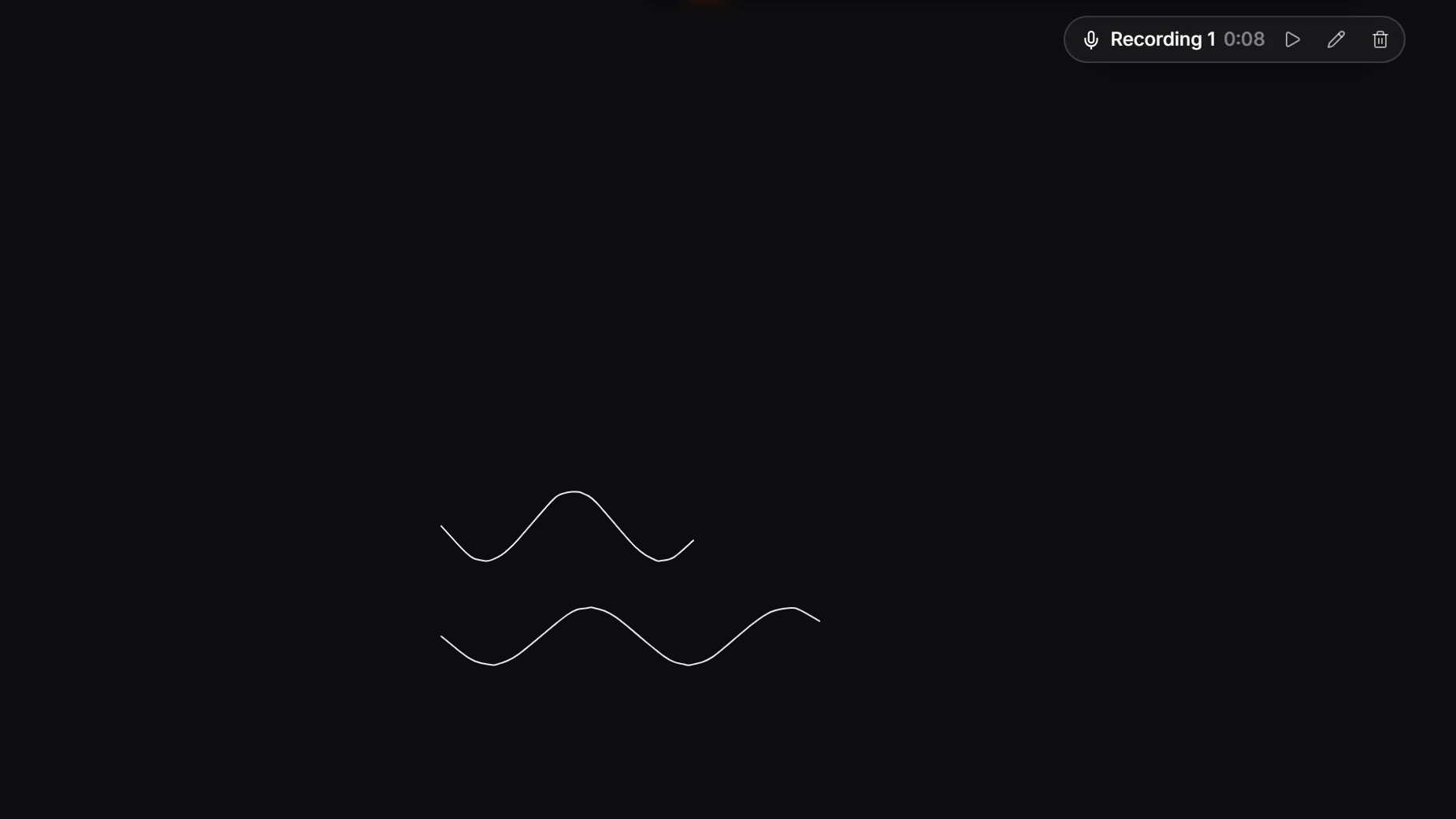
- Play plays it from the start. Press again to stop.
- Rename lets you give it a name, such as "Mechanism, step 2".
- Delete removes it after you confirm. The strokes stay.
Every stroke you wrote while it ran keeps its moment: select a stroke and play it to hear what you were saying as you drew it.
Note
The recording is kept in the document, so it goes wherever the document goes. To record your whole screen and voice as a video instead, use Record a walkthrough.
Is this helpful?
Last updated Nov 12, 2026
- Still stuck? Read the FAQ or contact support.
- Something wrong on this page? Tell us.
- For AI tools: llms.txt