
Drawing basics
Bonds, chains, atoms, rings, erasing, cleaning up, inserting by name, drawing with a pen and moving around the canvas.
Start here
 1 · How-toHow to draw bonds and chainsPress D for the Bond tool. Click empty canvas for a bond, then click an atom to grow a new bond from it. Press G for chain and drag to pull out a zigzag chain; the carbon count follows the pointer, and Shift locks the direction.

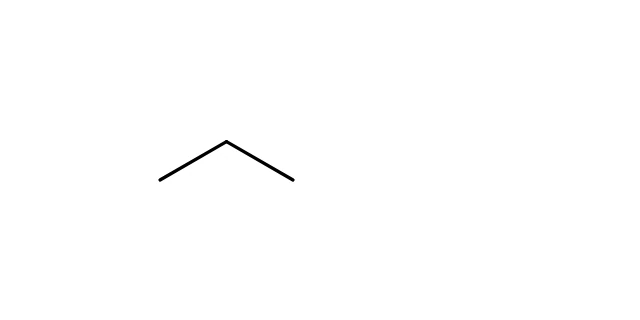 2 · How-toHow to make a double or triple bondWith the Bond tool, click an existing bond to raise its order (single, double, triple); Alt+click goes back. Or point at the bond and press 2 for double or 3 for triple.
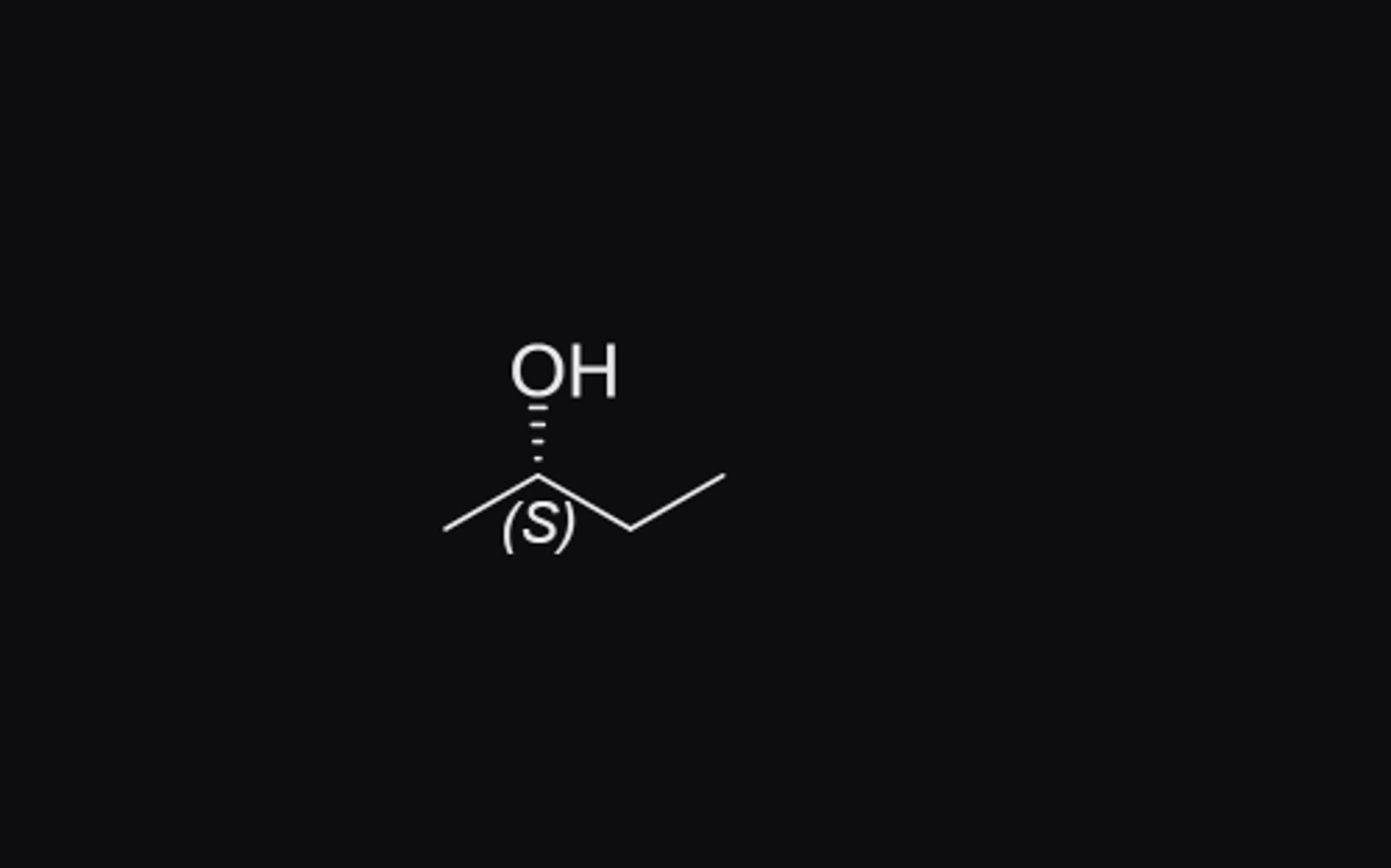
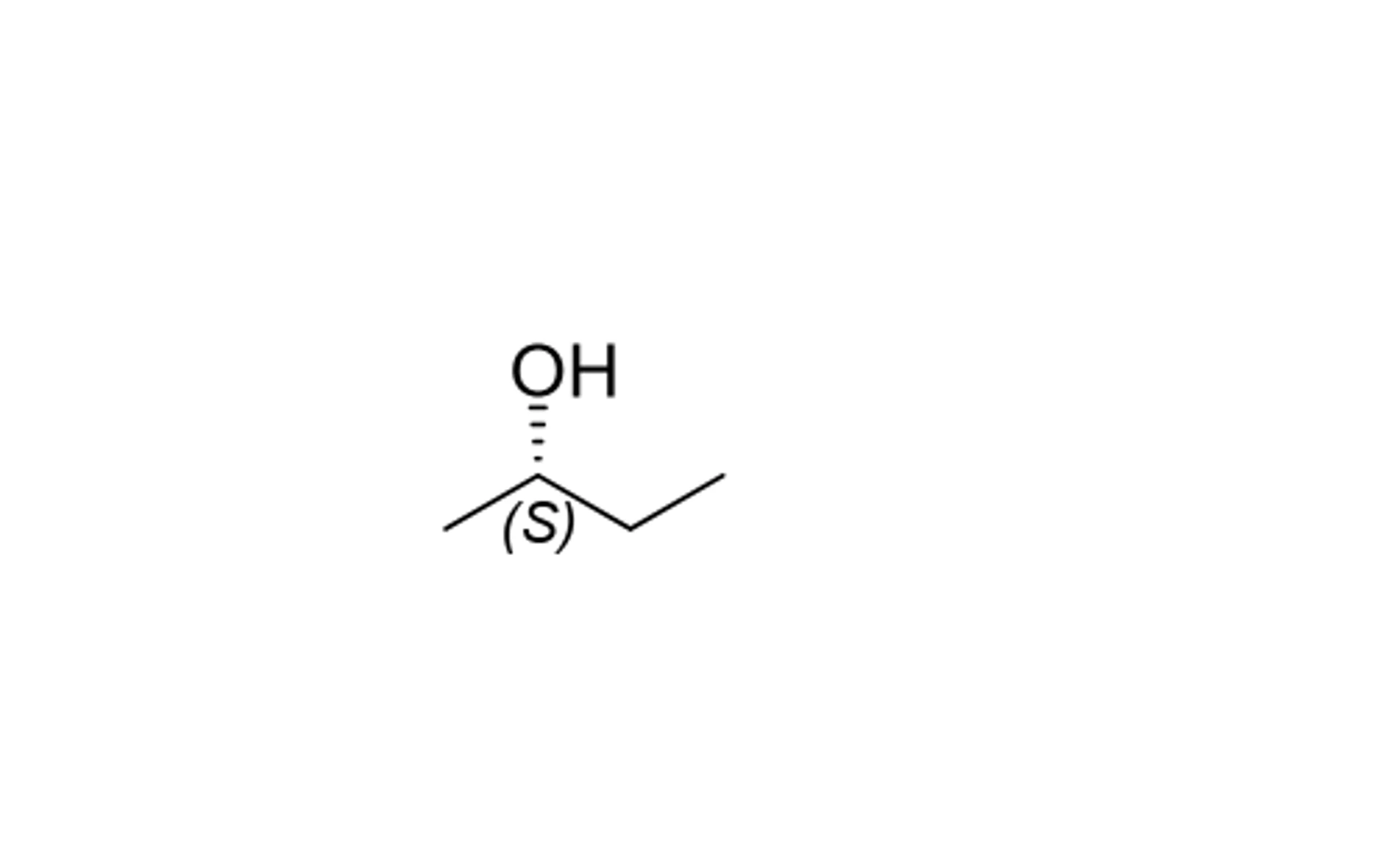 3 · How-toHow to draw wedge and hash bondsWith the Bond tool, press U for wedge, H for hash or Y for wavy, then click a bond to change it or click empty canvas to draw a new one. The narrow end sits on the stereocenter. View › Show stereochemistry labels each center R or S.
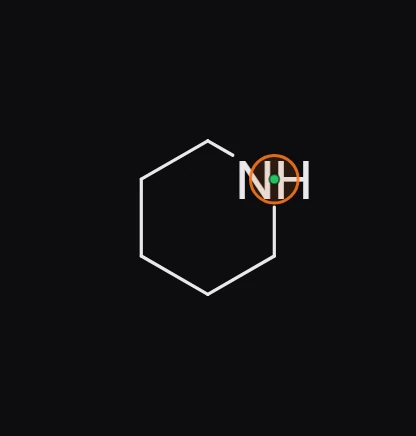
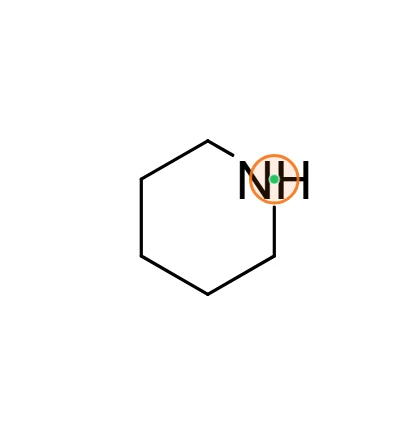 4 · How-toHow to change an atom to another elementPoint at an atom and press its letter (C, N, O, S, P, F, I, H, B or K). For anything else, point and press Enter to type a label such as Cl, Br or OMe, or select atoms and choose an element in View › Periodic table.

 5 · How-toHow to add ringsPress R, then J for benzene or 3 to 8 for that ring size, and click empty canvas. Click a bond of another ring to fuse onto it, or an atom to make a spiro ring. Insert › Ring size takes any size from 3 to 30.

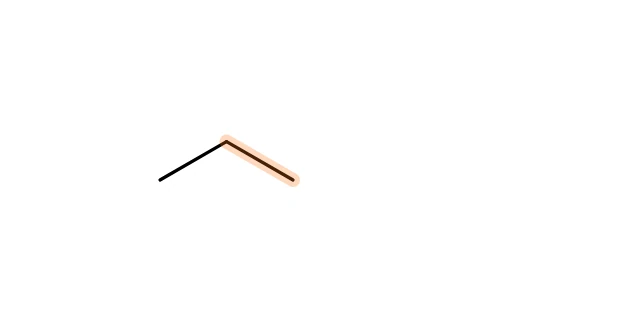 6 · How-toHow to erase atoms, bonds and objectsPress E for the Erase tool and click what to remove; the part under the pointer lights up first. Or select it and press Delete. With a pen, scribble over it.
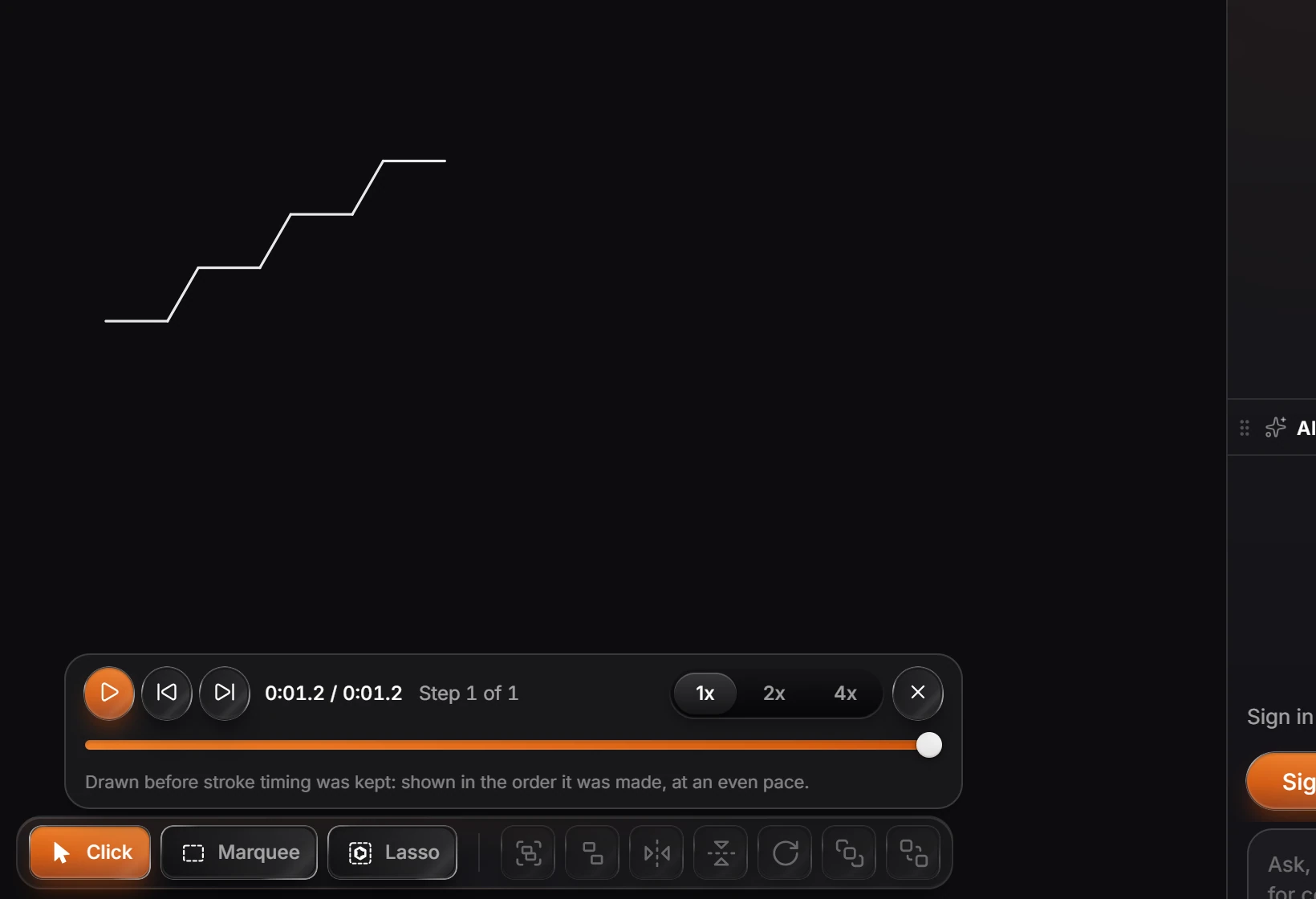
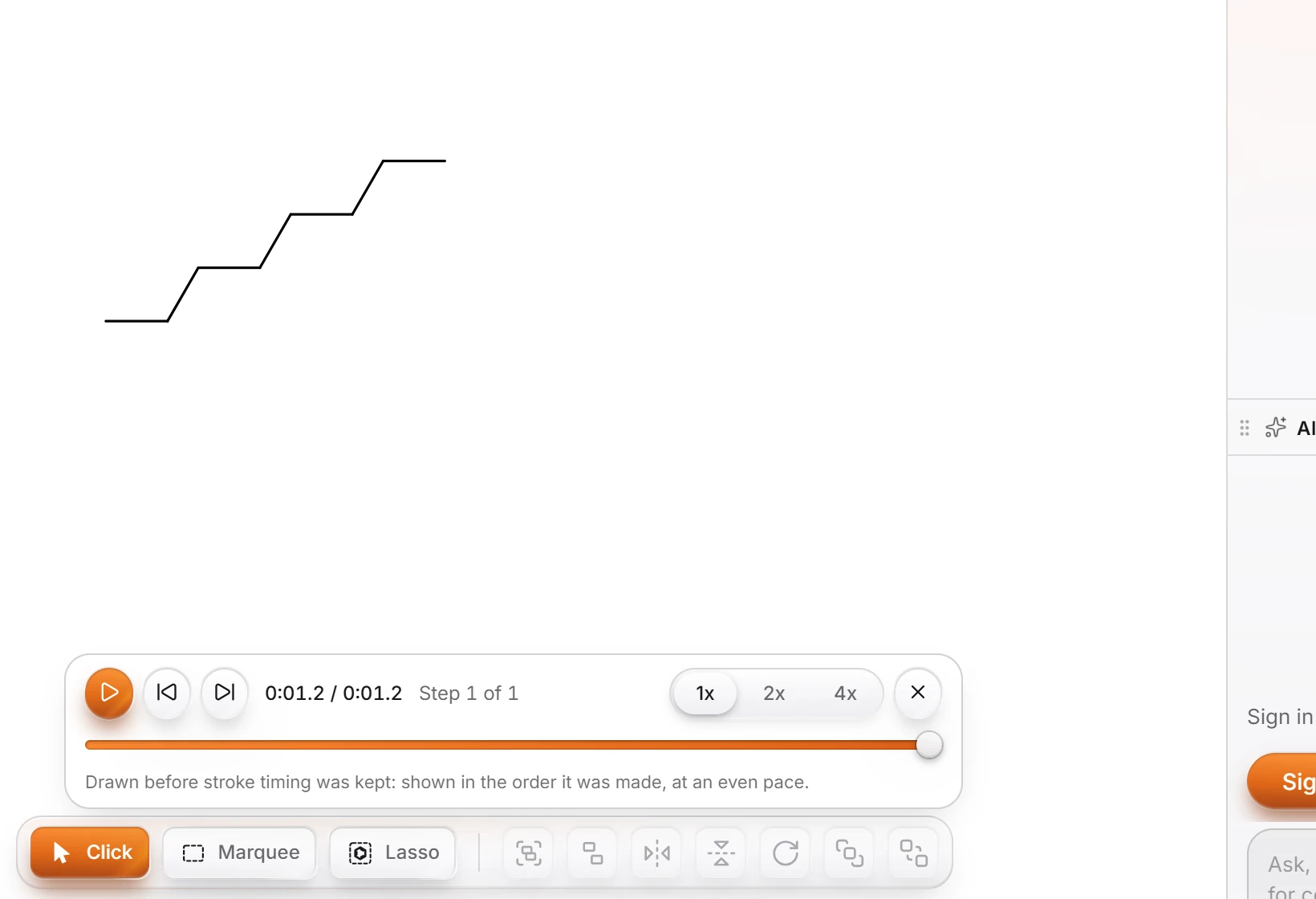 7 · How-toHow to undo, redo and replay a drawingCtrl+Z undoes and Ctrl+Shift+Z (or Ctrl+Y) redoes. Version history (Shift+H) shows every edit as a picture you can go back to. View › Replay drawing plays the page back the way it was drawn.
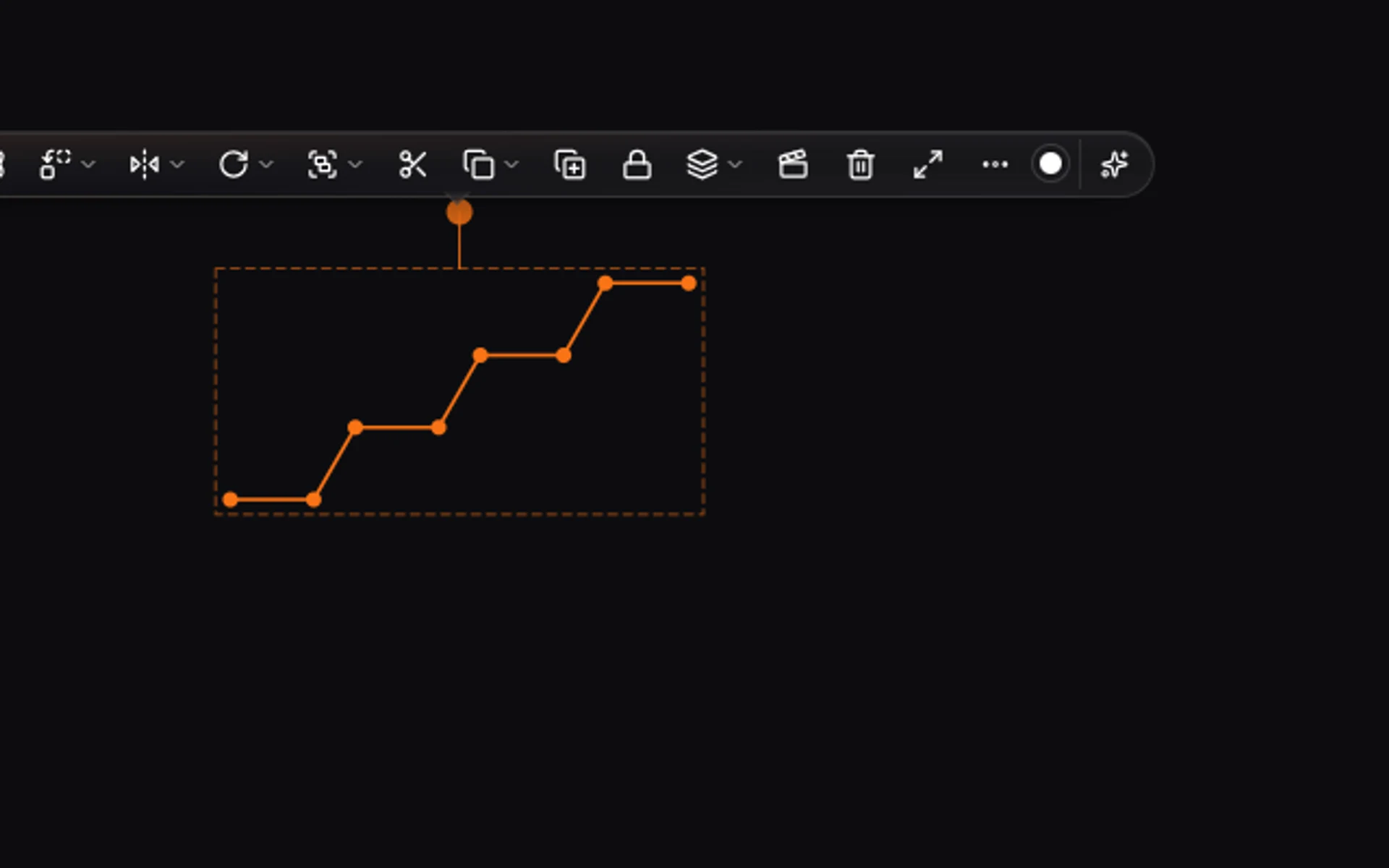
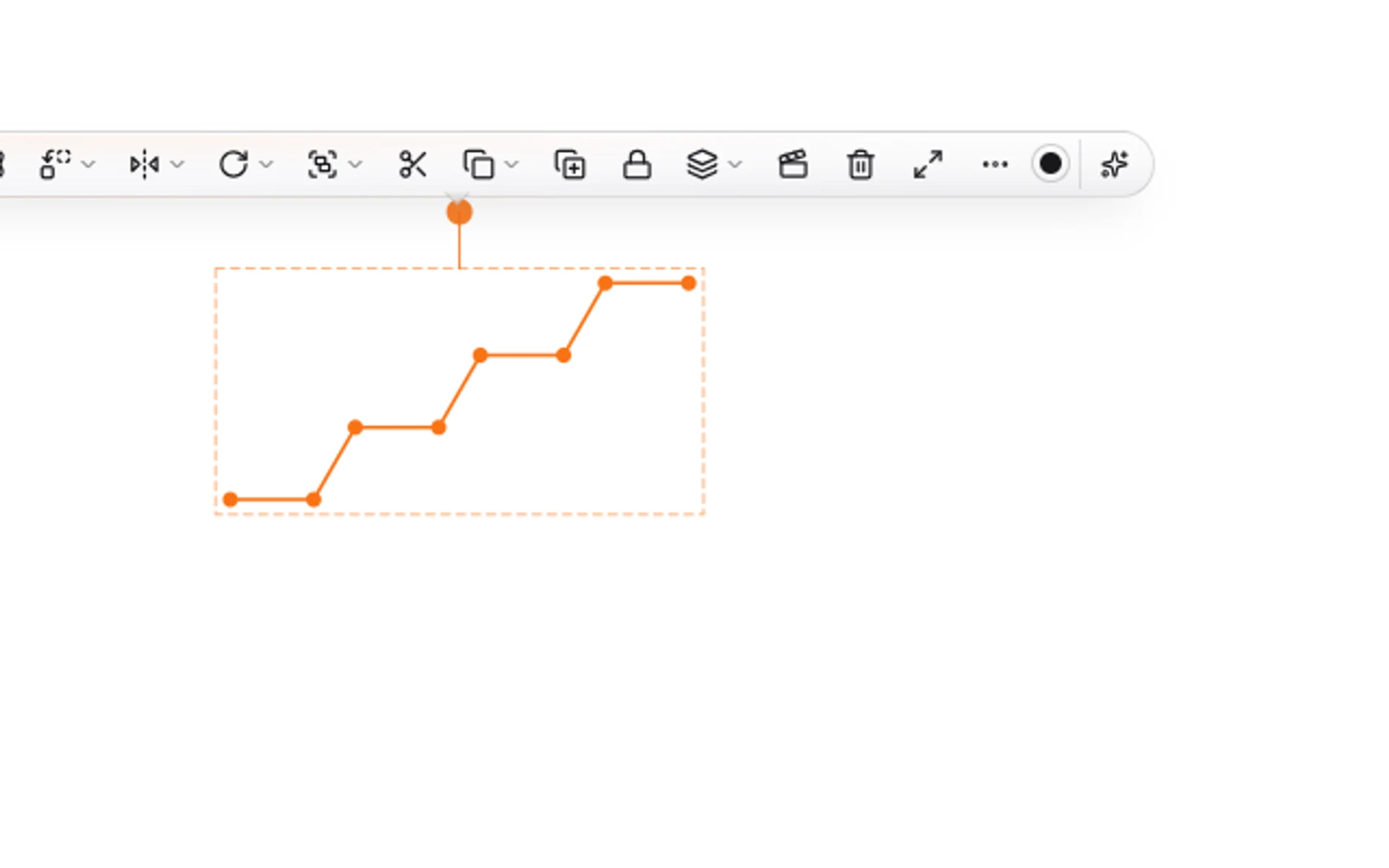 8 · How-toHow to clean up a structureSelect the structure and press Ctrl+Shift+K (Clean up structure). Bond lengths and angles become regular; the atoms and bonds stay the same.
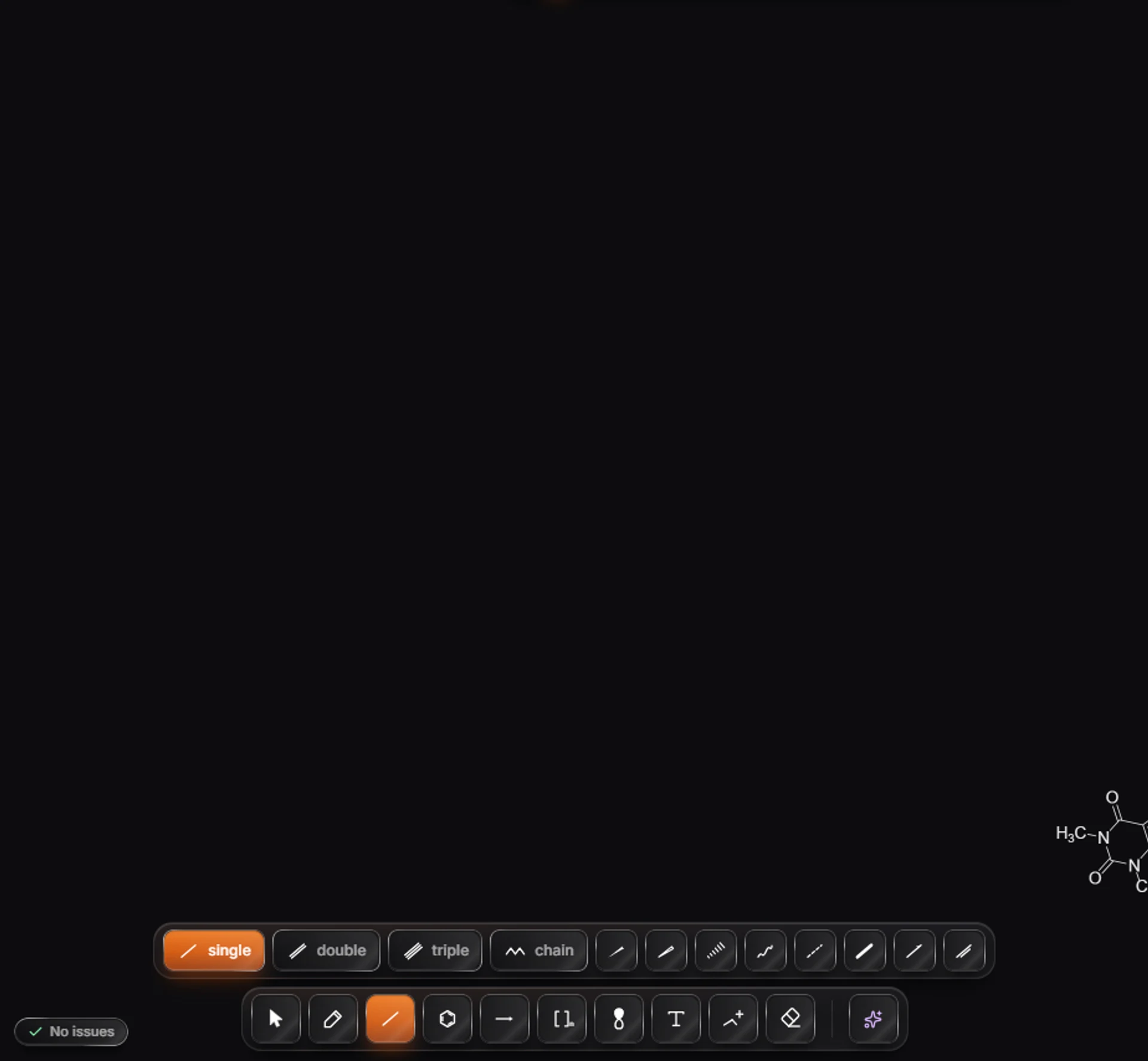
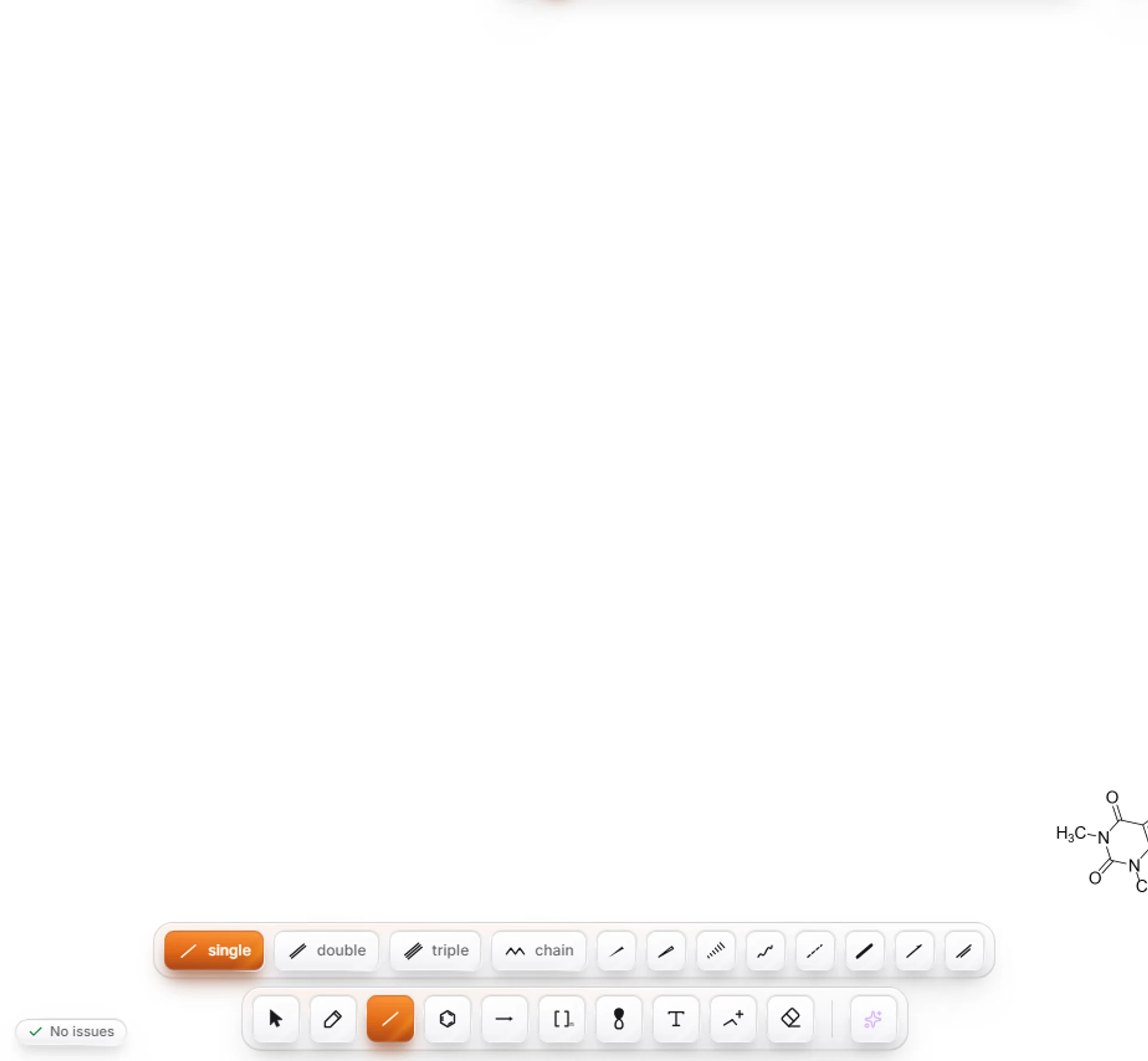 9 · How-toHow to insert a structure by name, SMILES or CAS numberPress / (Quick insert), type a name such as caffeine, a SMILES string or a CAS number, and press Enter. The structure lands on the canvas, ready to edit.
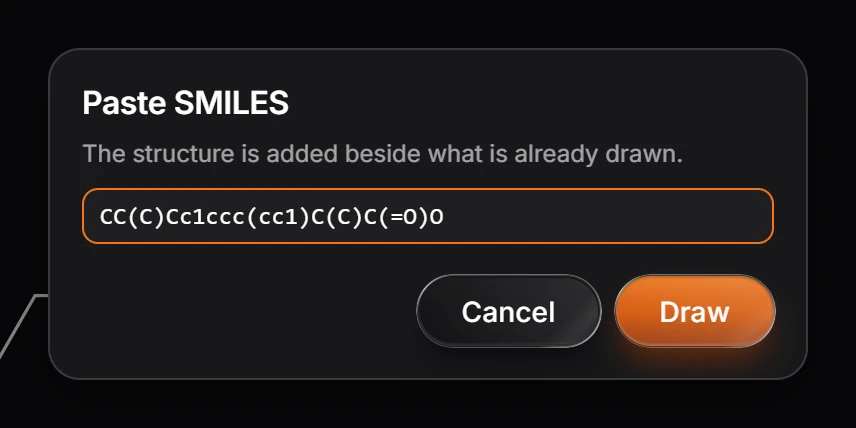
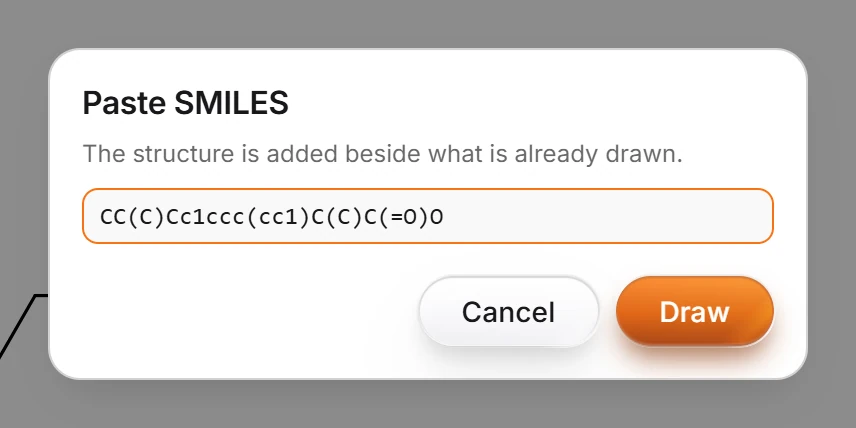 10 · How-toHow to paste SMILES as a structureChoose Edit › Paste SMILES…, paste the SMILES string and press Draw. Or press / and paste it into Quick insert.
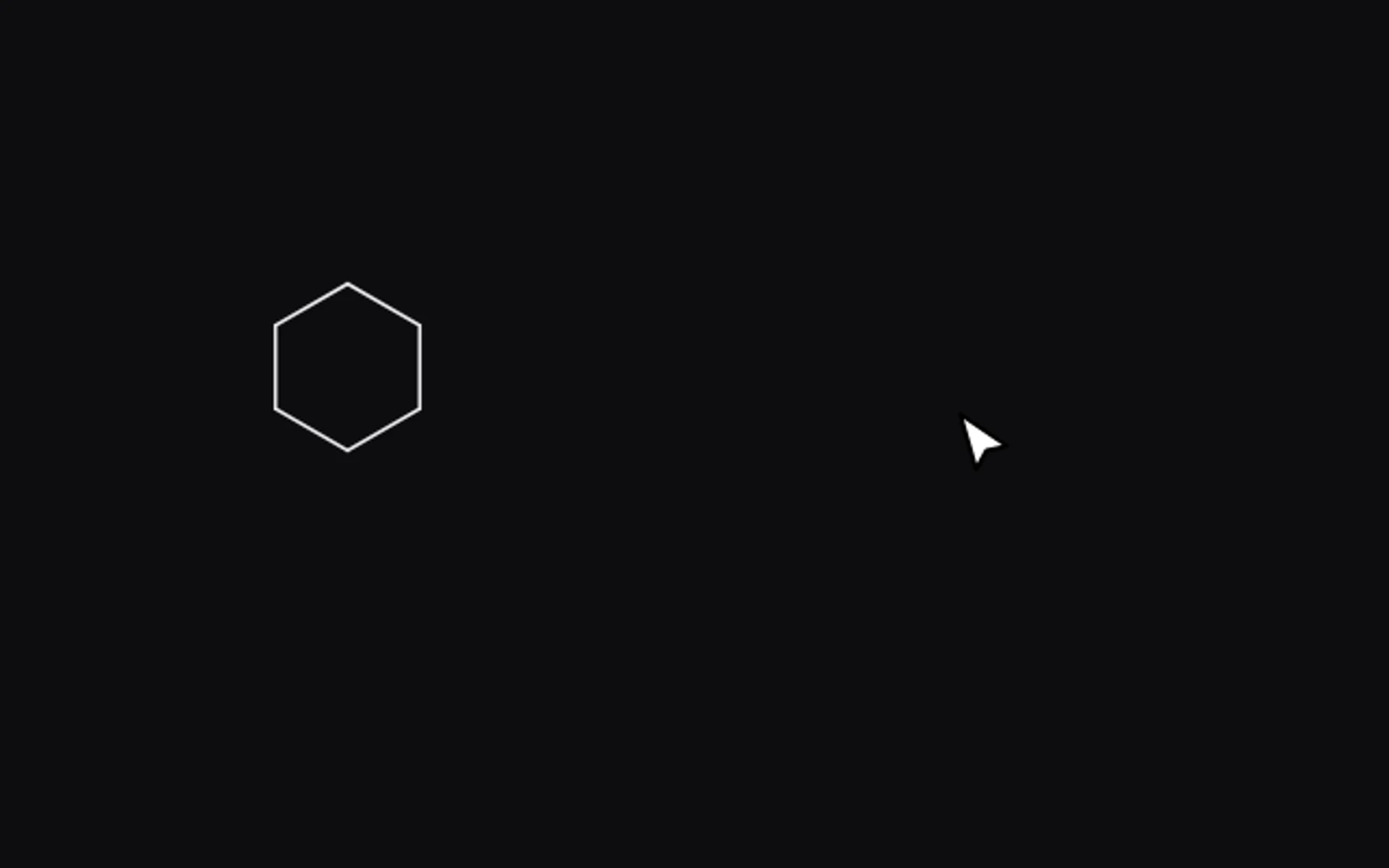
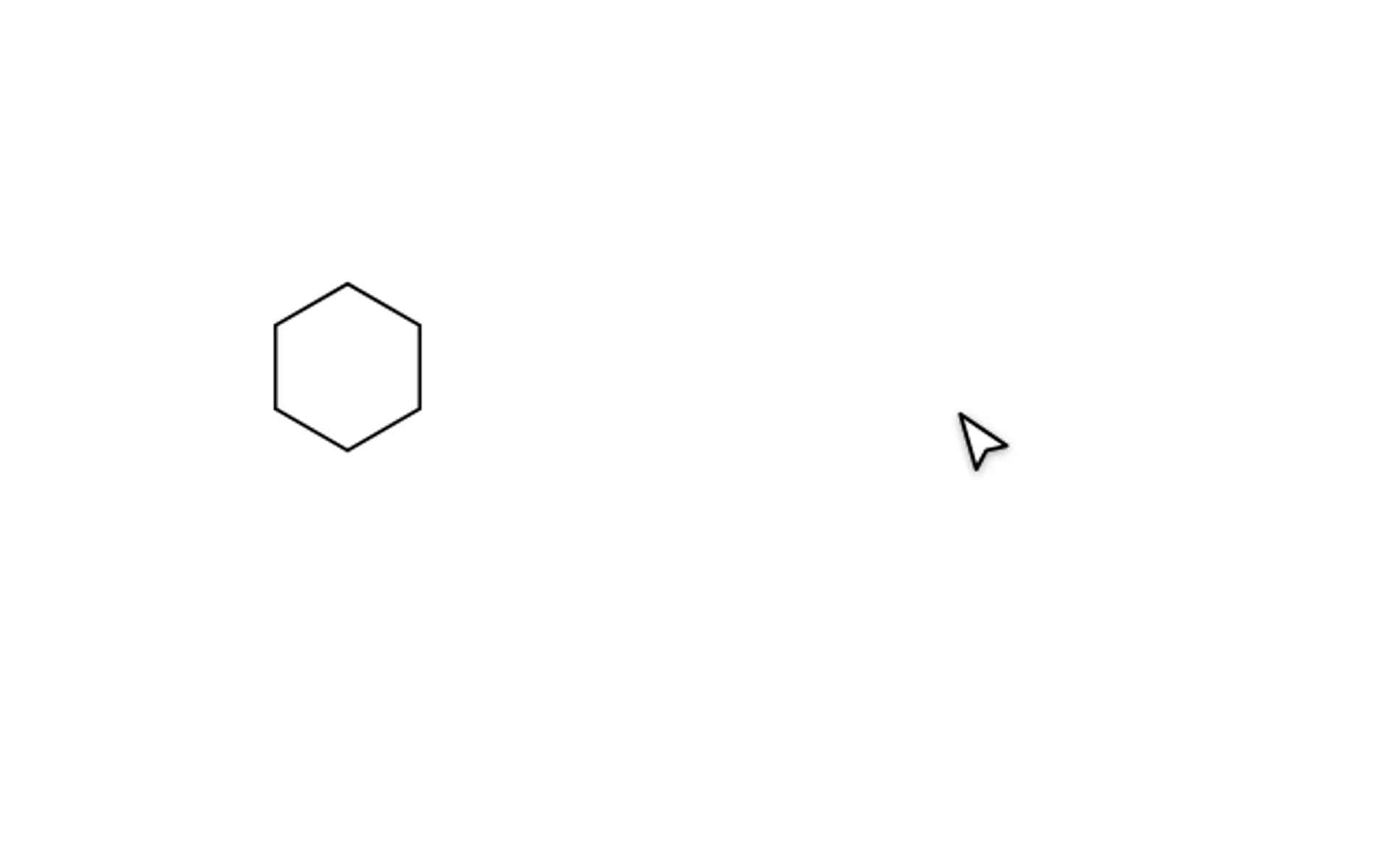 11 · How-toHow to draw chemistry with a pen or stylusDraw with a pen: a hexagon becomes a ring and a zigzag becomes a carbon chain, and a scribble erases. Turn on View › Pen only so a resting hand or finger moves the page instead of drawing.
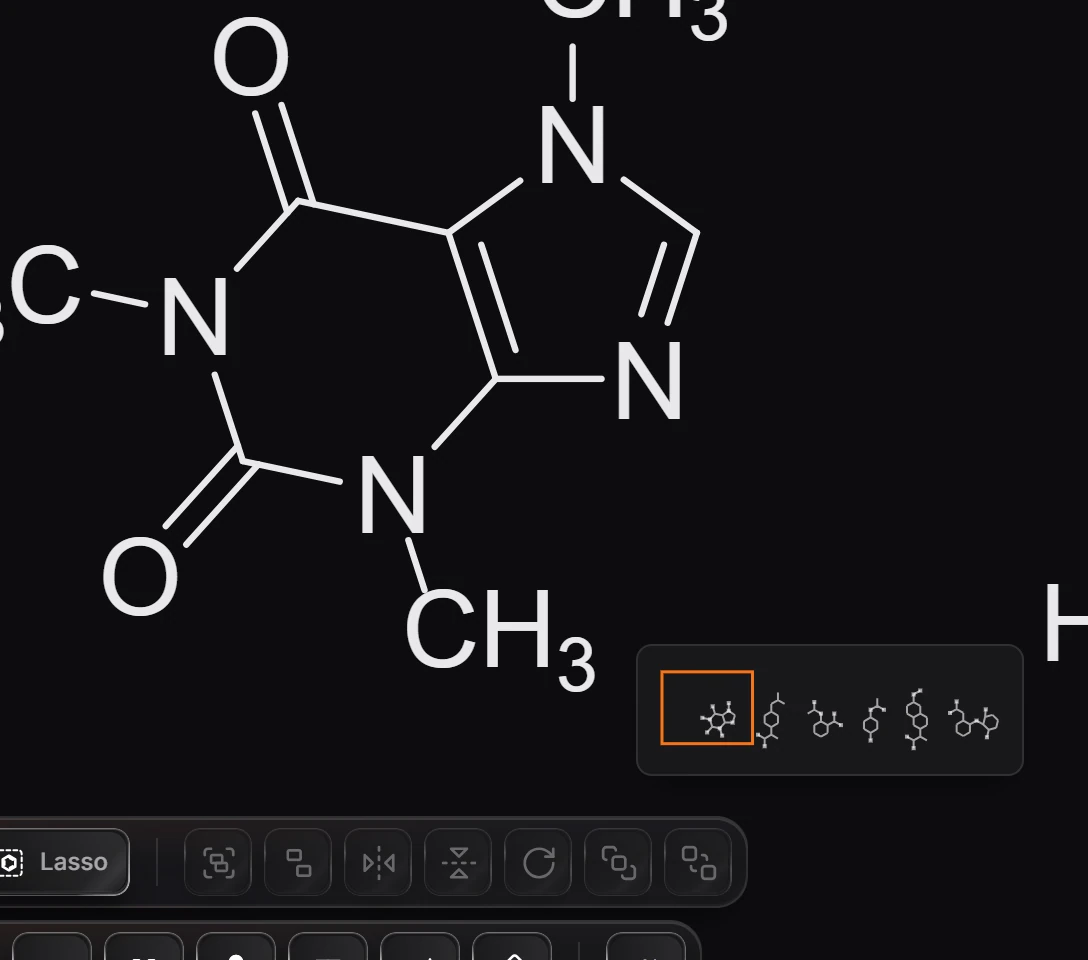
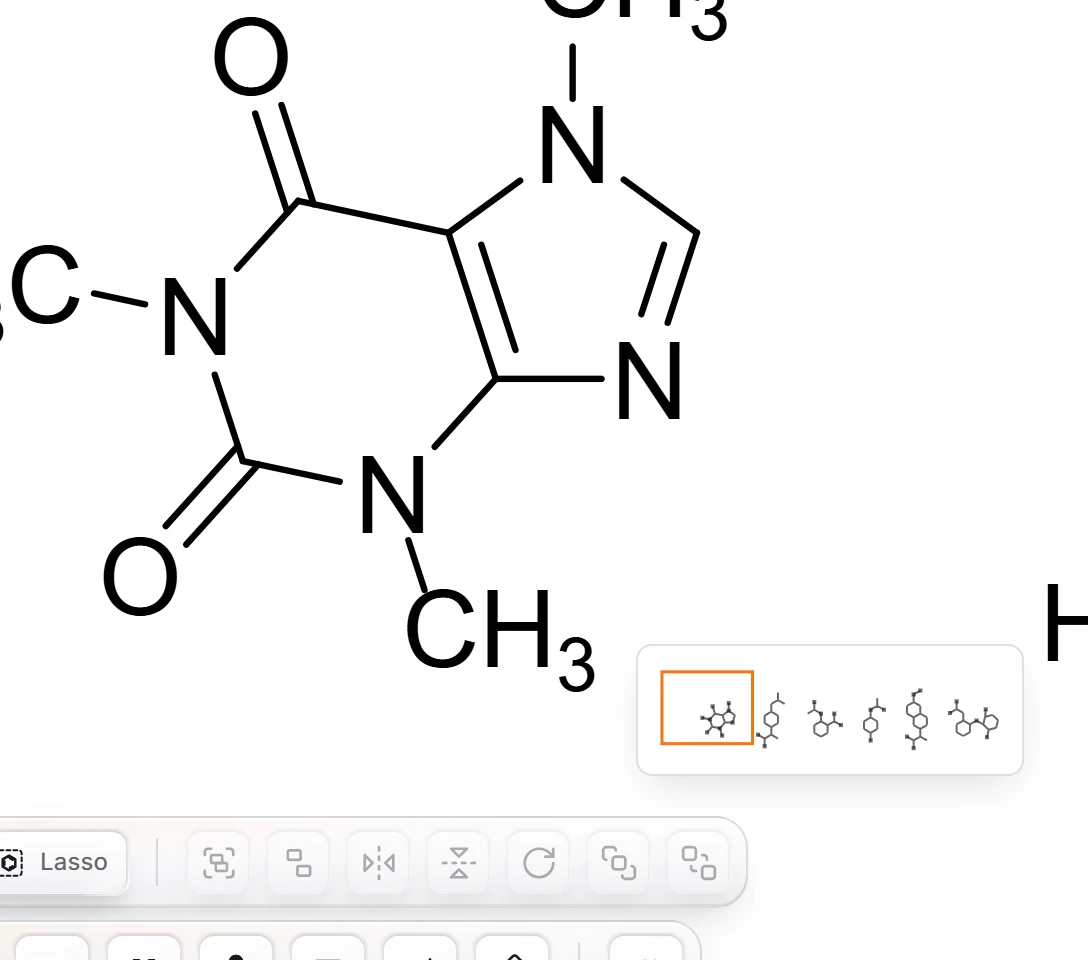 12 · How-toHow to zoom and move around the canvasZoom in is Ctrl+=, Zoom out Ctrl+-, Zoom to fit Shift+1, Zoom to selection Shift+2 and Zoom to 100% Ctrl+0. Hold Space and drag to move around. Big drawings get a Minimap in the corner.
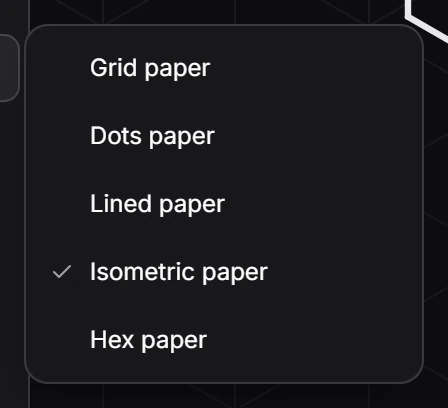
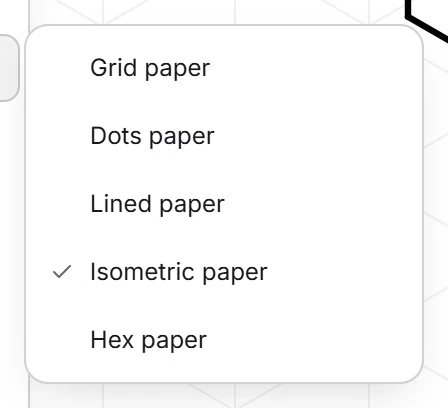 13 · How-toHow to use grids, paper and guidesChoose View › Show grid, or View › Paper for Grid, Dots, Lined, Isometric or Hex paper. View › Rulers lets you drag guides; Clear guides removes them. Snap to angles and Smart guides are in the same menu.
- Still stuck? Read the FAQ or contact support.
- Something wrong on this page? Tell us.
- For AI tools: llms.txt