
Using plugins
Find, install, run, configure, update, turn off and uninstall Athanor plugins, read the permission sheet, and rate, review or report a plugin.
Open the Plugins window
The Plugins window is where you browse, install and manage plugins. Open it any of these ways:
- Select Plugins in the top bar, then Browse plugins… (or Manage plugins… for the Installed tab). The same menu lists your installed plugins, so a plugin's window opens from there too.
- Main menu › Object › Plugins › Browse plugins…
- Main menu › Object › Plugins › Manage plugins… (opens on the Installed tab)
- Right-click on the canvas › Plugins › Browse plugins…
- Press
Ctrl+K, choose the Plugins tab, then Browse all plugins…
The Main menu is the Athanor mark at the left of the tab bar. The Object menu appears once a document is open.
Find a plugin
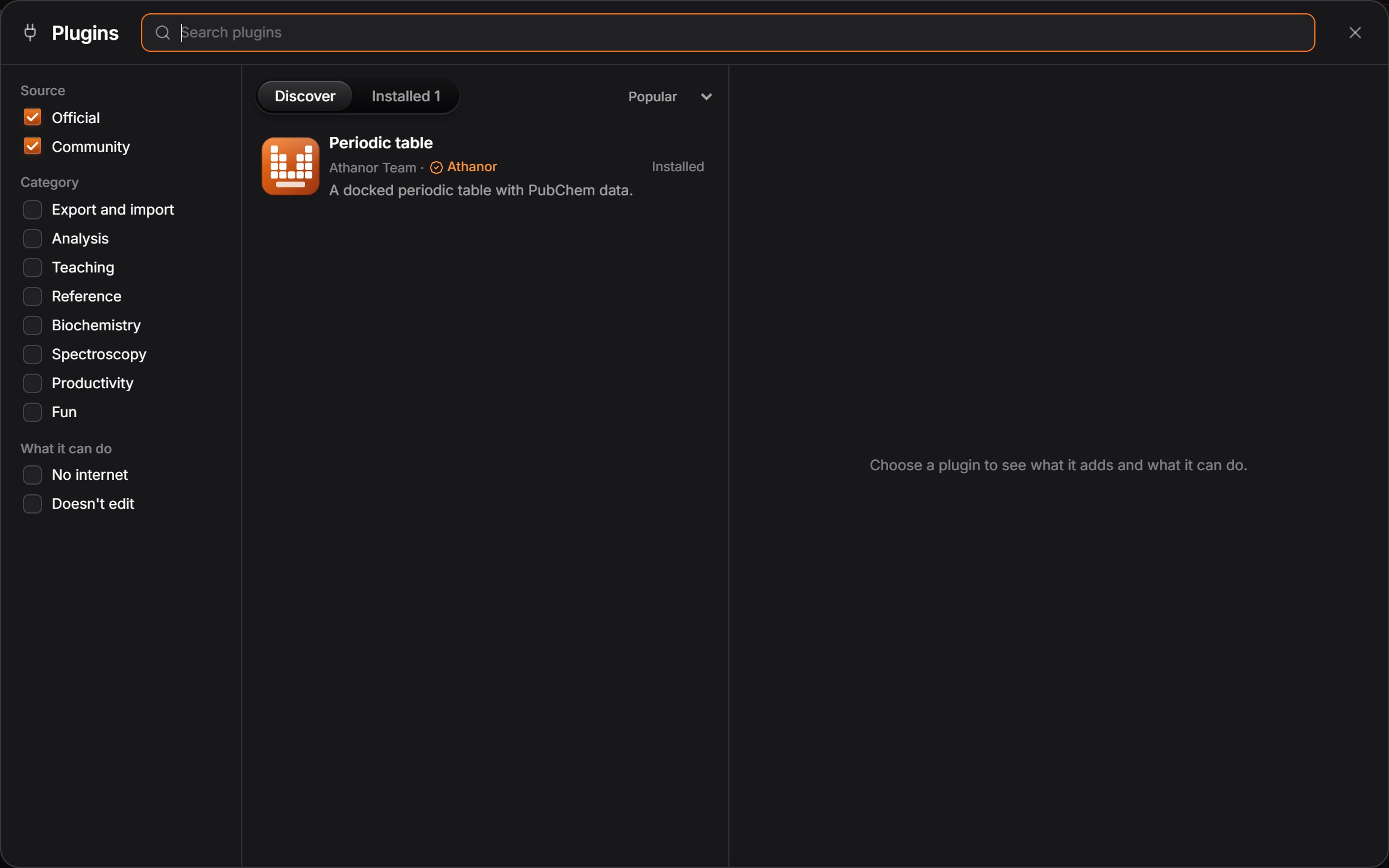
The window has three parts:
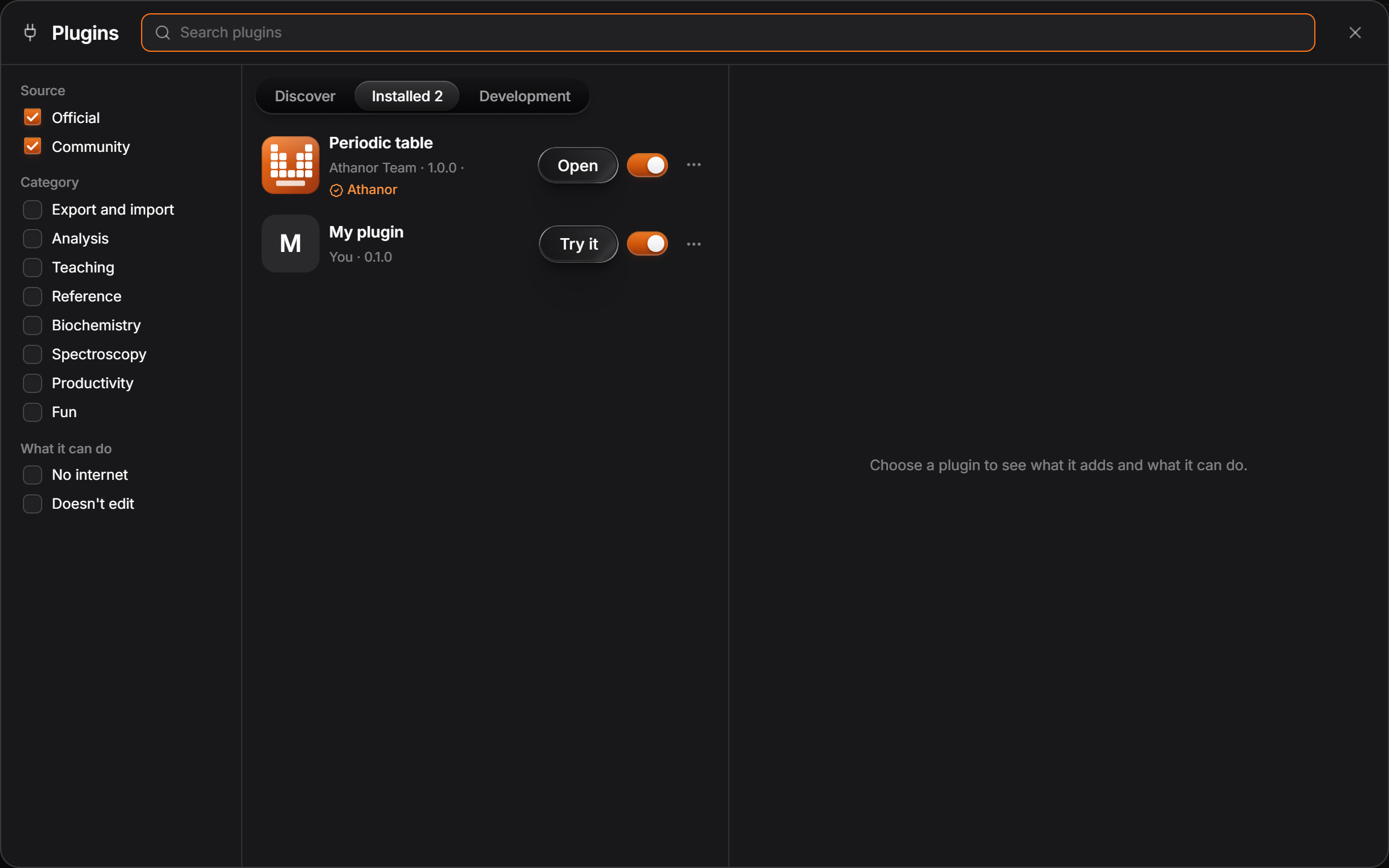
- Filters on the left: Source (Official, Community), Category, and What it can do (No internet, Doesn't edit).
- The list in the middle, under the Discover and Installed tabs. On Discover, a sort menu offers Popular, Top rated and Recent. Type in Search plugins at the top to search names, taglines, authors and categories.
- The detail column on the right, for the plugin you select.
Each row shows the icon, the name, the author, an Official badge where it applies, the star rating, the number of users, a globe if the plugin uses the internet, and a one-line tagline.
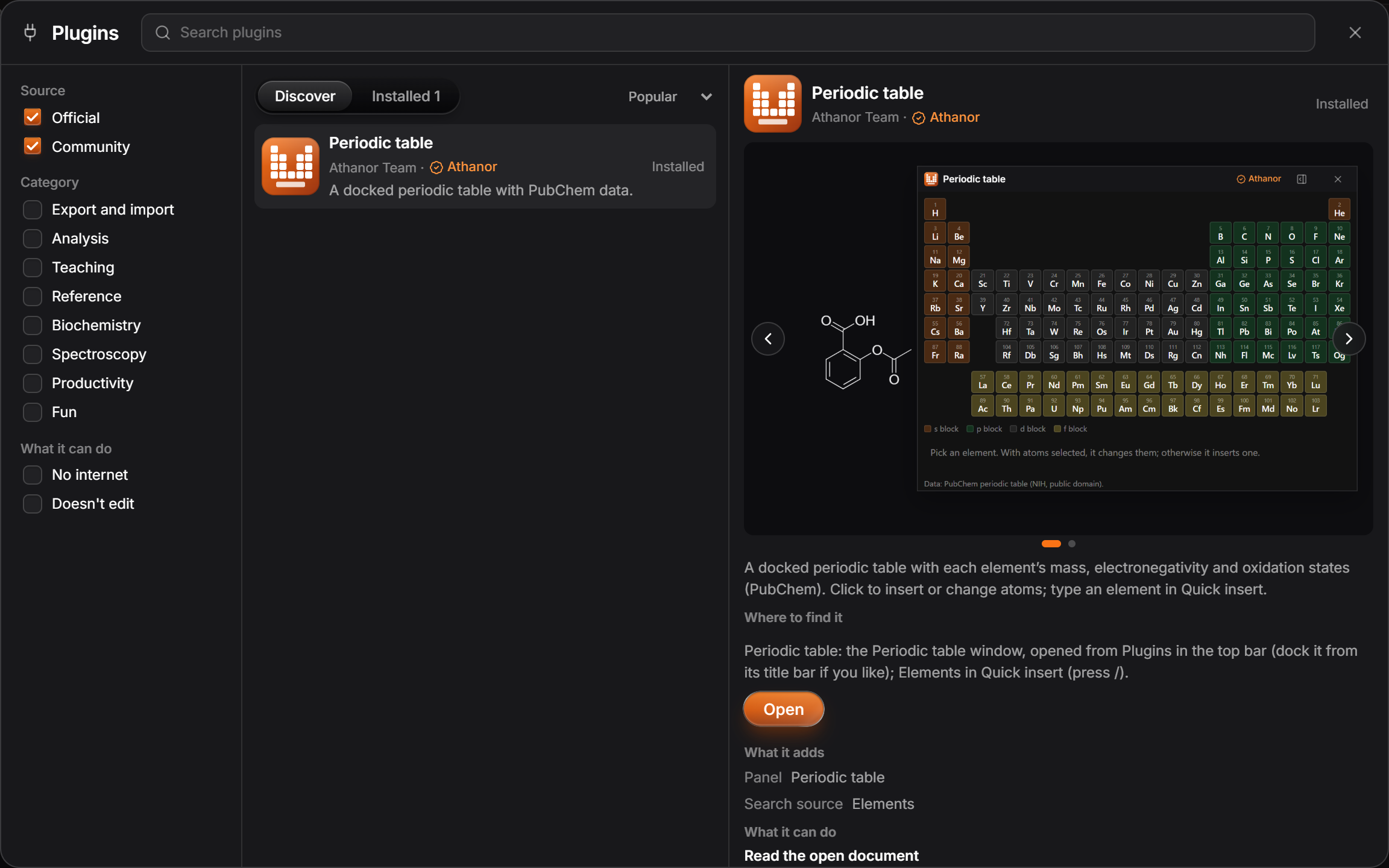
Select a row to see its detail: what it adds (commands, panels, file formats, checks, search sources), what it can do, its version, where it works, when it was updated, its license and its support contact.
Install a plugin
- Select Install on the row or in the detail column.
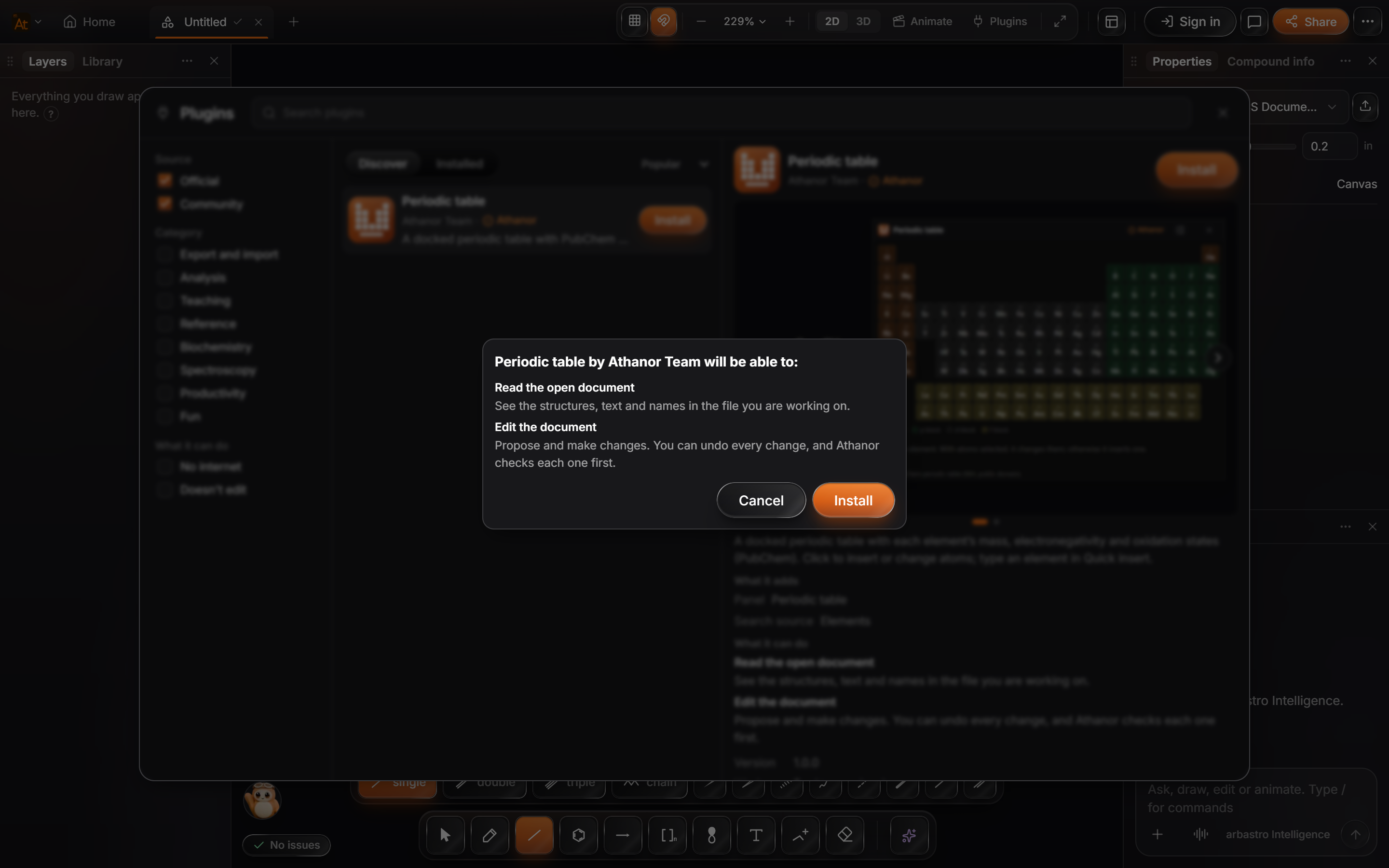
- Read the permission sheet. It opens with "Plugin by author will be able to:" and one line per permission.
- Select Install, or Cancel to install nothing.
The permission sheet, line by line
| Line on the sheet | What it means |
|---|---|
| Read the open document | See the structures, text and names in the file you are working on. |
| Edit the document | Propose and make changes. You can undo every change, and Athanor checks each one first. |
| Access the internet | Only the sites listed on the line. A plugin can reach no other address. |
| Save files | Offer files for you to save. You choose where. |
| Know who you are | Your display name and avatar, never your email or password. |
| "It could send your document's contents to those sites." | Shown when a plugin can both read the document and use the internet. Install it only if you trust where it sends things. |
| "This plugin needs no special access." | The plugin declared no permissions at all. |
A plugin gets only what it declared. It cannot ask for more later without an update that waits for your OK (see Updates).
Signing in
Community plugins live on your arbastro account, so you must be signed in to install one. Signed out, Install answers "Sign in to install community plugins. They live on your account." The four official plugins (Periodic table, Solution and buffer calculator, Formula finder and Solvent selector) come installed and work signed out.
Once installed, you see "Plugin is installed. Find it in Plugins, Ctrl+K, or right-click." Its commands, panels, formats and checks are available at once, with no reload. The same account sees the plugin installed on your other devices the next time Athanor starts there or you sign in.
Run a plugin
The quickest way to start an installed plugin is the button on its row in the Plugins window. It is named for what the plugin does: Open for a window, Try it for a command, Export for a file format, Show checks for checks, and Try in Quick insert for an input source. Its "Where to find it" hint tells you where the plugin's commands, windows and formats live from then on.
What a plugin adds decides where you use it:
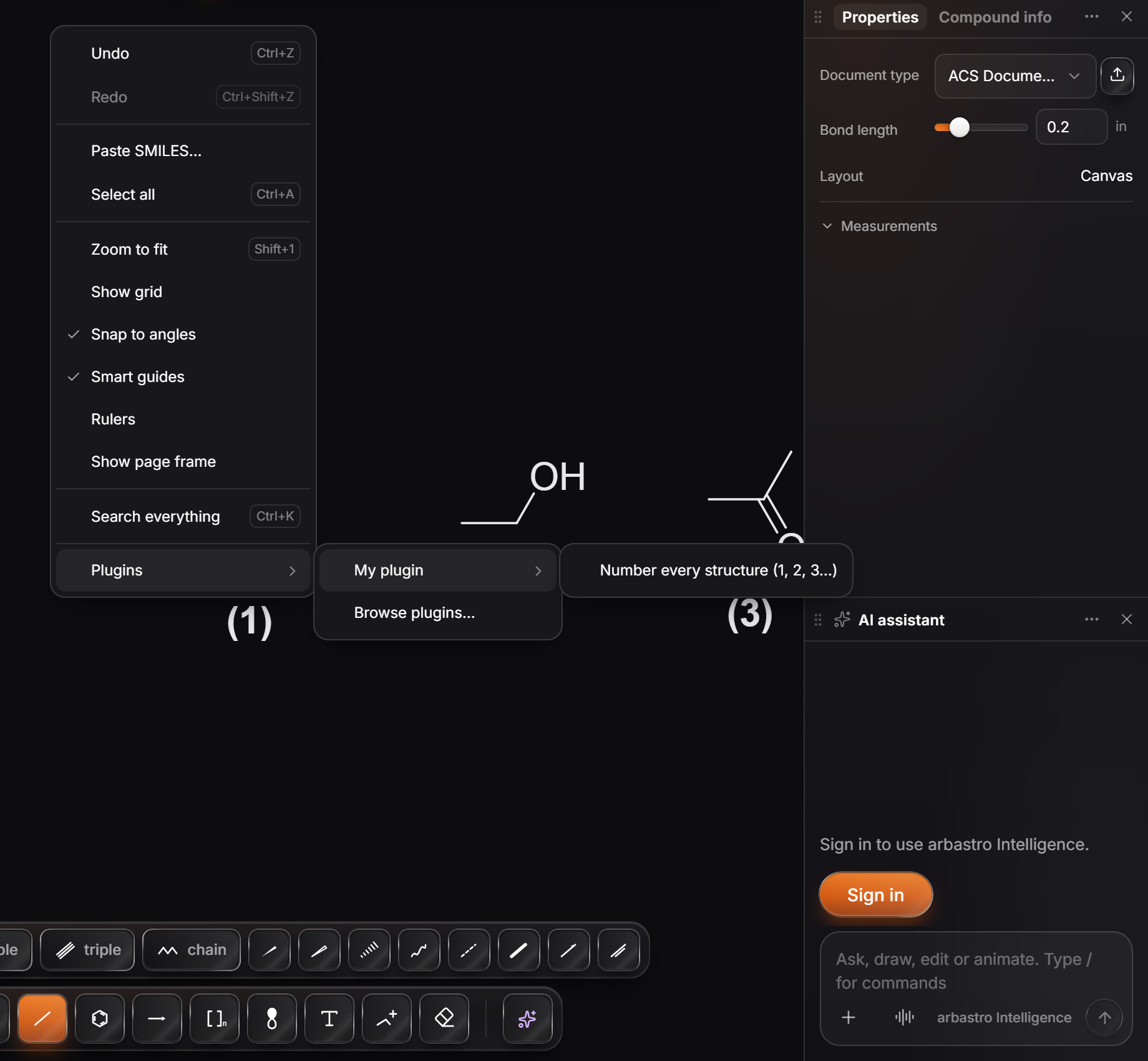
- Commands: Main menu › Object › Plugins › the command,
Ctrl+K› Plugins tab, or right-click on the canvas › Plugins › plugin name › the command. - Windows and panels: Main menu › Object › Plugins › Open panel name. A plugin's window floats over the canvas by default, with Athanor's title bar and close button, and you can dock it beside the canvas like Athanor's own panels.
- Exporters: Main menu › File › Export… (
Ctrl+Shift+E), then pick the format under From plugins. Each reads "format · plugin name". - Checks: they run on their own half a second after you edit. Findings appear in the issues badge with the plugin's name at the end of each title.
- Input sources: press
/for Quick insert and type. Results from the plugin appear in the list labeled with the source and the plugin's name.
Every change a plugin makes is one undo step named "Plugin: what it did". Press Ctrl+Z to take it back.
When a plugin proposes a change
Some plugins propose a change instead of making it. The change appears on the page with a box that says "Plugin proposes", a title, and Accept and Reject. Reject takes the change back exactly. If you have already drawn on top of it, it stays, and Undo is the way back.
When a plugin fails
A plugin can never take Athanor down, and its failed change never reaches your page. What you see:
| What happened | What you see |
|---|---|
| An error in the plugin | "Plugin hit an error: first line". The plugin stays on. |
| The plugin ran too long | "Plugin stopped responding. Your work is safe." It is stopped and starts again next time you use it. |
| The plugin used too much memory | "Plugin used too much memory. Your work is safe." |
| Three failures in ten minutes | "Plugin was turned off because it kept failing. Your work is safe." with Turn back on. |
| A panel's plugin is off | The panel says the plugin is turned off and offers Turn back on. |
| A plugin's window stops working | "This plugin's window stopped working. Your work is safe." with Reload and Close. |
| A plugin was taken down | "Plugin was removed from the plugin directory and turned off. Your work is safe." Athanor checks for this when it starts and every six hours. |
Change a plugin's settings
- Open the Plugins window on the Installed tab.
- Select ⋯ on the plugin's row › Settings. (The item appears only when the plugin has settings.)
- Change the values in the Settings section of the detail column. Each change saves at once.
Settings are kept on this device and, when you are signed in, on your account, so they follow you.
Change what a plugin may do
- Open the Installed tab.
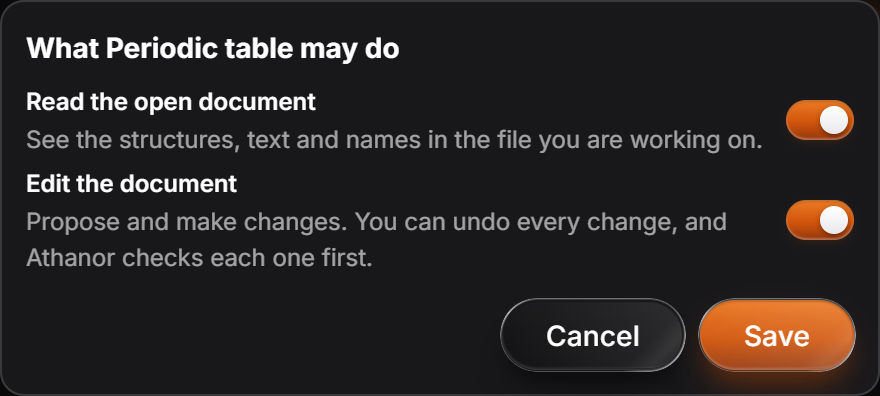
- Select ⋯ › Permissions. The sheet reads "What plugin may do", with a switch beside each permission.
- Switch off what you do not want, and select Save.
The plugin restarts with only what you allowed, and you see "Plugin now has only what you allowed." A call that needs a permission you switched off is refused with a message naming the permission.
Updates
Updates are automatic. Athanor checks your installed plugins when it starts and when you sign in, and loads the newest approved version.
One kind of update waits for you: a version that asks for a permission you have not granted. The version you approved keeps running, and the row on the Installed tab shows Needs your OK. To accept it, open ⋯ › Permissions, switch on the new permission, and select Save.
Turn a plugin off
On the Installed tab, use the switch on the plugin's row. A plugin that is off runs nothing and its commands are refused with "Plugin is turned off", but its settings are kept. It stays off until you switch it back on or reload Athanor.
To turn every plugin off, use Main menu › Object › Plugins › Plugins. Installed plugins are turned off, and turning plugins back on brings the official plugins back.
Uninstall a plugin
- On the Installed tab, select ⋯ › Uninstall.
- Confirm. The dialog reads "Uninstall plugin? Its settings and saved data on this account will be deleted. Data it stored inside your documents stays in those files."
The plugin is removed from your account, so it is gone on every device. If you uninstall an official plugin, it stays uninstalled; install it again from Discover whenever you like.
Rate and review a plugin
Community plugins in the directory have a Reviews section in their detail column.
- Sign in.
- Pick a star rating (1 to 5), write a review if you like ("What did you use it for? Did it work?"), and select Post review.
You can rate a plugin once; rating again replaces your earlier rating. You cannot rate your own plugin. Only the author can reply to a review, and an author can turn reviews off, in which case the section says so.
Report a plugin
- Sign in, and open the plugin's detail column.
- Select Report plugin under Reviews.
- Pick a reason: Doesn't work, Misleading listing, Harmful or unsafe chemistry, Privacy or data concern, Malicious behavior, Inappropriate content, Copyright or Other.
- Say what happened, and select Send report.
A moderator looks at every report. When enough independent reports are open, the plugin is hidden from Discover until a moderator has looked. The Review Guidelines explain what happens next.
Is this helpful?
Last updated Nov 11, 2026
- Still stuck? Read the FAQ or contact support.
- Something wrong on this page? Tell us.
- For AI tools: llms.txt