
Build your first plugin
Turn on developer mode, create a plugin from the Command template, run it, edit it with hot reload, and inspect it in the plugin console.
Build it with your AI assistant
Paste this into the AI coding assistant you use. It builds the same plugin this page walks through, from the same template.
Agent prompt
Build an Athanor plugin, API version 1, in plain JavaScript with no build step.

Read these pages first and follow them exactly; do not invent API calls:
- https://athanor.arbastro.com/docs/plugins/quickstart
- https://athanor.arbastro.com/docs/plugins/api-reference
- https://athanor.arbastro.com/docs/plugins/manifest-reference
- https://athanor.arbastro.com/docs/plugins/guide-changes

The project is a folder with manifest.json, main.js, athanor.d.ts and jsconfig.json.
main.js starts with "// @ts-check" and "/// <reference path="./athanor.d.ts" />".

The plugin adds one command, key "number-all", titled "Number every structure (1, 2, 3...)".
It reads the page with athanor.snapshot(), sorts the structures left to right, and adds one
addText op per structure with role "compoundLabel", centered under the structure's box.
It applies all of them in ONE athanor.apply() call with a label, so the whole edit is one undo step.
If the page is empty it calls athanor.notify() and stops.

The manifest needs the "document.read" and "document.edit" permissions and nothing else.
The plugin may use only the athanor object and standard JavaScript: no fetch, no DOM, no imports.
Before you start
You need Athanor open in Chrome or Edge, or the Athanor desktop app. Those can save the project to a folder and reload it when you edit. Other browsers download the project as a zip instead, which works for the first run but not for hot reload.
You do not need to sign in, install anything, or run a build.
1. Open a blank drawing
On Home, choose Blank drawing. Then draw two or three structures anywhere on the canvas, so the plugin has something to work on.
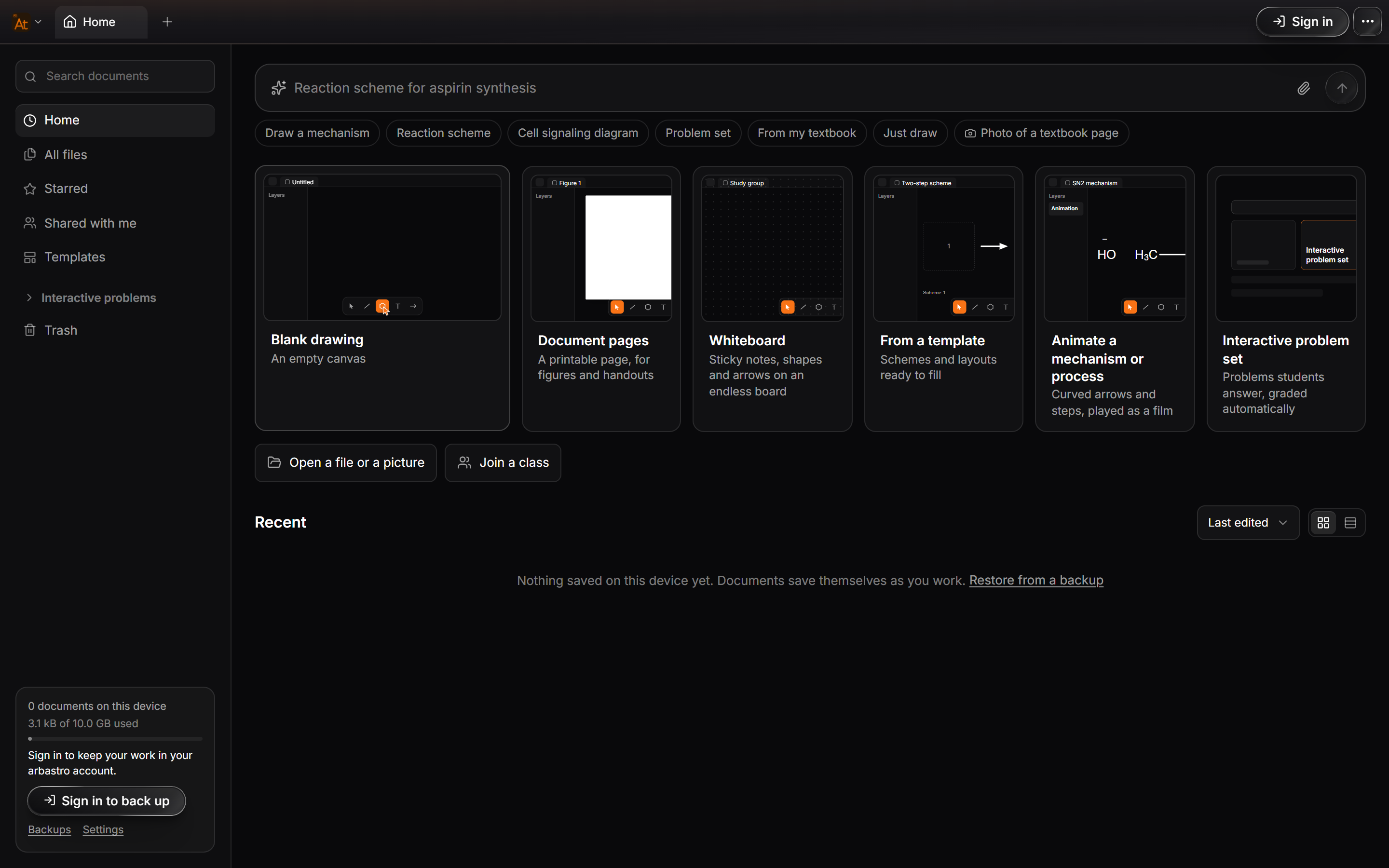
After this step you should have: an open document with a few structures on the canvas.
2. Turn on developer mode
Open Main menu › Object › Plugins › Plugin developer mode.
The Main menu is the Athanor mark at the left of the tab bar.
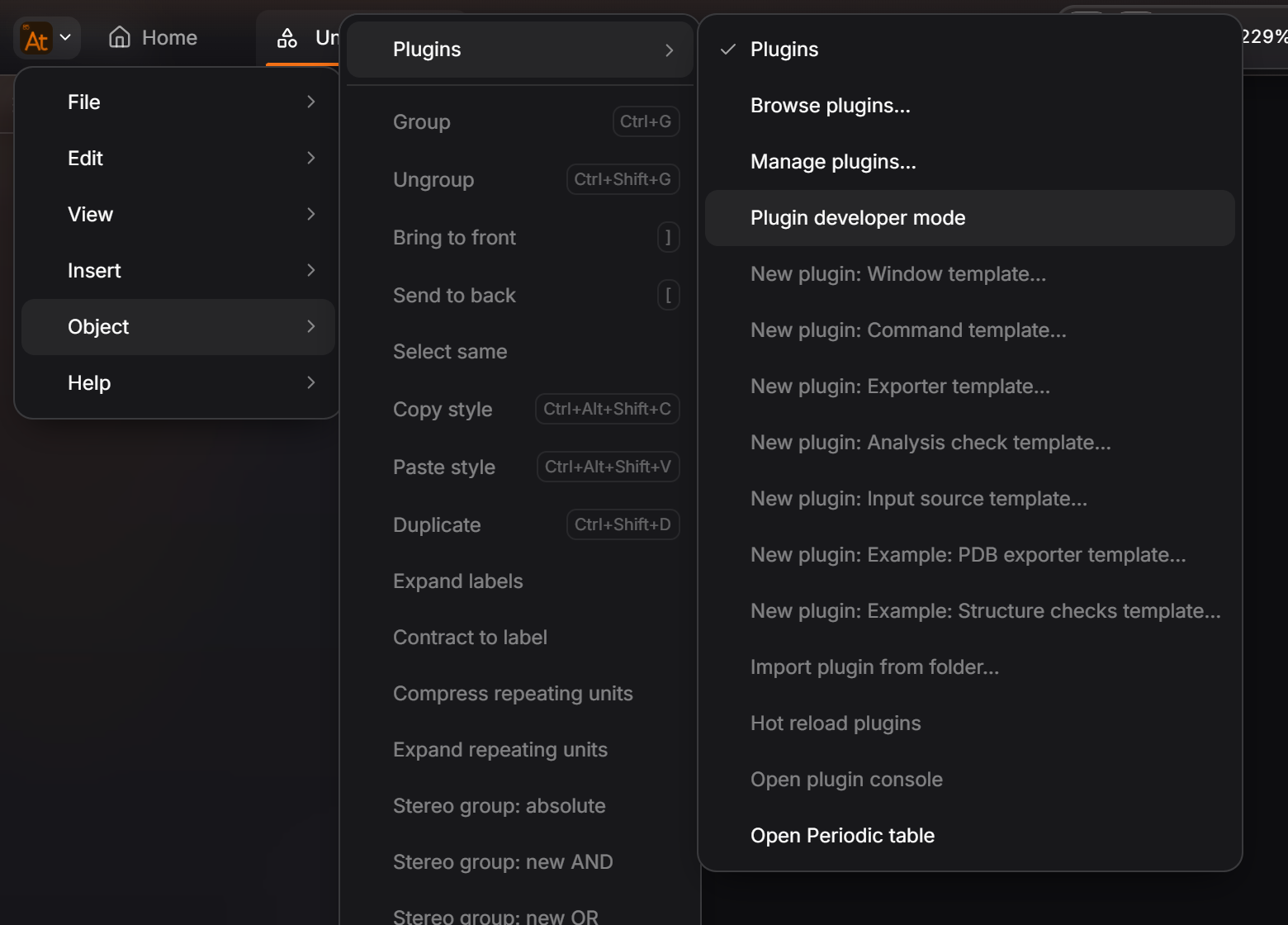
After this step you should have: the message "Plugin developer mode is on." The Plugins submenu now offers New plugin templates, Import plugin from folder…, Hot reload plugins and Open plugin console, and the Plugins window has a Development tab.
3. Create a plugin from a template
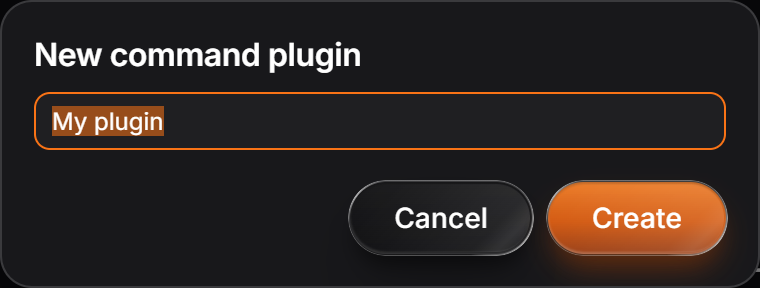
- Open Main menu › Object › Plugins › New plugin: Command template…
- In New command plugin, keep the Plugin name "My plugin" and select Create.
- Choose a folder. Athanor creates a
my-pluginfolder inside it and writes the project there.
There are seven templates: five starting points and two complete examples. Each one is a working plugin:
| Template | What it makes |
|---|---|
| Command | No window: runs once from the Plugins menu or Ctrl+K |
| Window | A window that floats over the canvas |
| Exporter | A file format in the Export window |
| Analysis check | Findings in the issues badge |
| Input source | Structures to search and insert |
| Example: PDB exporter | A complete exporter that writes PDB files |
| Example: Structure checks | A complete set of checks for the issues badge |
The Command template writes these files:
| File | What it is |
|---|---|
manifest.json |
What the plugin adds and the permissions it needs. Athanor reads it before running any code. |
main.js |
The logic. It runs in a sandbox and sees only the athanor object. |
athanor.d.ts |
The API 1 typings, so your editor gives completions and type errors. |
jsconfig.json |
Turns on type checking for main.js, with no build step. |
README.md |
How to run it, and the rules worth knowing. |
manifest.json:
{
  "id": "local.my-plugin",
  "name": "My plugin",
  "version": "0.1.0",
  "api": "1.0.0",
  "author": "You",
  "description": "My plugin, made from the command template.",
  "main": "main.js",
  "permissions": [
    "document.read",
    "document.edit"
  ],
  "contributes": {
    "commands": [
      {
        "key": "number-all",
        "title": "Number every structure (1, 2, 3...)"
      }
    ]
  }
}main.js:
// @ts-check
/// <reference path="./athanor.d.ts" />

// A command: no window. Runs from the Plugins menu or Ctrl+K, edits the page as ONE undo step.
// It puts a bold compound number under each structure, left to right.
athanor.commands.on('number-all', async () => {
  const page = await athanor.snapshot();
  const order = [...page.structures].sort((a, b) => a.box.minX - b.box.minX || a.box.minY - b.box.minY);
  const ops = order.map((s, i) => /** @type {Athanor.Op} */ ({
    op: 'addText', role: 'compoundLabel', text: String(i + 1),
    x: (s.box.minX + s.box.maxX) / 2, y: s.box.maxY + 24,
  }));
  if (!ops.length) { athanor.notify('There is nothing on the page to number.'); return; }
  await athanor.apply({ label: 'Number the structures', ops });
  athanor.notify(`Numbered ${ops.length} structure${ops.length === 1 ? '' : 's'}.`);
});
After this step you should have: the message "My plugin is saved and running. Edit main.js; with Hot reload on, every save restarts it." and a
my-pluginfolder holding the five files. (In a browser that cannot open folders, the message says the project downloaded as a zip.)
4. Run it
Open Main menu › Object › Plugins › Number every structure (1, 2, 3...).
You can also right-click on the canvas › Plugins › My plugin › Number every structure (1, 2, 3...), or press Ctrl+K, choose the Plugins tab and type "number".
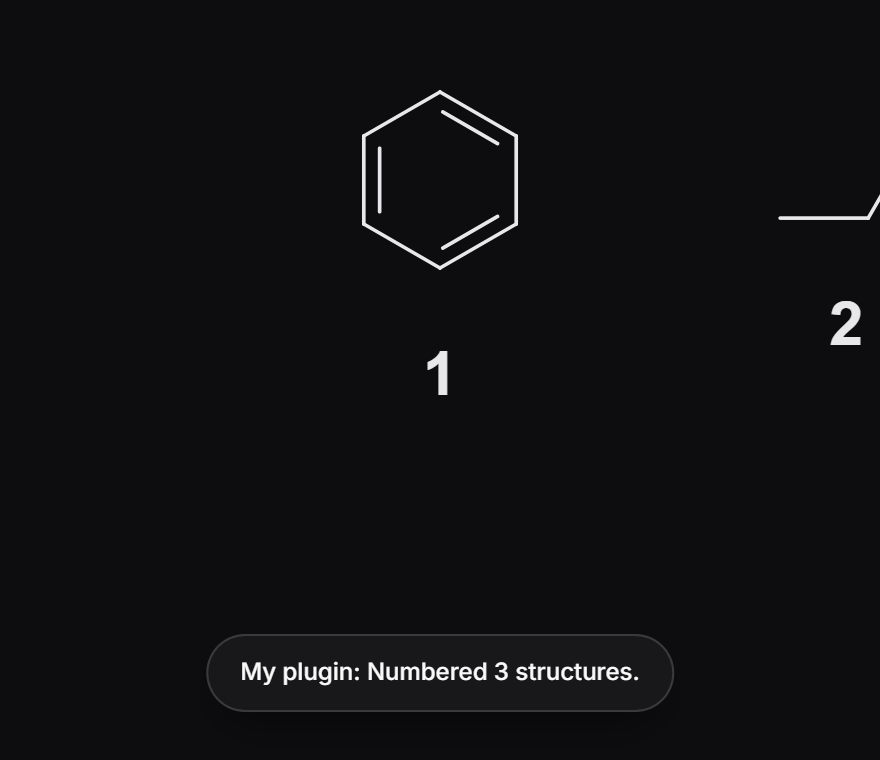
After this step you should have: a number under each structure, counted left to right, and the message "My plugin: Numbered 3 structures." Press
Ctrl+Zonce and every number goes, because oneathanor.applyis one undo step.
5. Turn on hot reload
Open Main menu › Object › Plugins › Hot reload plugins. While it is checked, Athanor looks at the plugin's folder every second and restarts the plugin when a file changes.
After this step you should have: a check mark beside Hot reload plugins in the menu.
6. Edit the plugin
In main.js, put the numbers in parentheses and log how many structures the plugin found. Change the ops line and add a console.log after it:
  const ops = order.map((s, i) => /** @type {Athanor.Op} */ ({
    op: 'addText', role: 'compoundLabel', text: `(${i + 1})`,
    x: (s.box.minX + s.box.maxX) / 2, y: s.box.maxY + 24,
  }));
  console.log('Structures found:', page.structures.length);
Save the file, then run the command again as in step 4.
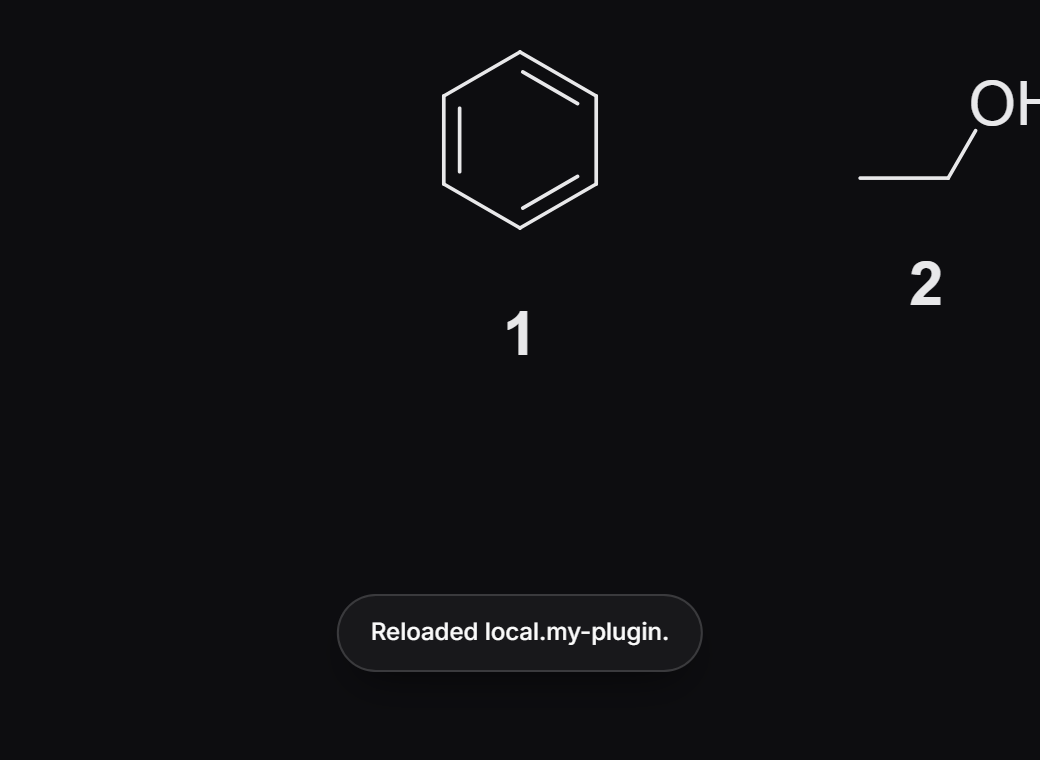
After this step you should have: the message "Reloaded local.my-plugin." when you saved, and numbers in parentheses, such as (1) and (2), when you ran the command again.
7. Open the console
Open Main menu › Object › Plugins › Open plugin console, and pick My plugin (Development) in the menu at the top of the console.
The console shows the plugin's console.log, console.warn and console.error output and its errors. The field at the bottom runs code inside the plugin's own sandbox, with exactly the permissions the plugin has. Type this and press Enter:
await athanor.snapshot()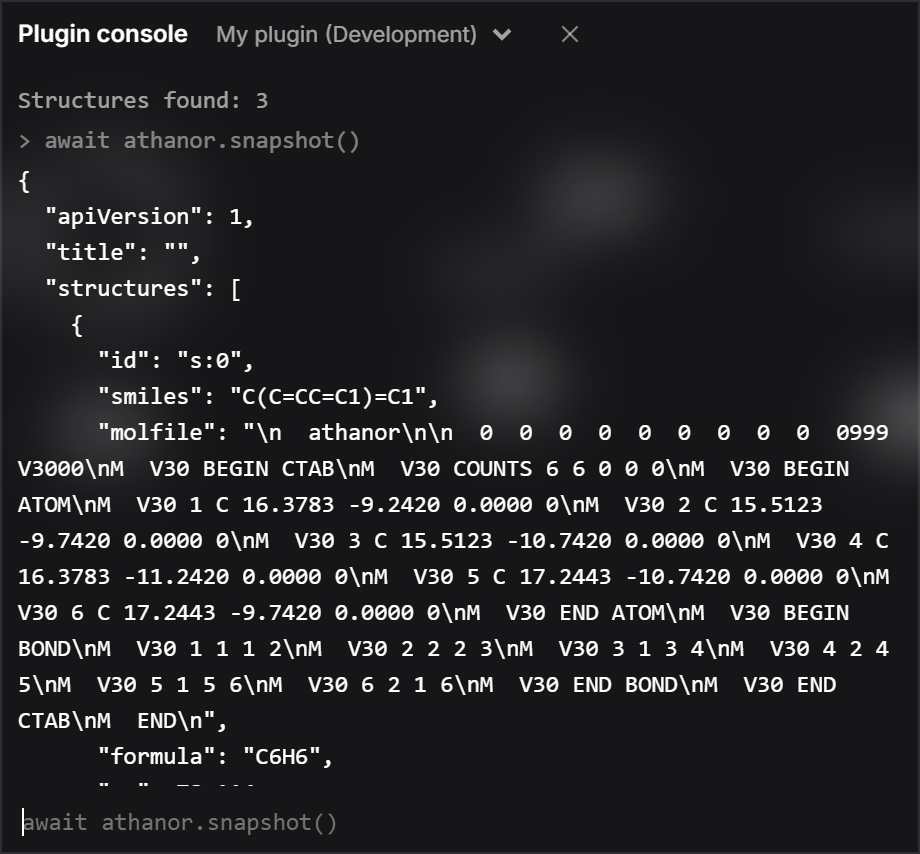
After this step you should have: the line "Structures found: 3" from your last run, and the page's snapshot printed as JSON: its title, its structures with atoms and bonds, its text, and the selection.
What you built, and what to read next
You have a Development plugin. It lives on this device only, carries a Development badge in the Plugins window, and is never synced. After a reload of Athanor, bring it back with Main menu › Object › Plugins › Import plugin from folder… and pick the my-plugin folder.
- Make a panel, an exporter, a check or an input source: Panels and windows, Importers and exporters, Analysis checks, Input sources.
- Learn every op a change can carry: Changes, undo and previews.
- Before you share it, give it a real id (like
yourname.compound-numbers) and read Publishing.
Is this helpful?
Last updated Nov 11, 2026
- Still stuck? Read the FAQ or contact support.
- Something wrong on this page? Tell us.
- For AI tools: llms.txt