
How to start a new document from Home
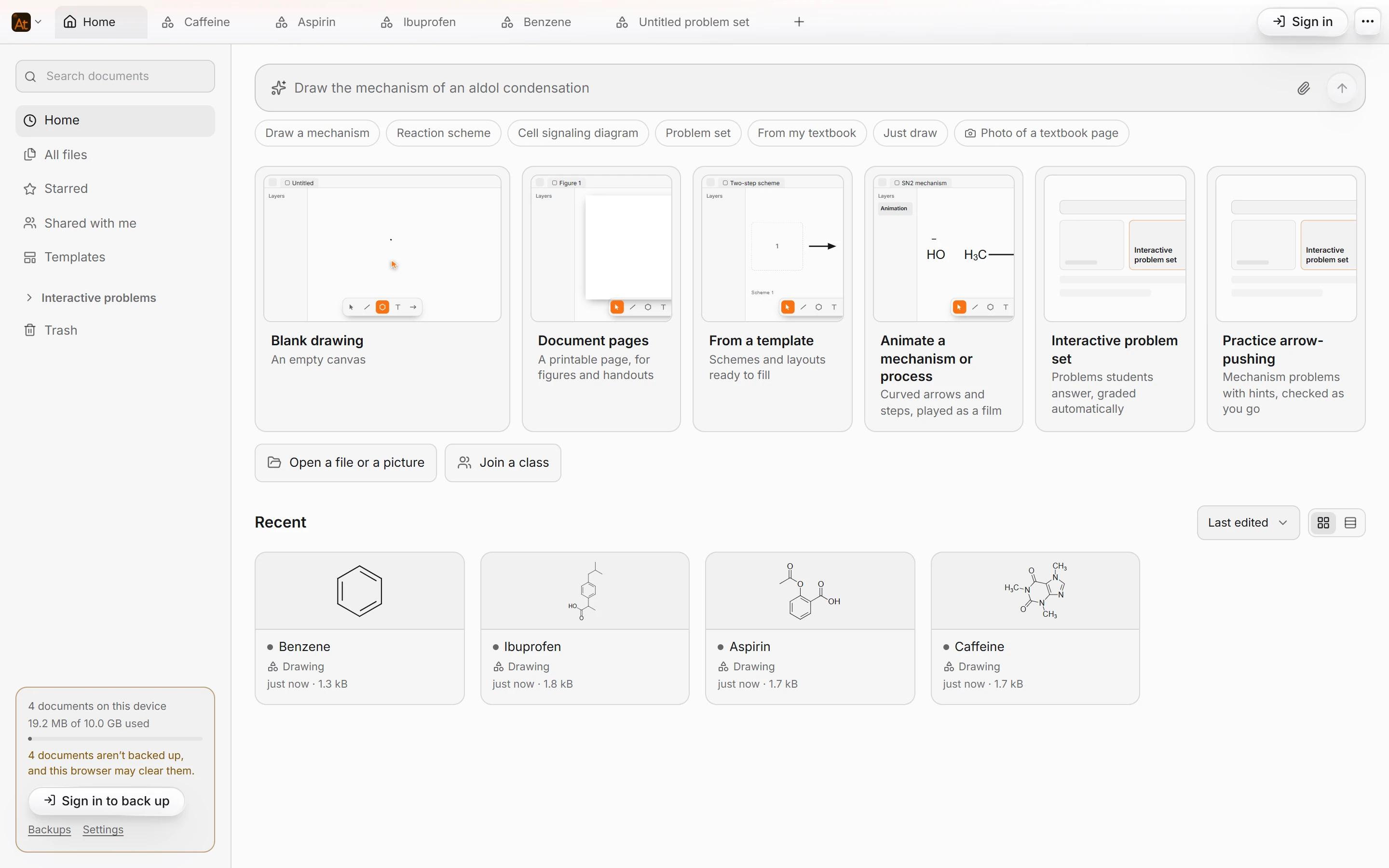
Open Home (the first tab, or File › Home) and pick a start card: Blank drawing, Document pages, From a template, Animate a mechanism or process, Interactive problem set, or Practice arrow-pushing. New document is Ctrl+N.
Steps
Click the Home tab at the left of the tab bar, or choose File › Home in the Main menu.
Pick a start card. Each opens a new document in its own tab:
Card What you get Blank drawing An empty canvas Document pages A printable page, for figures and handouts From a template Schemes and layouts ready to fill Animate a mechanism or process Curved arrows and steps, played as a film Interactive problem set Problems students answer, graded automatically Practice arrow-pushing Mechanism problems with hints, checked as you go. See practice for yourself 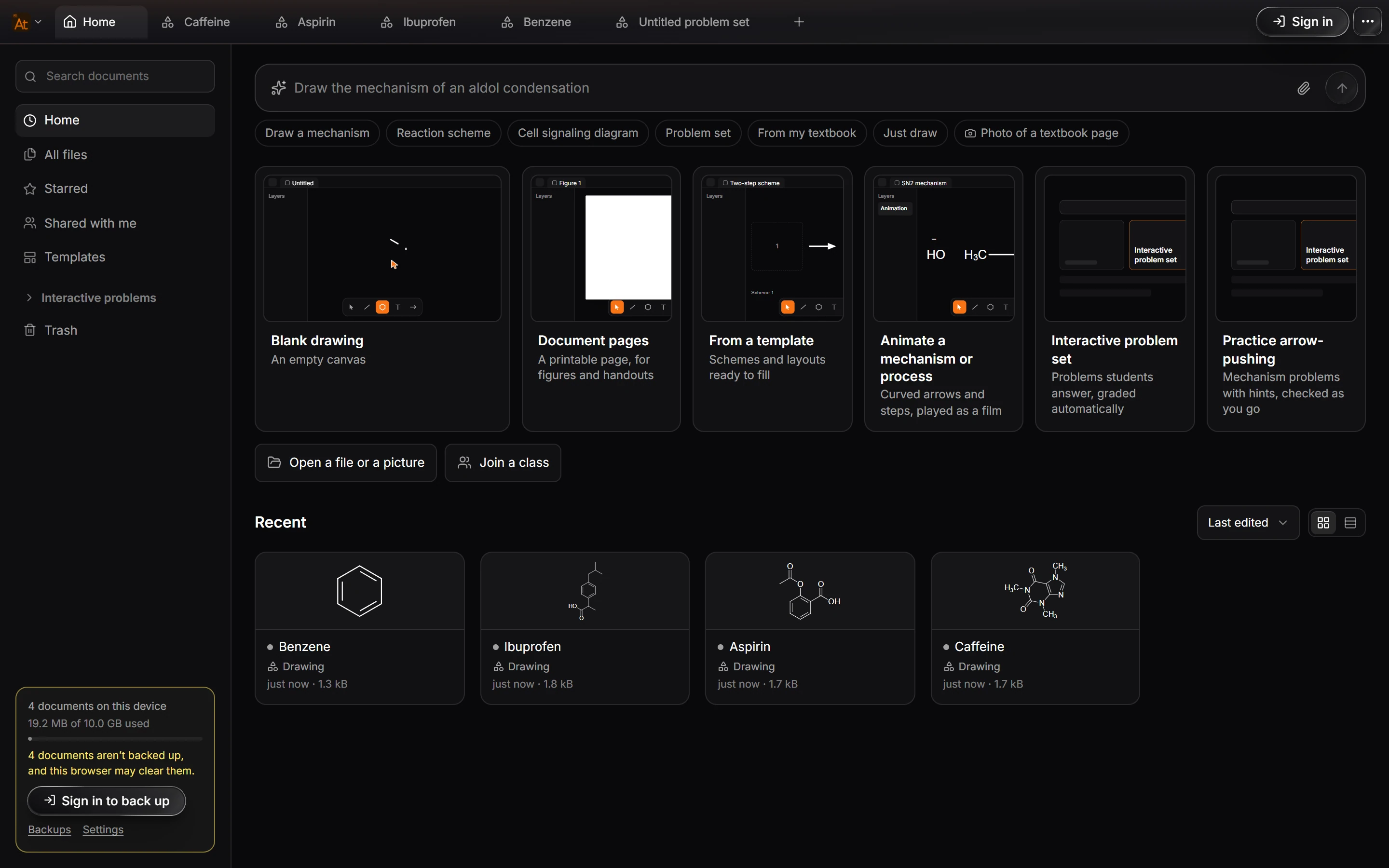
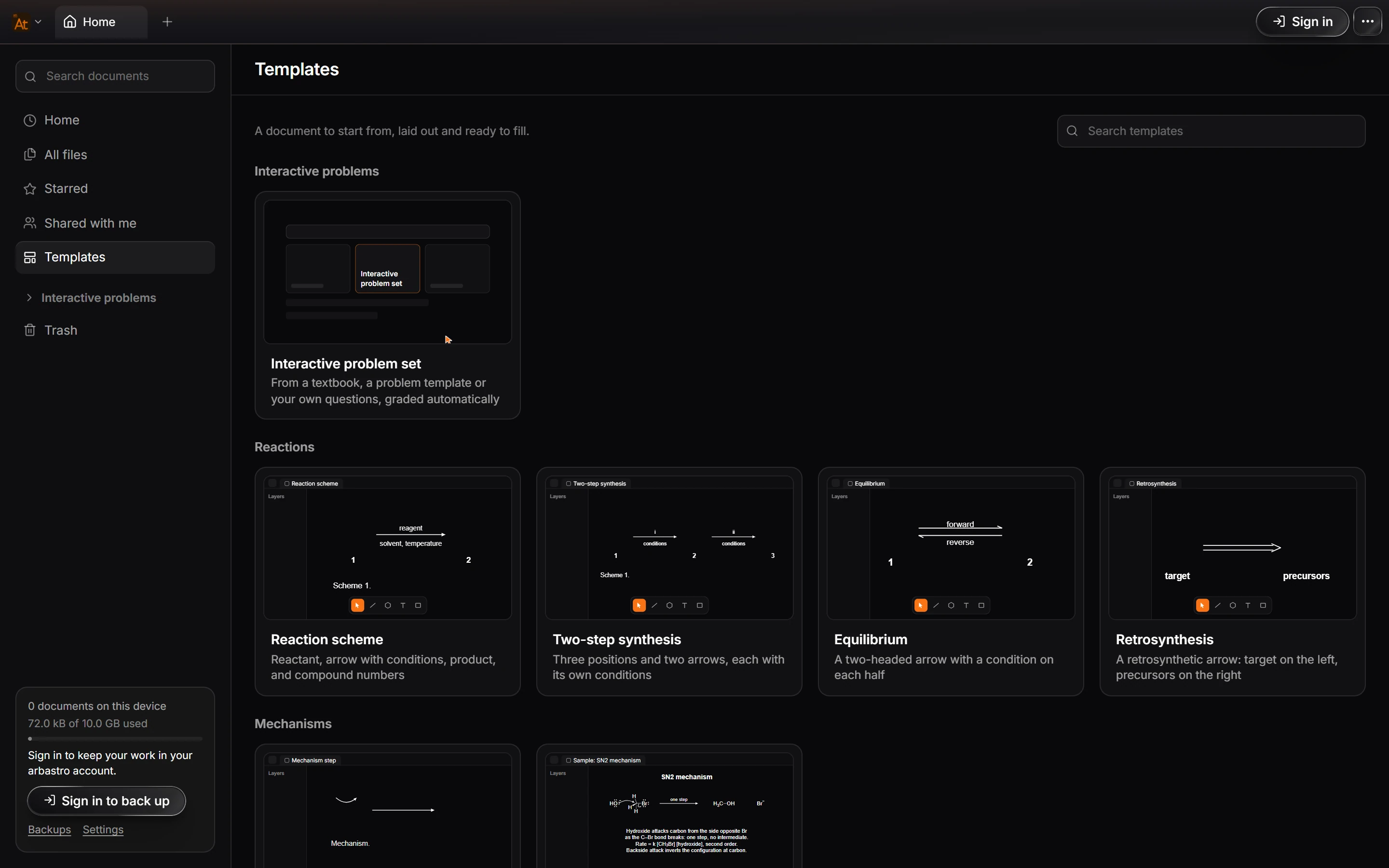
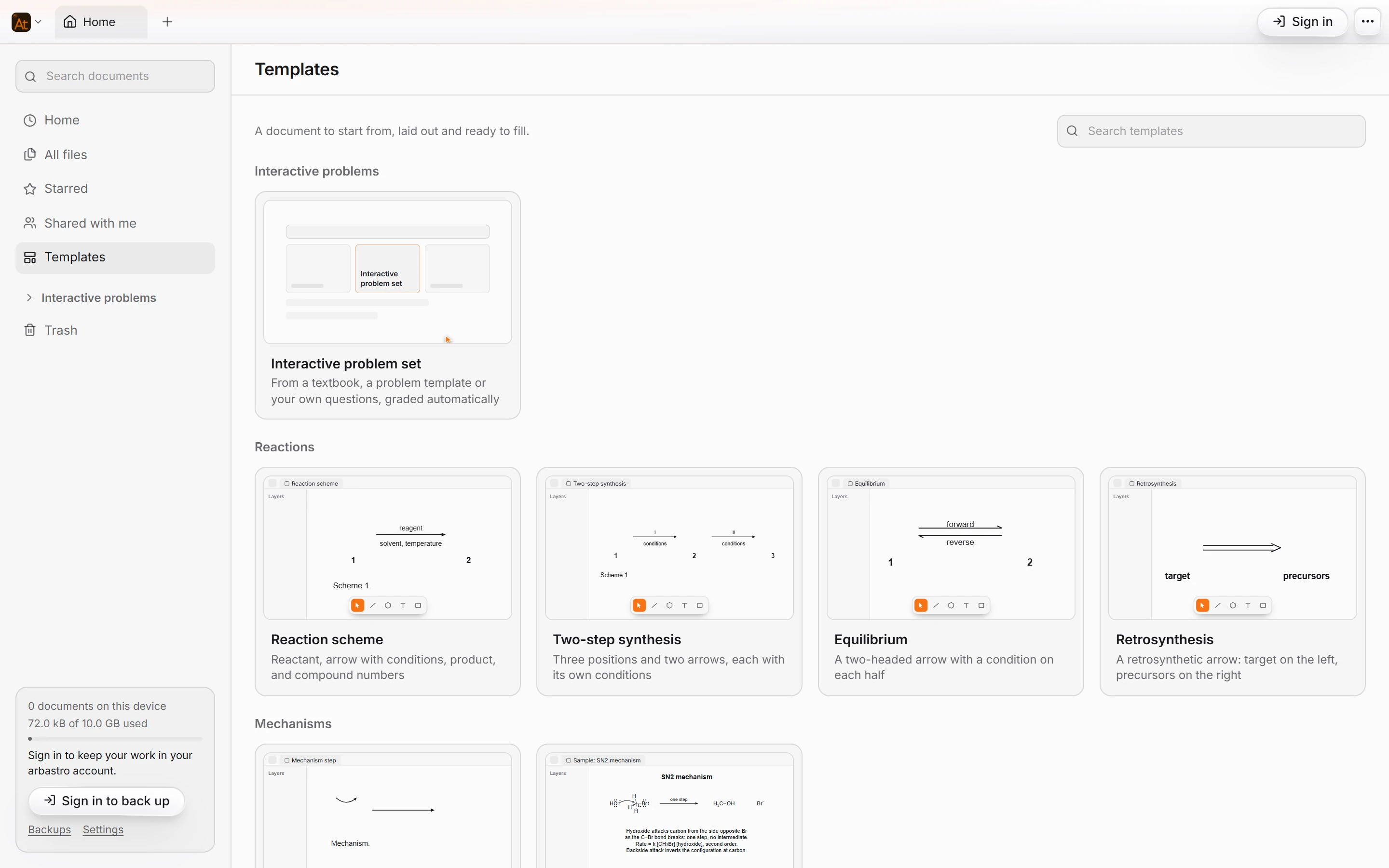
Chose From a template? The Templates page lists reaction schemes, mechanisms and layouts by kind. Click one to start from it, or search with Search templates.
To get back to older work, look under Recent on Home, or use All files, Starred and Shared with me in the list at the left. Search documents at the top of that list finds a document by name.
Other ways in
- Ctrl+N (New document) starts a new document from anywhere in the desktop app. In a browser, use File › New document.
- Open a file or a picture opens a file from your computer, such as a ChemDraw or MOL file.
- Join a class is for students whose teacher gave them a class code.
- The box at the top of Home takes a request in plain words, for example "Reaction scheme for aspirin synthesis". It opens a new document named after your request and hands the request to the AI assistant, which needs an arbastro account. The chips under the box, such as Draw a mechanism or Just draw, are ready-made starts.
Is this helpful?
Last updated Nov 12, 2026
- Still stuck? Read the FAQ or contact support.
- Something wrong on this page? Tell us.
- For AI tools: llms.txt