
How to find any command with Search everything
Press Ctrl+K (Search everything) and type what you want, including the name ChemDraw uses for it. Each result shows where it lives in the menus and its shortcut; a dimmed result says what it needs first.
Steps
Press Ctrl+K, or choose Help › Search everything.
Type a few letters, for example
clean. Results appear as you type, each with its menu path (such as Object › Chemistry › Clean up structure), a short description and its shortcut.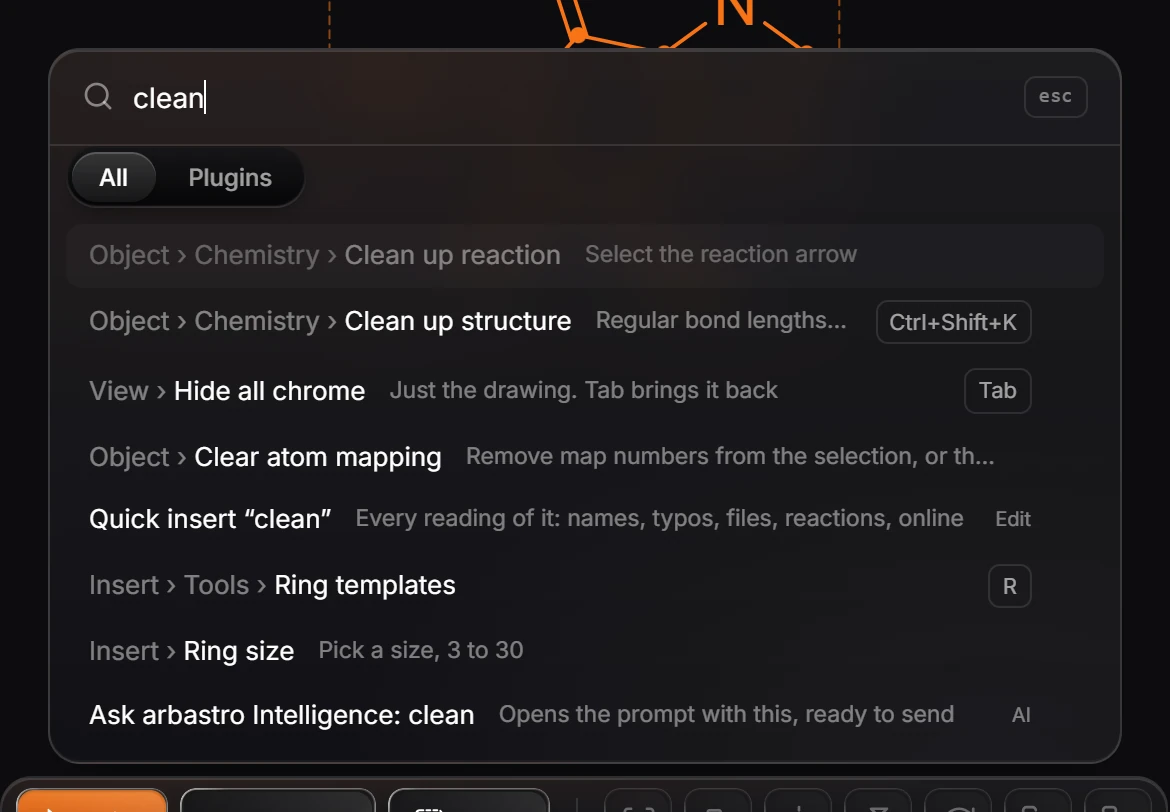
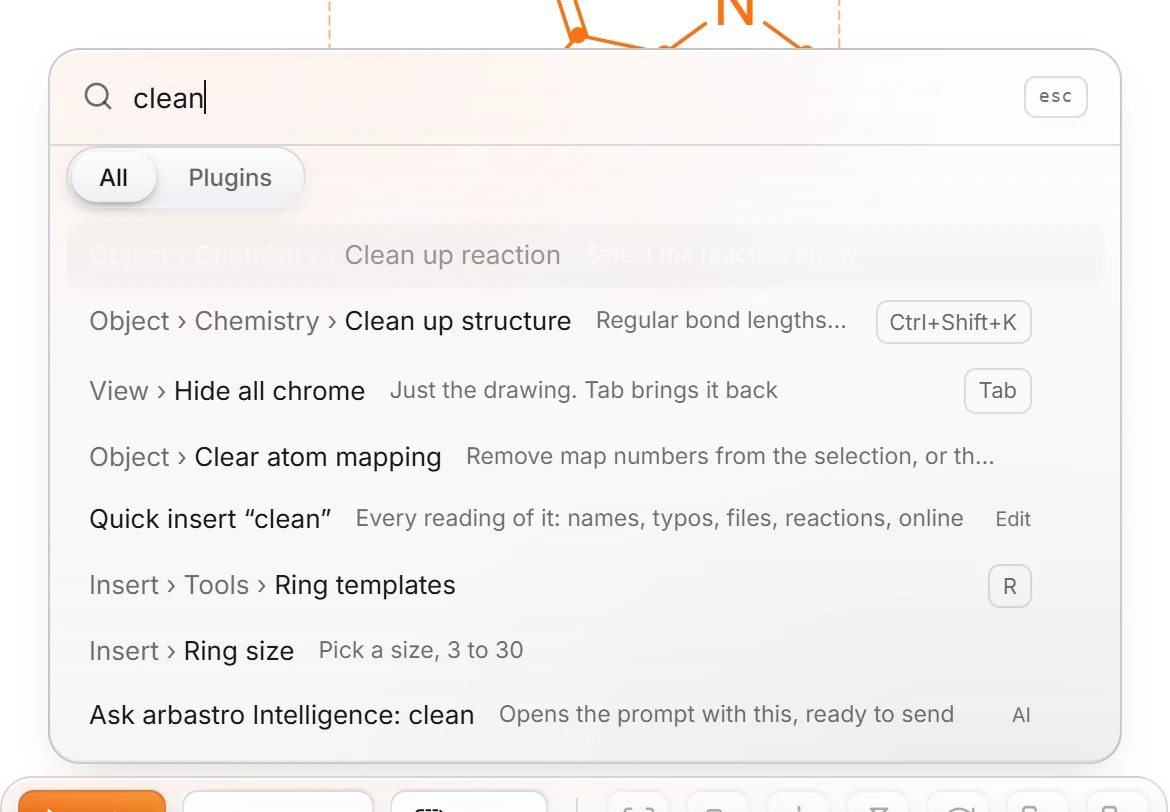
Use ↑ and ↓ to move, and press Enter to run the highlighted command.
A dimmed row cannot run yet, and says why. Typing
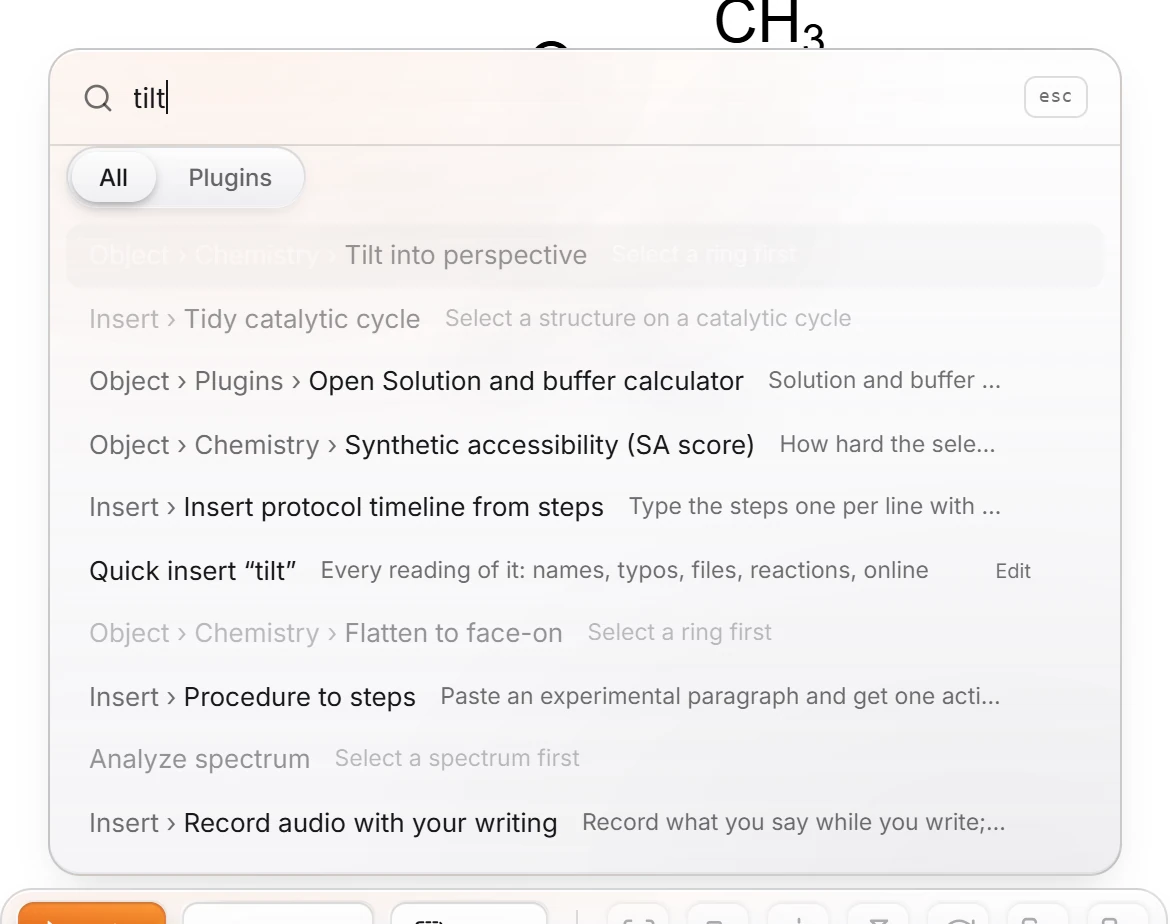
tiltwith nothing selected shows Tilt into perspective dimmed with "Select a ring first". Select a ring and search again.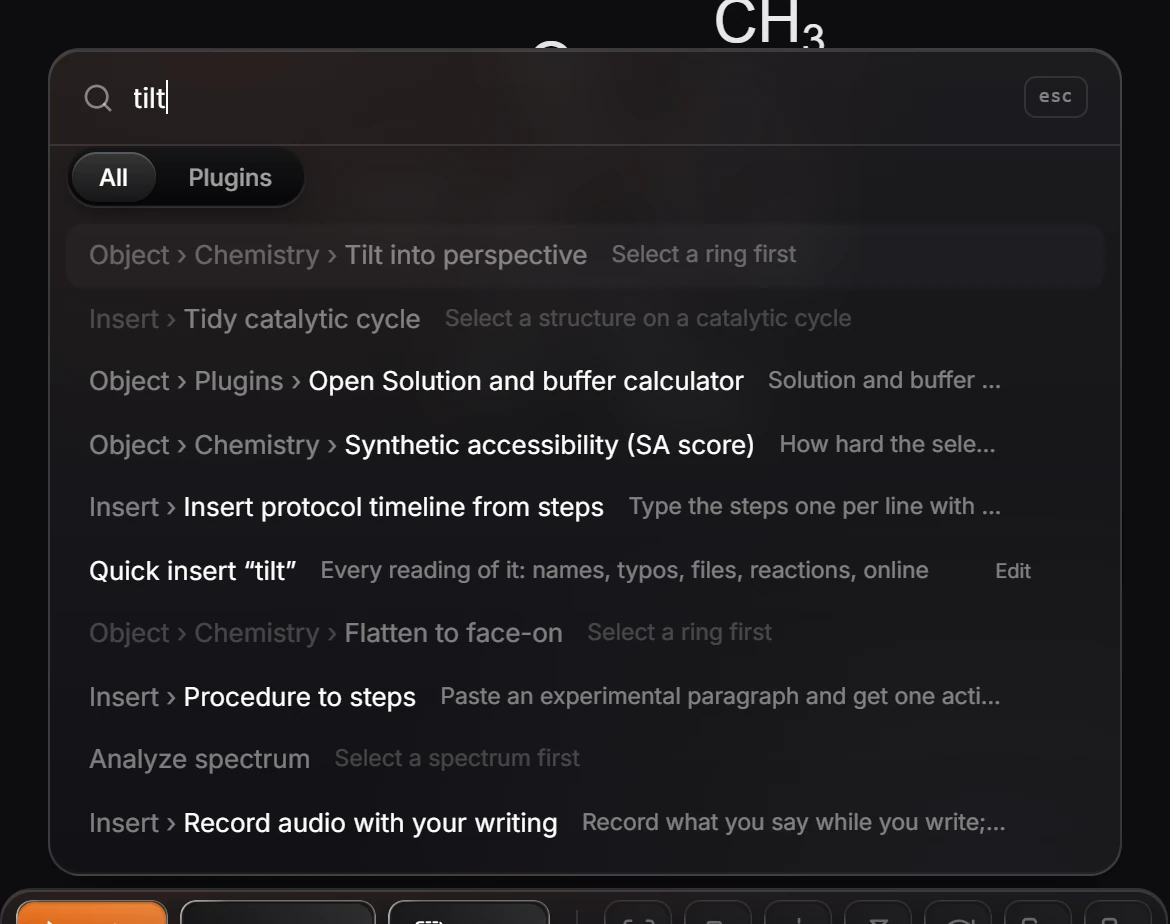
What else it finds
- Plugins: the Plugins tab narrows the list to commands that installed plugins add.
- Quick insert: the row Quick insert "…" places what you typed as a structure, the same as pressing /. See Quick insert.
- arbastro Intelligence: the last row sends what you typed to the AI assistant (needs an arbastro account).
- ChemDraw names: commands carry ChemDraw's names as search words, so
clean up structure,hotkeysorcheck structurefind the Athanor command.
Tip
Search everything shows each command's shortcut, so it is also the quickest way to learn them. The full list is in Keyboard shortcuts.
Is this helpful?
Last updated Nov 12, 2026
- Still stuck? Read the FAQ or contact support.
- Something wrong on this page? Tell us.
- For AI tools: llms.txt