
How to install Athanor on Windows
Choose Download for Windows on athanor.arbastro.com, run the installer and sign in with a free arbastro account. The desktop app is the same as the web app, updates itself, and opens .athanor, CDX and CDXML files by double-click.
Steps
Open athanor.arbastro.com and choose Download for Windows. The installer is saved as
Athanor-setup.exe.Run the installer. The installer is not code-signed yet, so Windows SmartScreen may stop it: choose More info, then Run anyway.
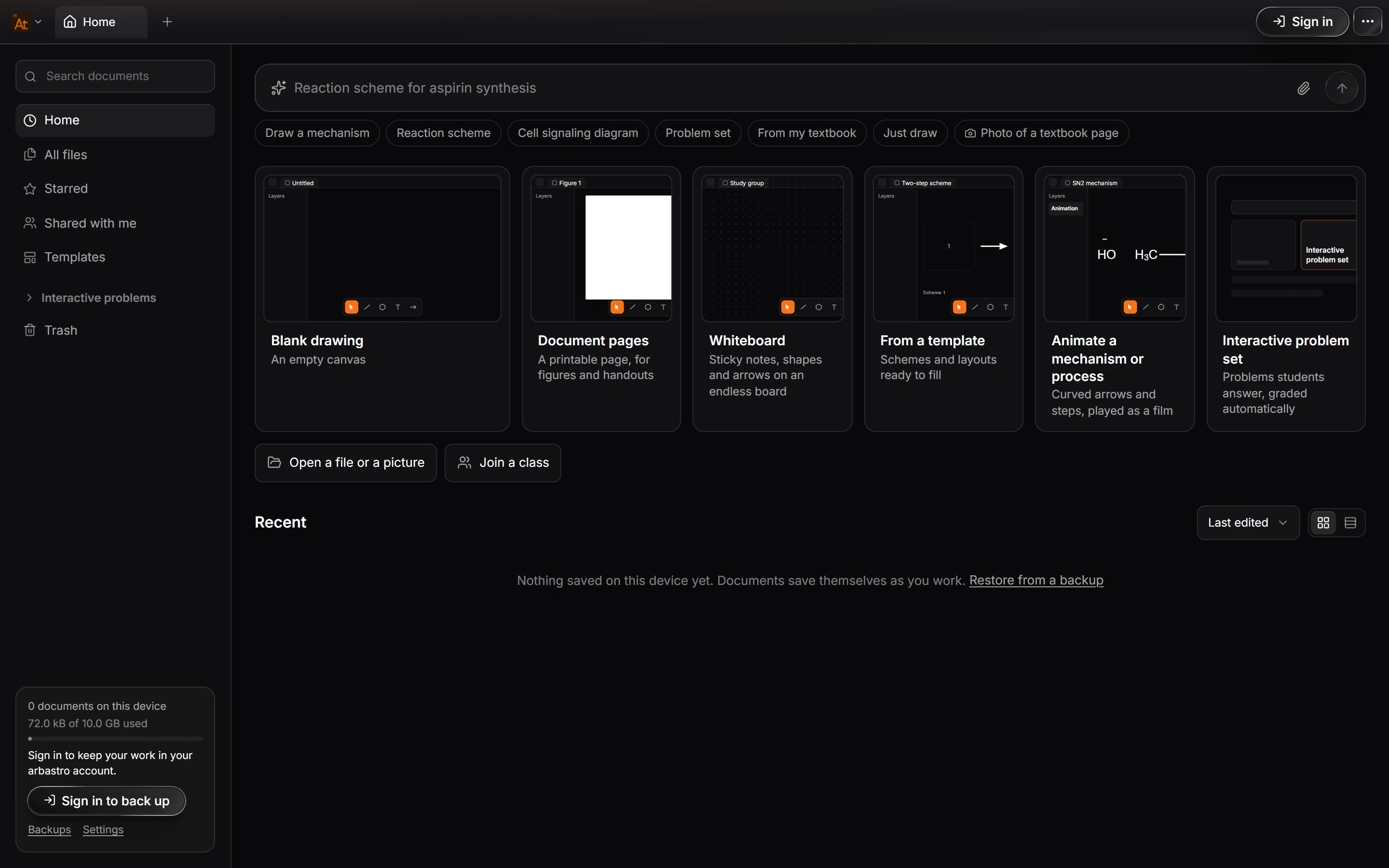
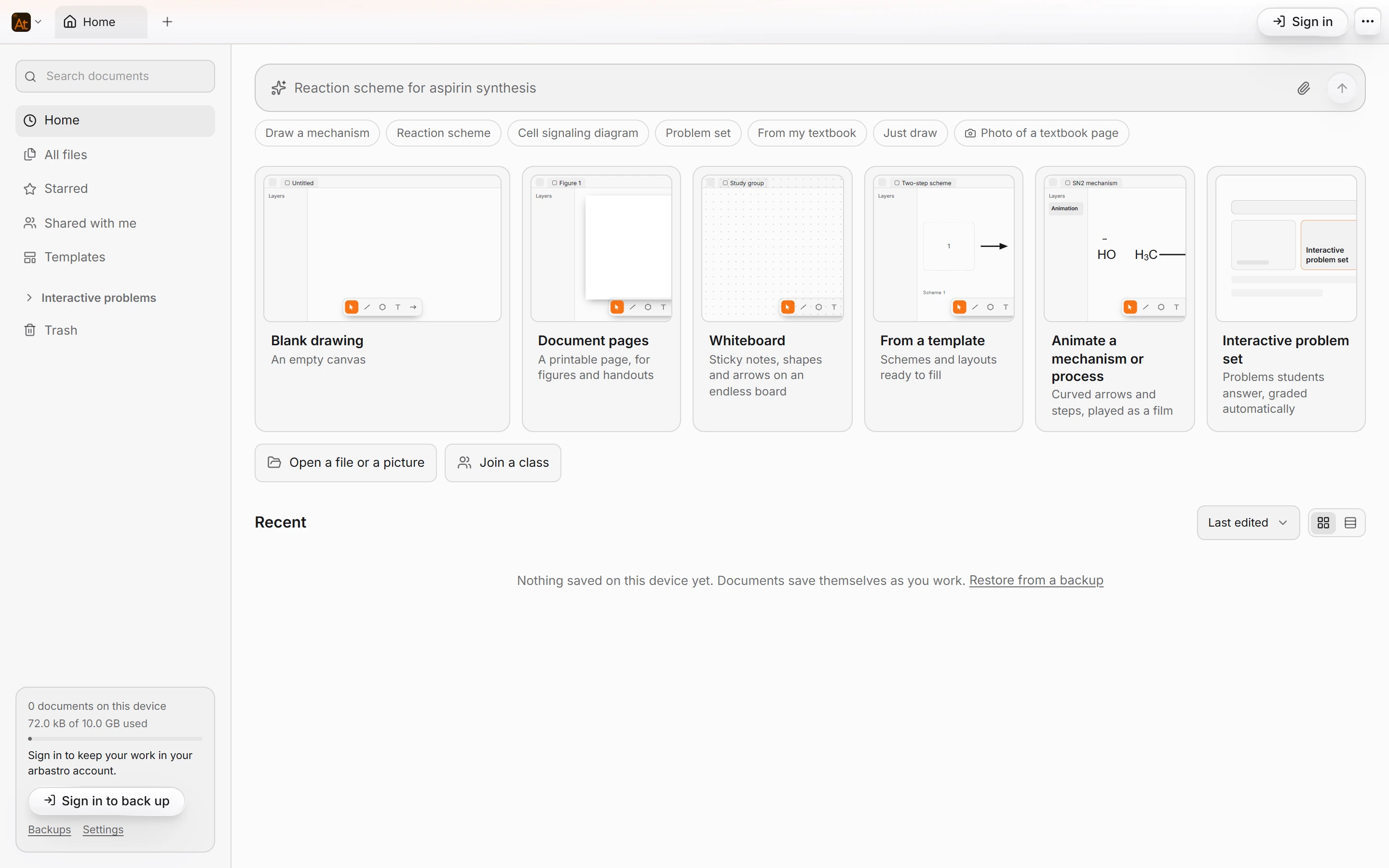
Start Athanor from the Start menu. Home opens, exactly as it does in the browser.
Sign in with your arbastro account. The desktop app needs one to start (it is free to create); the web app does not. Signed in, your documents follow you between the browser and the desktop app.
Note
The picture above is the web app at the same window size. The desktop window looks the same, inside a standard Windows title bar.
What the desktop app adds
- Updates itself. When a new version is out, the app downloads it in the background and a Restart to update button appears in the top bar. Press it when it suits you.
- Opens files by double-click.
.athanor, ChemDraw.cdxand.cdxmlfiles open in Athanor from File Explorer. - Works offline. Drawing, editing and exporting run on your computer. Predictions, the AI assistant and sync need a connection.
Using a Mac, Linux or a Chromebook? There is no desktop build for them yet: open Athanor in your browser. It is the whole editor.
Is this helpful?
Last updated Nov 12, 2026
- Still stuck? Read the FAQ or contact support.
- Something wrong on this page? Tell us.
- For AI tools: llms.txt