
How to open CDX and CDXML files
Press Ctrl+O (Open a file) and choose the .cdx or .cdxml file, or drag it onto the Athanor window. Structures stay structures, so you can keep editing them.
Steps
In a document, press Ctrl+O (Open a file), or on Home choose Open a file or a picture.
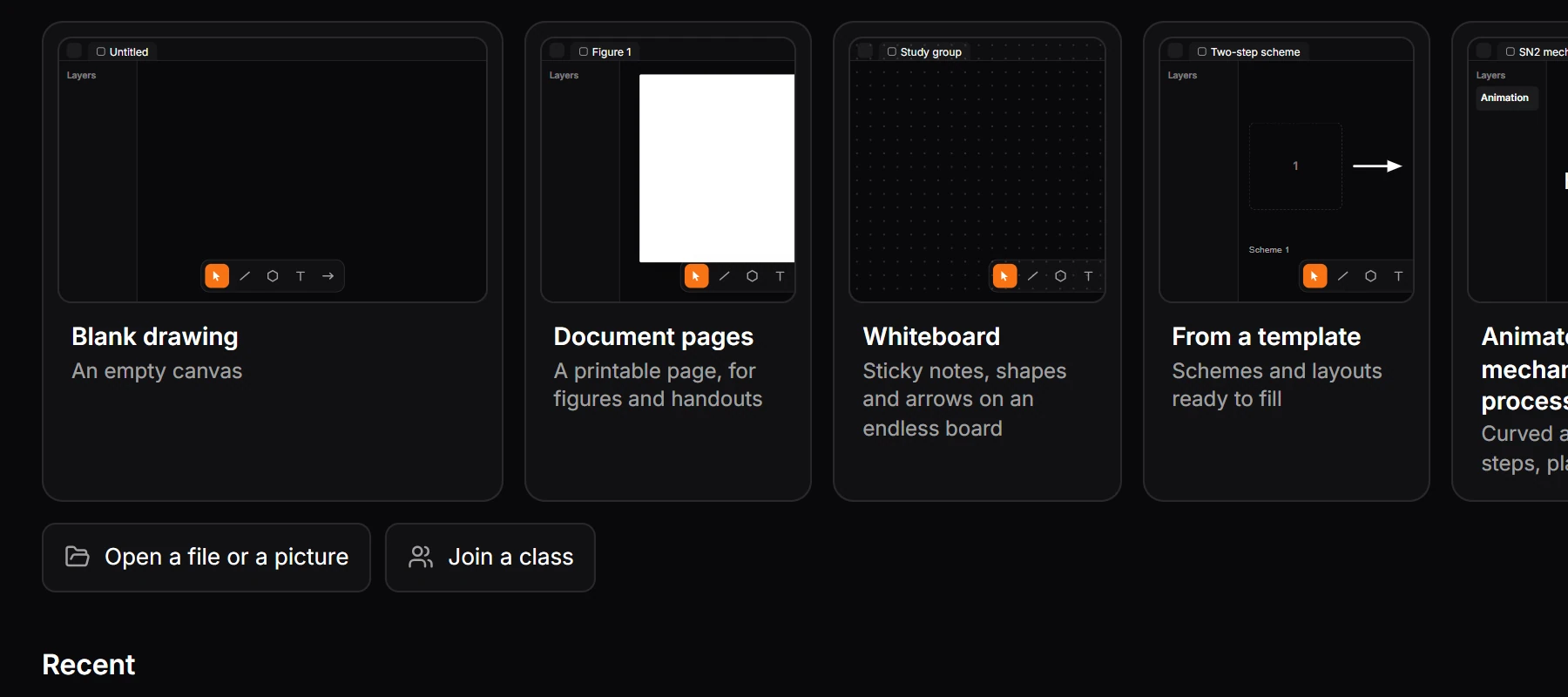
Choose the
.cdxor.cdxmlfile. You can also drag the file from your desktop or File Explorer onto the Athanor window.The drawing opens on the canvas. Click a structure, or press Ctrl+A, and the Properties panel shows what is selected. The Layers panel lists each structure with its formula and molecular weight.
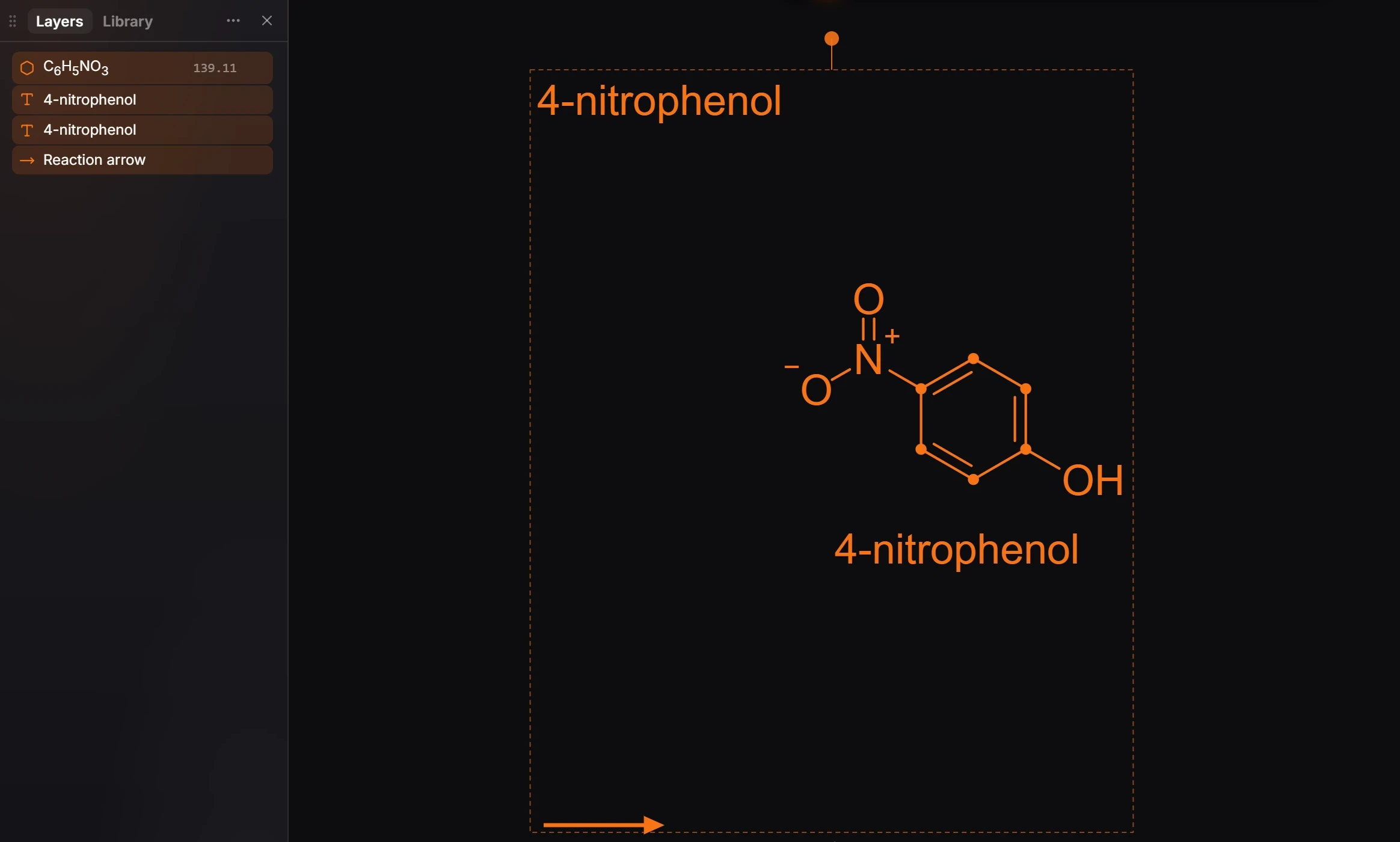
Look at the issues badge at the bottom left of the canvas. No issues means every structure was read as valid chemistry. A count means something needs a look; click it to see what.
Note
In the Windows app, .cdx and .cdxml files also open from File Explorer with a double-click.
What comes across
Atoms, bonds, wedges, coordinates, arrows and text open as editable Athanor objects, the same parts Athanor writes back when you send a file to a ChemDraw user. To turn the file into another format, open it and then use Export (Ctrl+Shift+E), for example to save it as MOL or SMILES.
Is this helpful?
Last updated Nov 12, 2026
- Still stuck? Read the FAQ or contact support.
- Something wrong on this page? Tell us.
- For AI tools: llms.txt