
Keyboard shortcuts for ChemDraw users
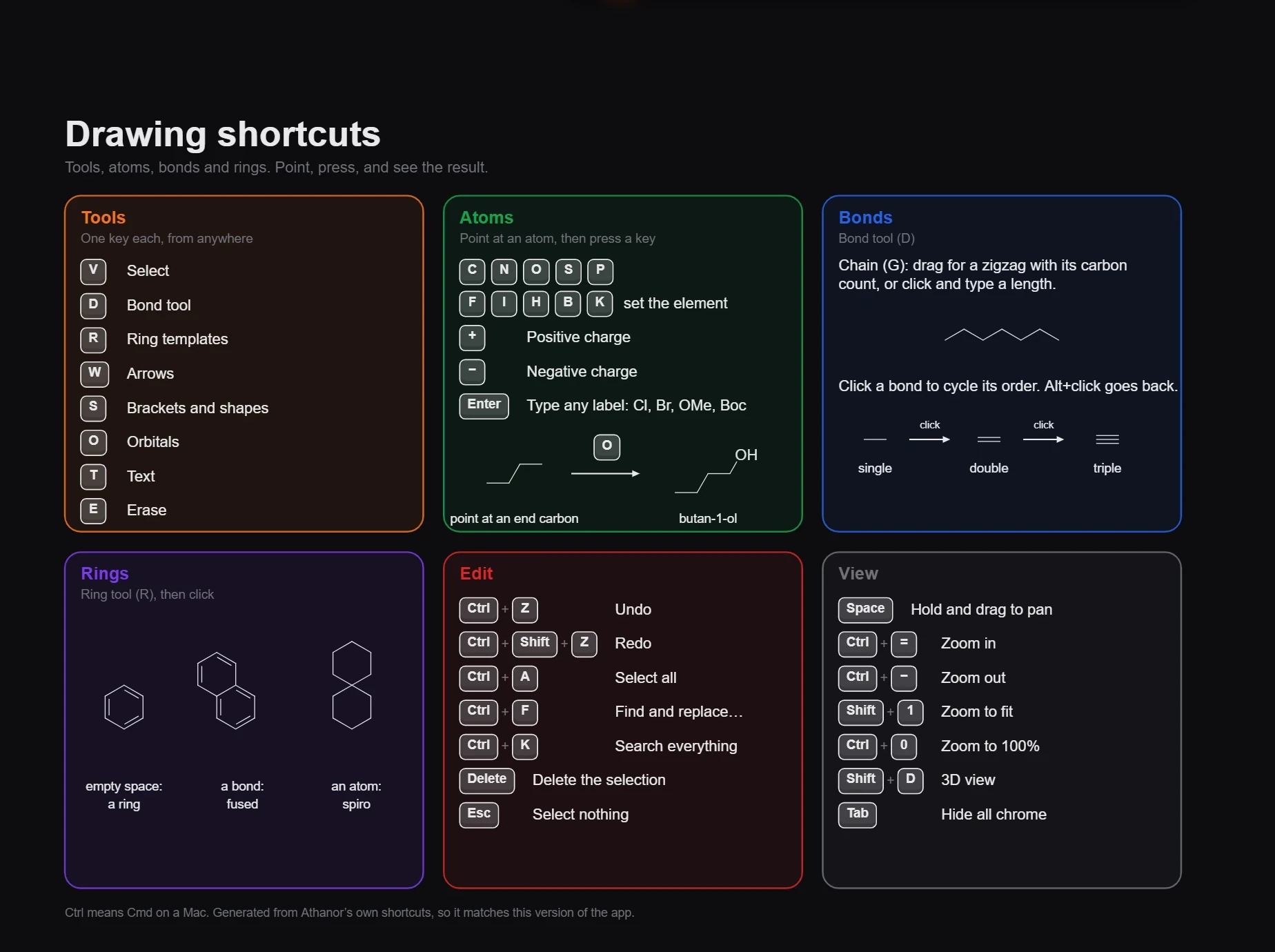
Point at an atom and press an element letter, as in ChemDraw. Tools have one-letter keys (D bonds, R rings, W arrows, T text, E erase). Settings › Shortcuts has a ChemDraw classic set with ChemDraw's atom-label keys.
What carries over
- Element letters. Point at an atom and press C, N, O, S, P, F, I, H, B or K to change it. Press Enter over an atom to type any label, such as
Cl,Br,OMeorBoc. - Bond keys over a bond. Point at a bond and press 1, 2 or 3 for single, double or triple, W, H, B, D or Y for wedge, hash, bold, dashed or wavy, and F to swap its ends.
- Rings over a bond. Point at a bond and press 4 to 8 to fuse a ring of that size, or A for benzene.
- Editing. Ctrl+Z, Ctrl+C, Ctrl+V, Ctrl+A and Delete do what you expect.
Tool keys
| Key | Tool | Key | Tool |
|---|---|---|---|
| V | Select | S | Brackets and shapes |
| D | Bond | O | Orbitals |
| R | Ring | T | Text |
| W | Arrow | E | Erase |
The full list, every command included, is in Keyboard shortcuts.
ChemDraw classic
Open Settings › Shortcuts and switch Shortcut set to ChemDraw classic. It adds ChemDraw's atom-label keys: point at an atom and press e for Et, Shift+P for Ph or y for Boc, among others. Where a ChemDraw key was taken by an Athanor command, ChemDraw's meaning wins, and the message says which commands gave up their key.
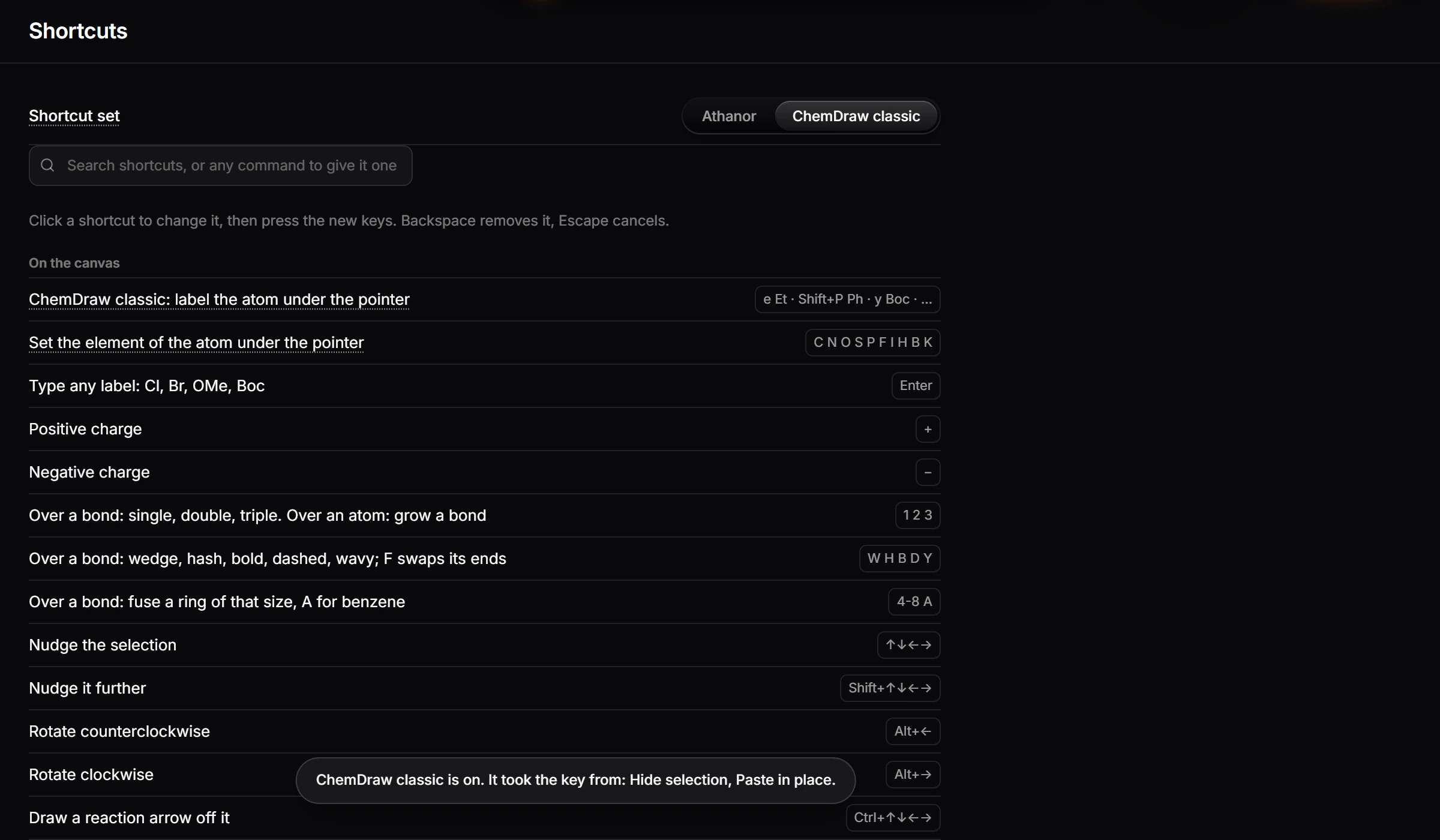
See How to change a keyboard shortcut to change any single key.
Is this helpful?
Last updated Nov 12, 2026
- Still stuck? Read the FAQ or contact support.
- Something wrong on this page? Tell us.
- For AI tools: llms.txt