
How to change a keyboard shortcut
Open Settings › Shortcuts (or Help › Search keyboard shortcuts), find the command, click its shortcut and press the new keys. Backspace removes a shortcut and Escape cancels. Shortcut set switches between Athanor and ChemDraw classic.
Change a shortcut
Choose Help › Search keyboard shortcuts in the Main menu. Settings opens at Shortcuts. (Or open Settings… from the File menu and pick Shortcuts.)
Type in Search shortcuts, or any command to give it one, for example
clean up structure.Click the command's shortcut on the right. It changes to Press keys….
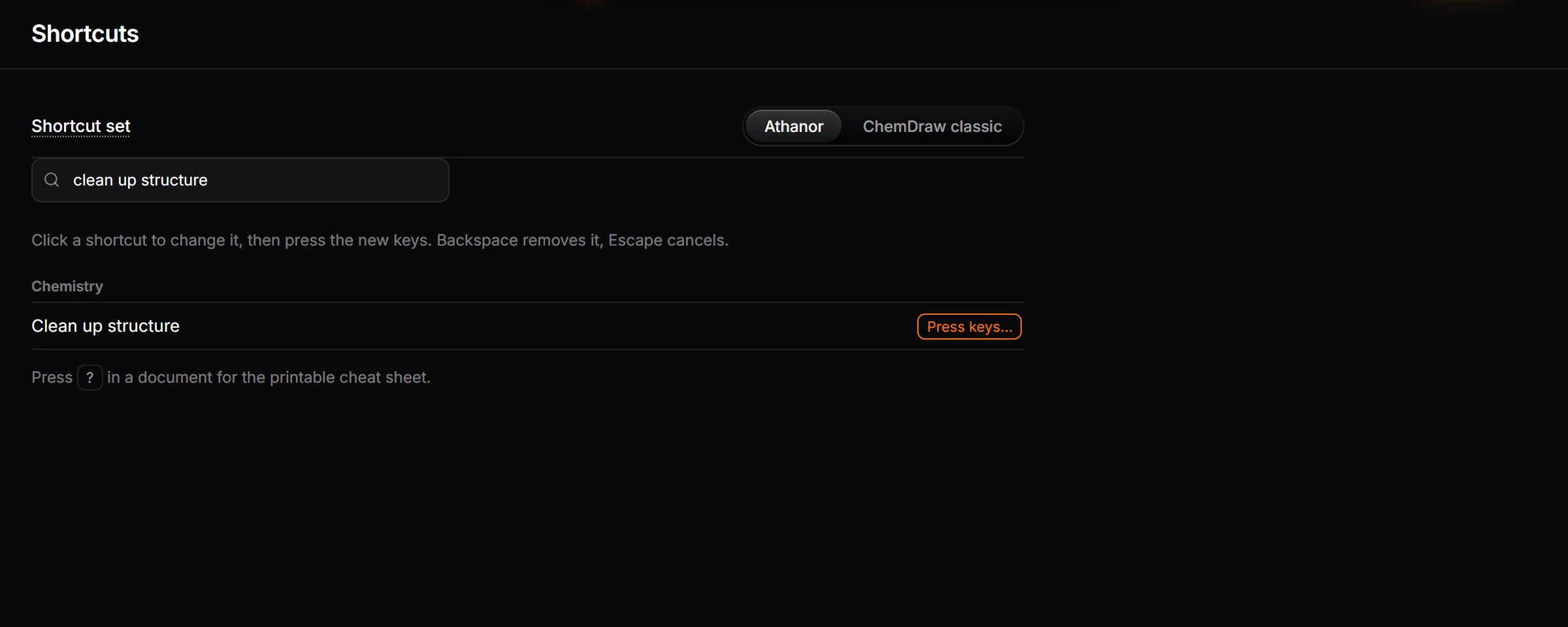
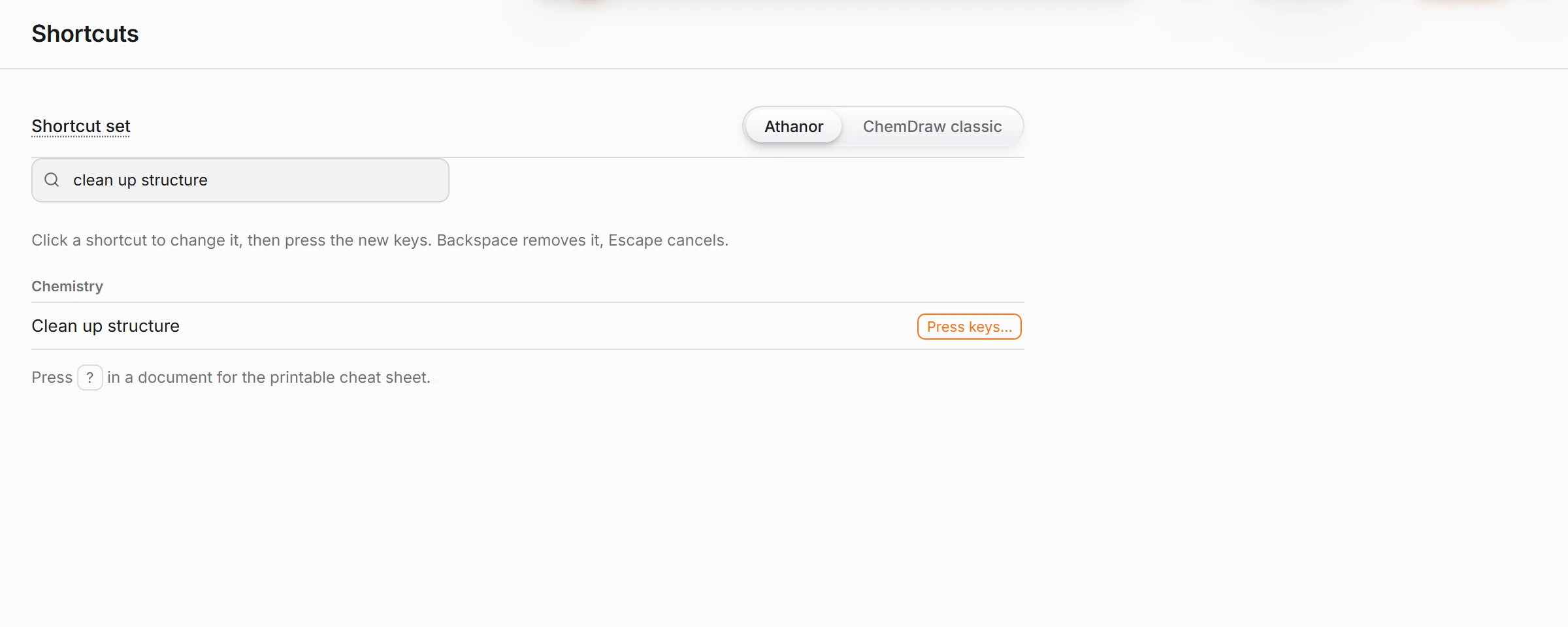
Press the new keys, for example Ctrl+Alt+K. The shortcut is saved at once.
- Backspace removes the shortcut.
- Esc cancels and keeps the old one.
Any command can get a shortcut, including one that has none yet: search for it by name and click the empty space on its row.
Use ChemDraw's shortcuts
Coming from ChemDraw? Switch Shortcut set at the top of the page from Athanor to ChemDraw classic.
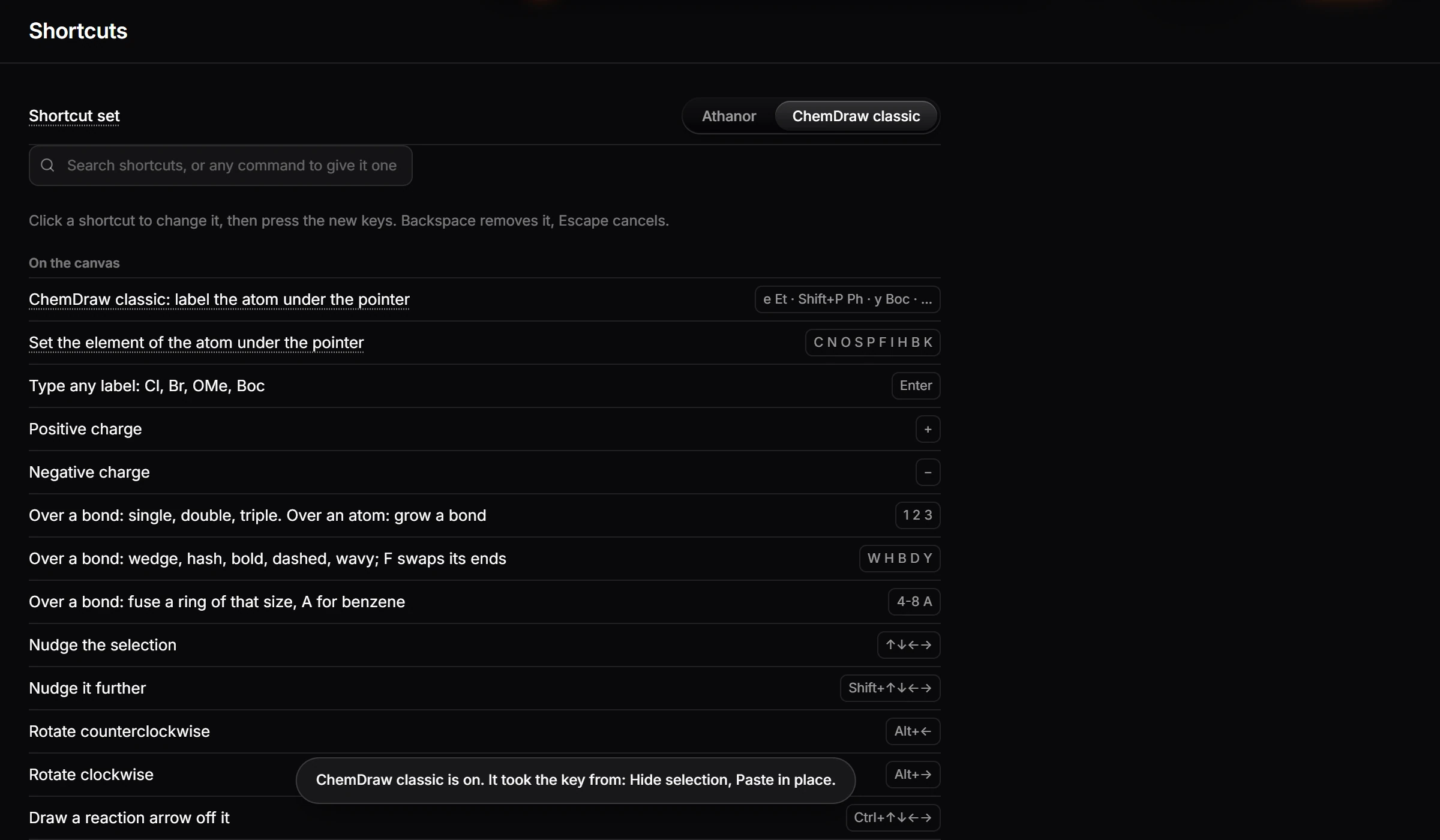
ChemDraw classic adds ChemDraw's atom-label keys. Point at an atom and press a key to label it, as in ChemDraw: for example e for Et, Shift+P for Ph and y for Boc. Where a ChemDraw key was already taken by an Athanor command, the ChemDraw meaning wins, and a message lists the commands that gave up their key (for example "It took the key from: Hide selection, Paste in place."). Those commands keep working from the menus and Search everything.
Switch back to Athanor at any time to return to the default set.
Tip
Your shortcuts are saved with your settings. Signed in, they follow you to every device.
See every shortcut
The full default list is in Keyboard shortcuts. Press ? in a document for the printable Controls cheat sheet.
Is this helpful?
Last updated Nov 12, 2026
- Still stuck? Read the FAQ or contact support.
- Something wrong on this page? Tell us.
- For AI tools: llms.txt