
The Compound info panel
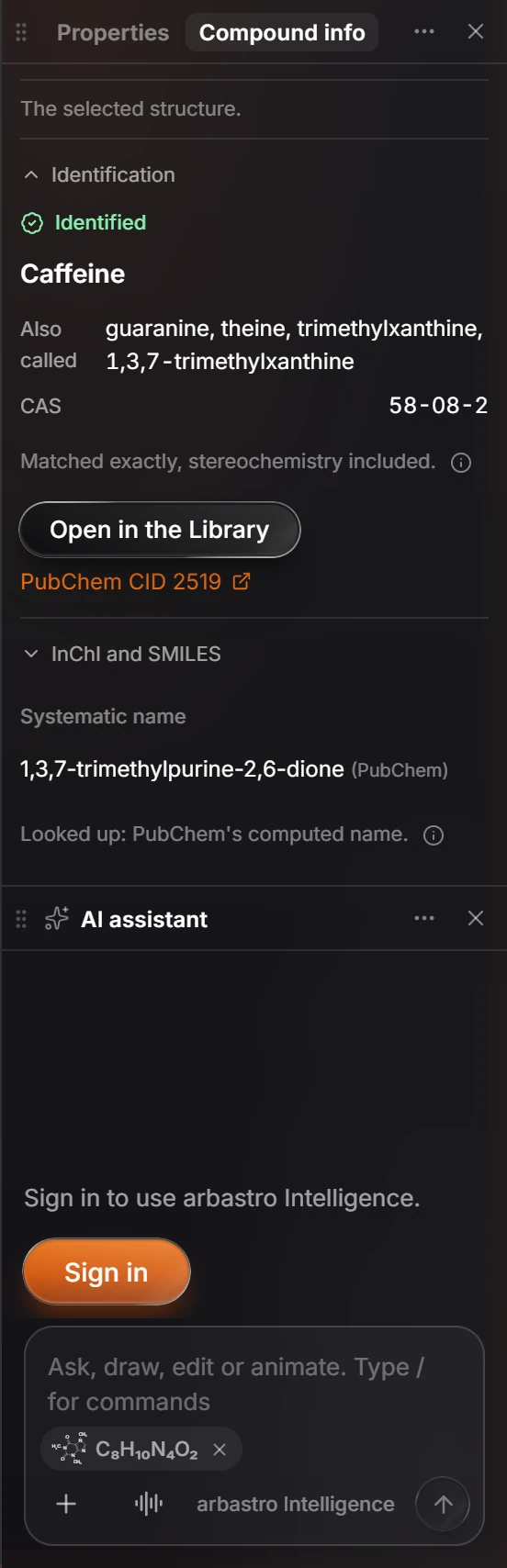
Select a structure and press I (or click the Compound info tab beside Properties). The panel says what the structure is, its other names, CAS number and PubChem record, its systematic name, its InChI and SMILES, and calculated properties.
Open it
Select a structure and press I, or click Compound info, the tab beside Properties. It describes whatever is selected and updates as the selection changes.
Identification
When the structure matches a known compound, the panel says Identified and gives:
- its name, such as Caffeine, and Also called for its other names;
- its CAS number;
- how it matched, for example "Matched exactly, stereochemistry included";
- Open in the Library, for the library entry, and a link to its PubChem record.
InChI and SMILES
The Systematic name (looked up from PubChem's computed name, and labeled so), the InChI and the SMILES of the structure. Look up other names sends the structure to the arbastro server to search ChEBI and Wikidata; nothing is kept.
Calculated
The formula, exact mass and other values calculated from the structure itself. Object › Chemistry › Calculate properties opens the panel at this part. See How to calculate molecular weight, logP and other properties.
Note
Values Athanor looks up are labeled with their source (PubChem, ChEBI, Wikidata); values it calculates or predicts are labeled as such.
Is this helpful?
Last updated Nov 12, 2026
- Still stuck? Read the FAQ or contact support.
- Something wrong on this page? Tell us.
- For AI tools: llms.txt