
An export looks wrong
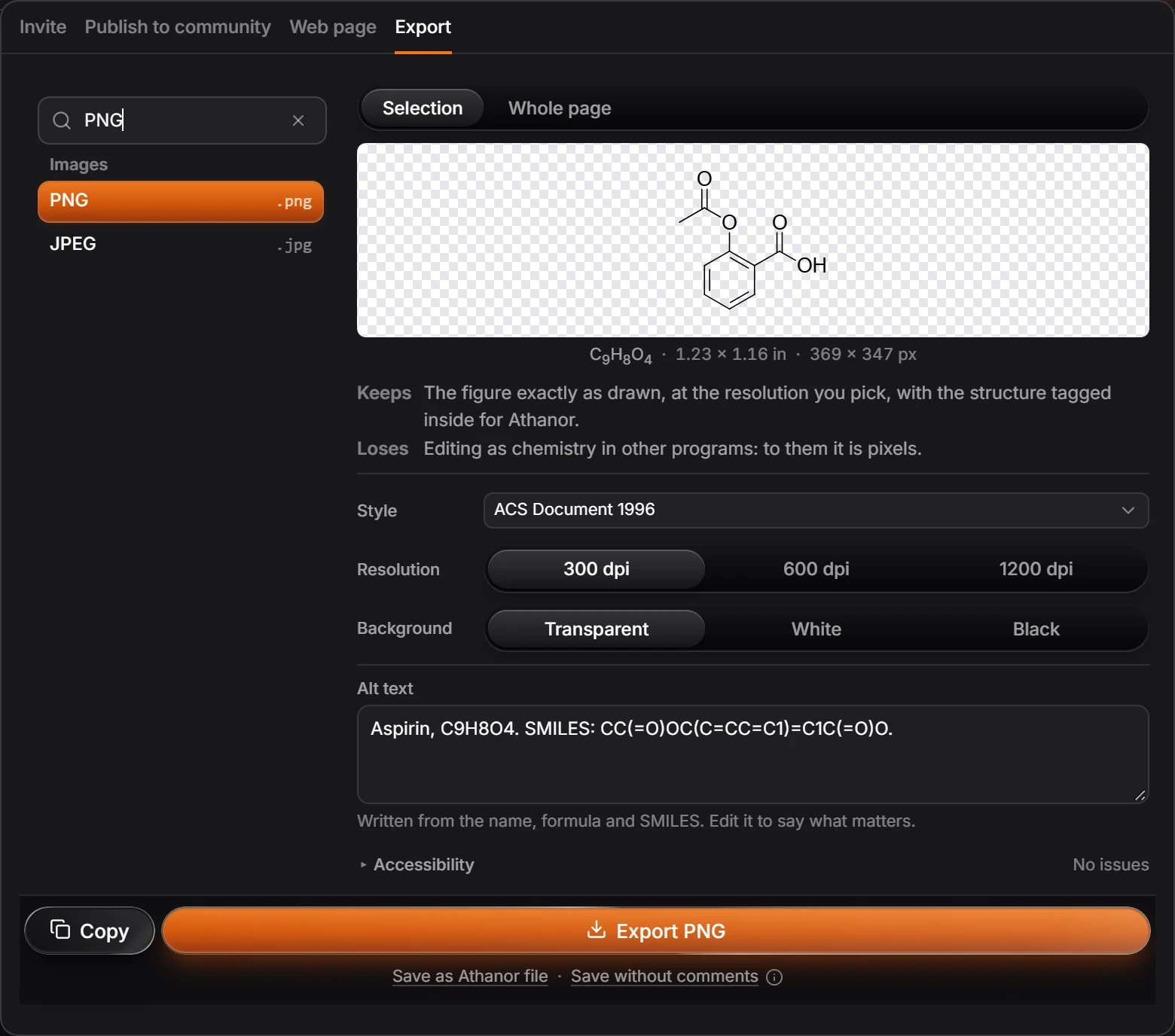
In Export, raise Resolution for a sharper PNG, set Background to White if a transparent picture looks wrong, pick the journal Style, and switch between Selection and Whole page if parts are cropped or missing. For print, use PDF or SVG, which stay sharp at any size.
Every fix is in the Export panel (Ctrl+Shift+E). The preview at the top shows the result before you save.
It is blurry
- A PNG or JPEG: set Resolution higher: 300 dpi for screens and most documents, 600 dpi or 1200 dpi for print. The preview shows the size in pixels.
- For print or a journal: use PDF or SVG. They are vector, so they stay sharp at any size.
The background is wrong
Background is Transparent by default. A transparent PNG can look black, or show the wrong color, in a program that does not handle transparency. Choose White, or Black for a dark slide.
Lines, fonts or sizes are not what the journal wants
Pick the journal under Style, for example ACS Document 1996. It sets bond length, line width and font. See journal presets.
Parts are cropped or missing
Selection exports only what is selected. Choose Whole page for everything on the page.
It pastes as a picture, not chemistry
Pictures (PNG, JPEG) and illustration formats are just pictures to other programs. To send chemistry, export MOL, CDXML or SDF, or keep the .athanor file. A PNG from Athanor carries the structure inside it for Athanor itself, so pasting it back into Athanor gives the chemistry again.
Still wrong? Report the problem with the exported file.
Is this helpful?
Last updated Nov 12, 2026
- Still stuck? Read the FAQ or contact support.
- Something wrong on this page? Tell us.
- For AI tools: llms.txt