
How to use document colors
Choose Edit › Document colors… and Add a color. Each has a print and a projector value; switch Showing between Print and Projector, or use View › Switch print and projector colors.
Steps
Choose Main menu › Edit › Document colors….
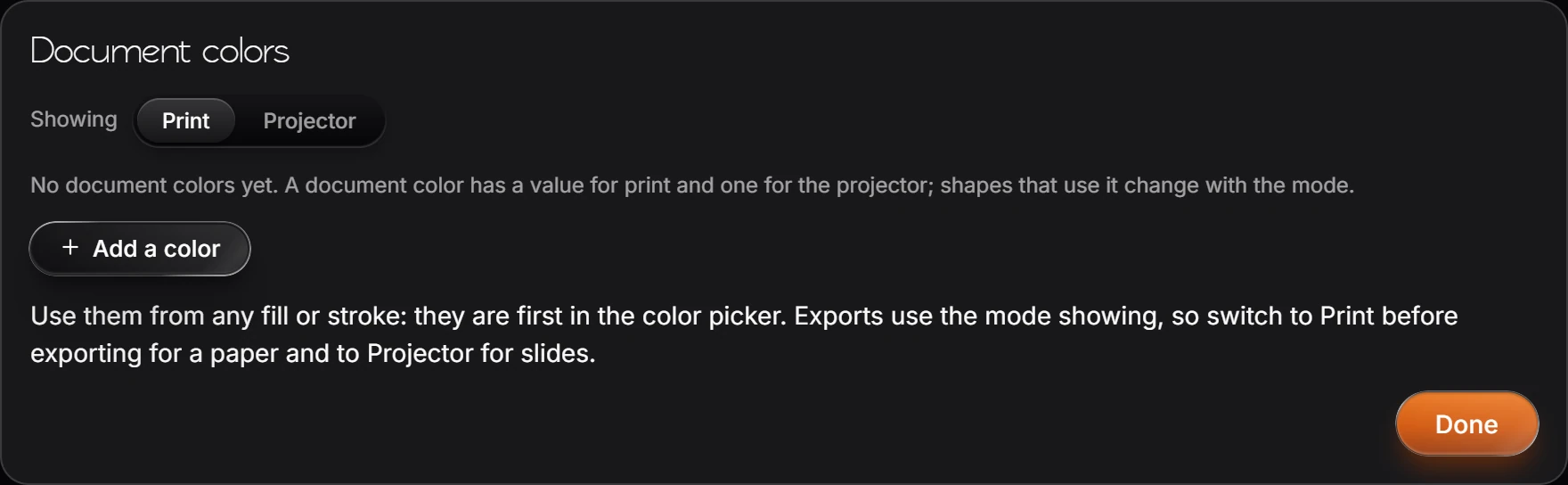
Press Add a color and set its print and projector values.
Use it from any fill or stroke: document colors are first in the color picker.
Showing switches the document between Print and Projector. Main menu › View › Switch print and projector colors does the same.
Tip
Exports use the mode showing. Switch to Print before exporting for a paper, and to Projector for slides.
Is this helpful?
Last updated Nov 12, 2026
- Still stuck? Read the FAQ or contact support.
- Something wrong on this page? Tell us.
- For AI tools: llms.txt