
How to use version history
Press Shift+H or choose File › Version history. It lists the steps of this session with Undo and Redo, and the automatic versions. Approve this version records a sign-off; named versions need you signed in.
Steps
Press Shift+H, or choose Main menu › File › Version history.
The panel lists every step of this session, newest at the bottom, with a thumbnail of the page. Undo and Redo step through them.
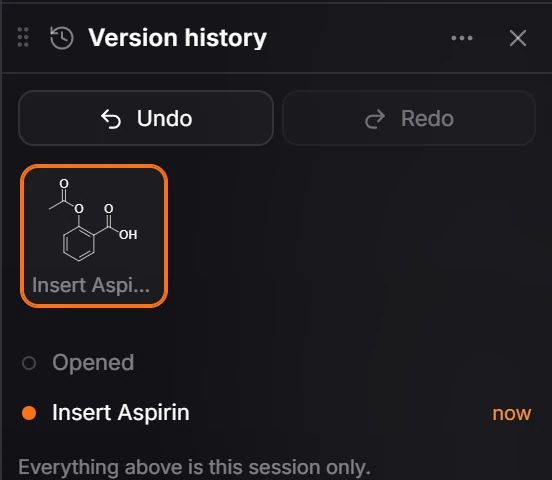
Further down are the Automatic versions of the page, with their times.
Everything in the step list is this session only.
Sign-off
Approve this version records who signed off on the page as it is now. It is a record kept in the file with a fingerprint of the page, not a cryptographic signature: it proves what was approved, but anyone who can edit the file can remove it.
Needs an account
Named versions live with your arbastro account, so they need you signed in.
Is this helpful?
Last updated Nov 12, 2026
- Still stuck? Read the FAQ or contact support.
- Something wrong on this page? Tell us.
- For AI tools: llms.txt